
The most important point to avoid regrets when choosing a gaming monitor is to have the knowledge to identify the product that suits you best.
In this article, I, Mr. Gadget, will thoroughly explain everything from basic knowledge about gaming monitors to professional specs like refresh rate and response time, as well as the concrete steps to select the optimal unit for the game genres you play and your budget.
 Ms.gadget
There are so many types and specs for gaming monitors that I have no idea which one to choose…
 MisterGadget
If you read this article, you are sure to find the perfect gaming monitor for you!
Author: "Mr. Gadget"
- Studied under Masatoshi Ono, a million-selling singer who has appeared on Kohaku Uta Gassen
- Experience in supervising for Ameba Choice and the web media Picky's
- Individual member of the Word-of-Mouth Marketing Association
Nice to meet you!

What you will learn in this article!
What is a gaming monitor?
As the “first step to choosing a gaming monitor without regrets,” I will introduce the basic mindset and an “overview of the main criteria for selecting a gaming monitor.”
Acquiring this knowledge will help you find the best unit for your needs.
Fundamental differences from standard monitors
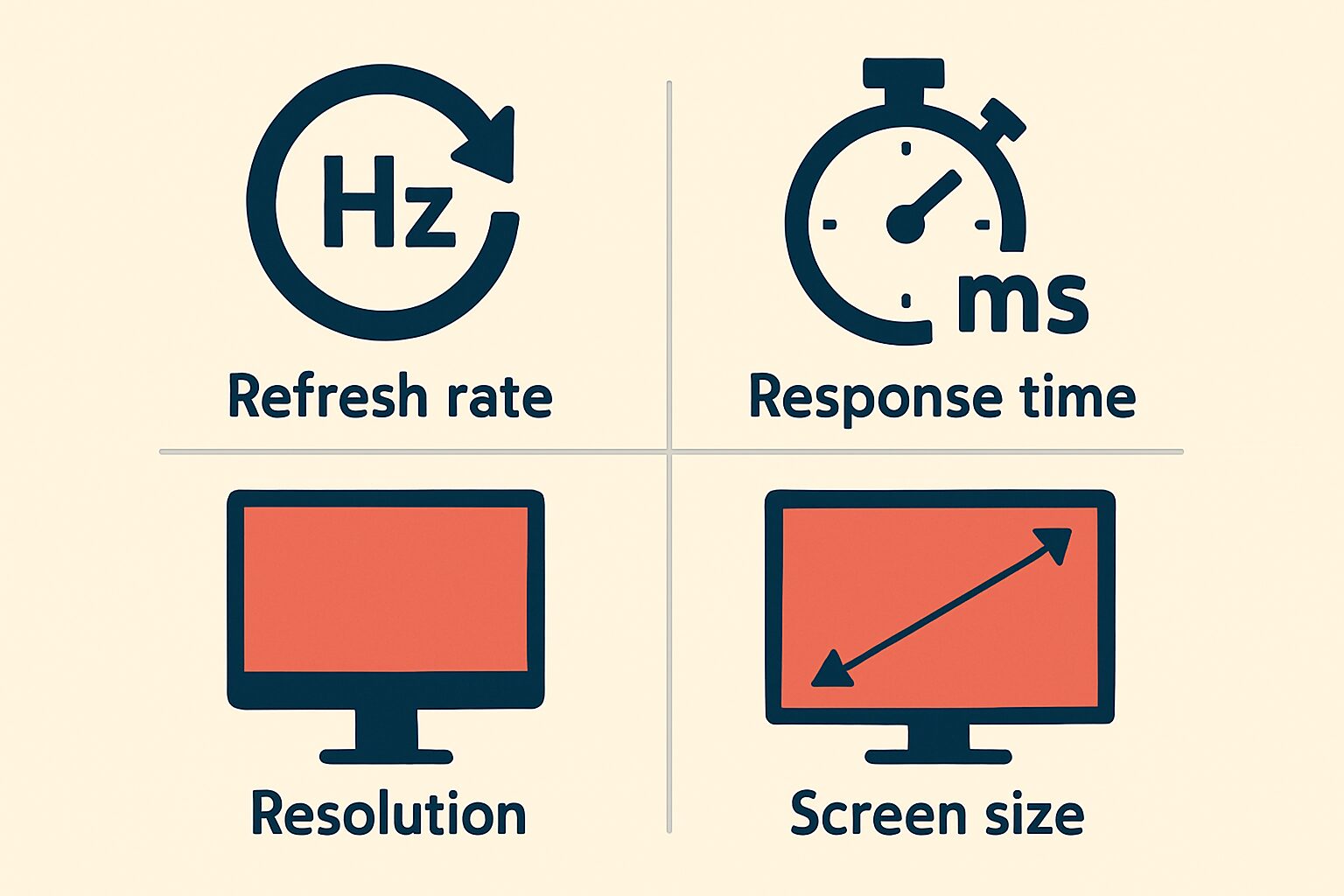
While the refresh rate of standard monitors intended for office work or web browsing is around 60Hz, 120Hz, 144Hz, and even 240Hz or higher models are common for gaming monitors.
Regarding response time, while a standard monitor is around 5ms (milliseconds), it is not rare for gaming monitors to be 1ms or even faster.
Ms.gadgetCan’t you play games on a regular monitor?
MisterGadgetOf course you can, but with a gaming monitor, you can expect a more comfortable and advantageous experience!
This difference in performance is directly linked to the smoothness of the video, visibility of enemies, and the speed at which your operations are reflected, which can affect your advantage in play, especially in fast-paced shooting or fighting games.
The role of a gaming monitor in transforming gameplay
The role of a gaming monitor is not just to display beautiful images.
It is to maximize the player’s performance and provide a deep sense of immersion in the game.
A high refresh rate increases the number of frames displayed per second, making it possible to perceive character movements and fine changes in the background more smoothly and clearly.
Additionally, a low response time minimizes the delay until mouse or controller inputs are reflected on the screen, enabling the quick operations exactly as the player intended.
| Feature | Standard Monitor Benchmark | Gaming Monitor Benchmark |
|---|---|---|
| Refresh Rate | 60Hz | 144Hz or higher (Some reach 360Hz or over 500Hz) |
| Response Time | 5ms or more | 1ms (GTG) or less (Some TN panels are even faster) |
| Synchronization Tech | Often not included | Many products include VRR tech like G-SYNC, FreeSync |
| Display Functions | None specifically | Some have game-specific functions like shadow visibility enhancement or crosshair display |
Through the combined effect of these features, players can grasp the situation in the game world more accurately, enabling swifter judgment and action.
How to choose a gaming monitor
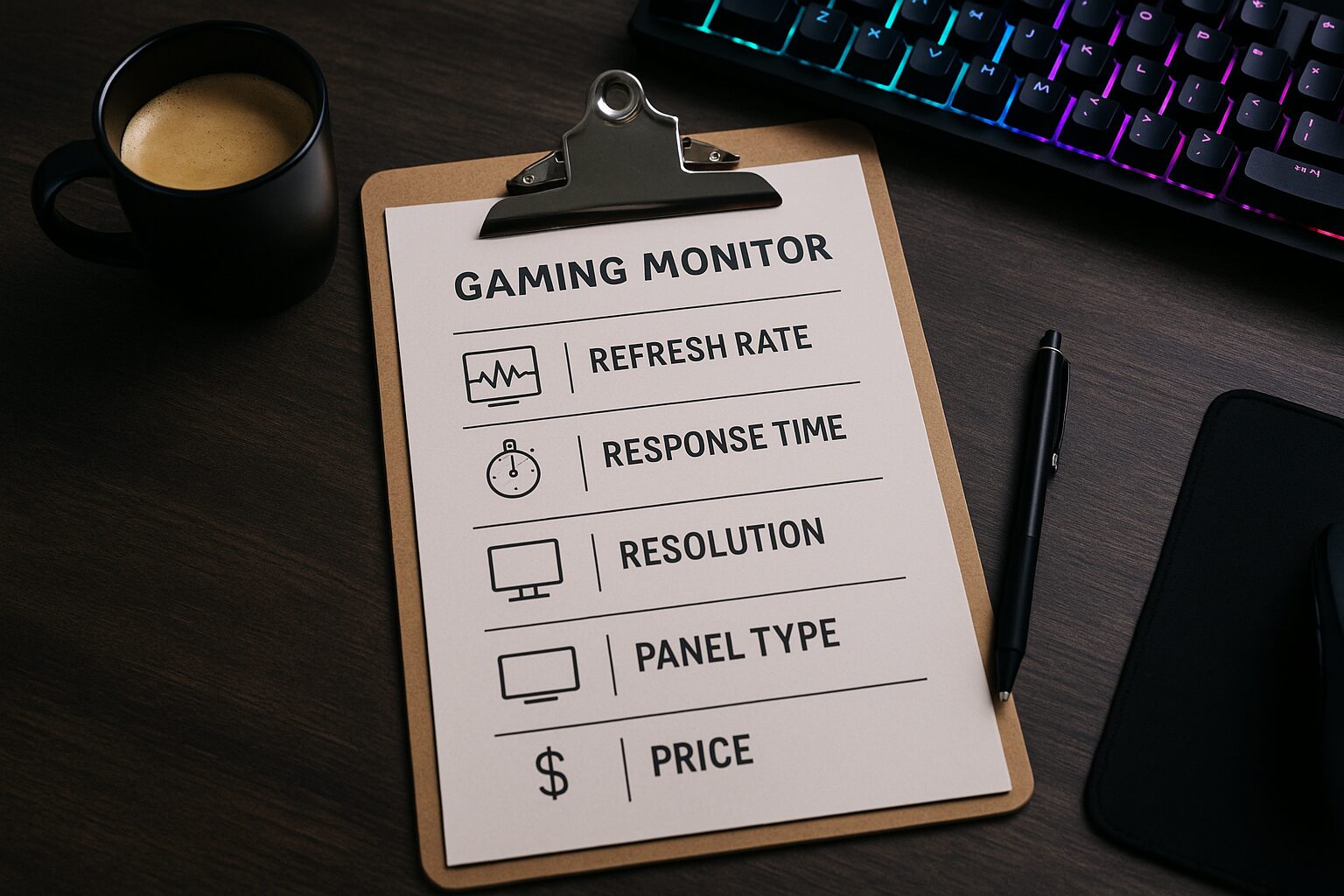
Points in this section!
- Game genre to be played
- Check the performance of connected devices
- Refresh rate: Selection based on desired visual smoothness and compatible device performance
- Response time: Degree of acceptable motion blur and importance in competitive games
- Resolution: Whether or not you seek high image quality
- Panel type: Selection based on prioritized characteristics like image quality, response speed, and viewing angle
- Budget: Selecting a product in an affordable price range that meets required performance
- Screen: Shape and aspect ratio
- Additional features: Game assistance functions like shadow visibility enhancement or crosshair display
- Stand adjustment functions: Confirming height and angle adjustment for a comfortable playing posture
The most important thing in choosing a gaming monitor is identifying the balance between your own play style, environment, and budget.
In this section, I will explain 9 checkpoints to avoid regrets, from the game genre you play to stand adjustment functions.
By checking these points one by one, you will find the perfect one for you.
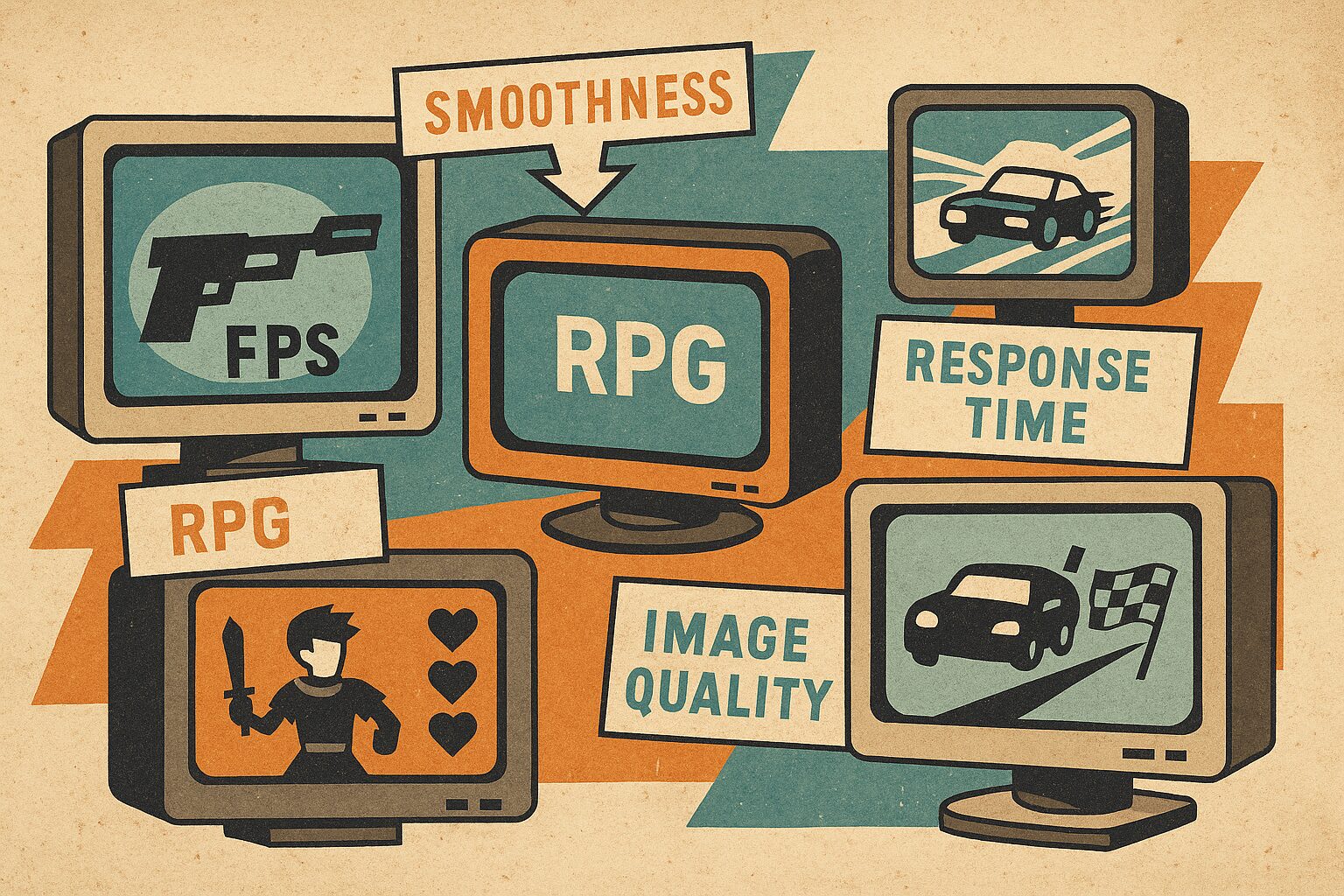
Game genre to be played
 Ms.gadget
I’m not sure which specs I should prioritize…
MisterGadgetFirst, think about what is important for the game genre you play most often.
Clarifying which elements you value most is the first step in choosing a monitor.
Check the performance of connected devices
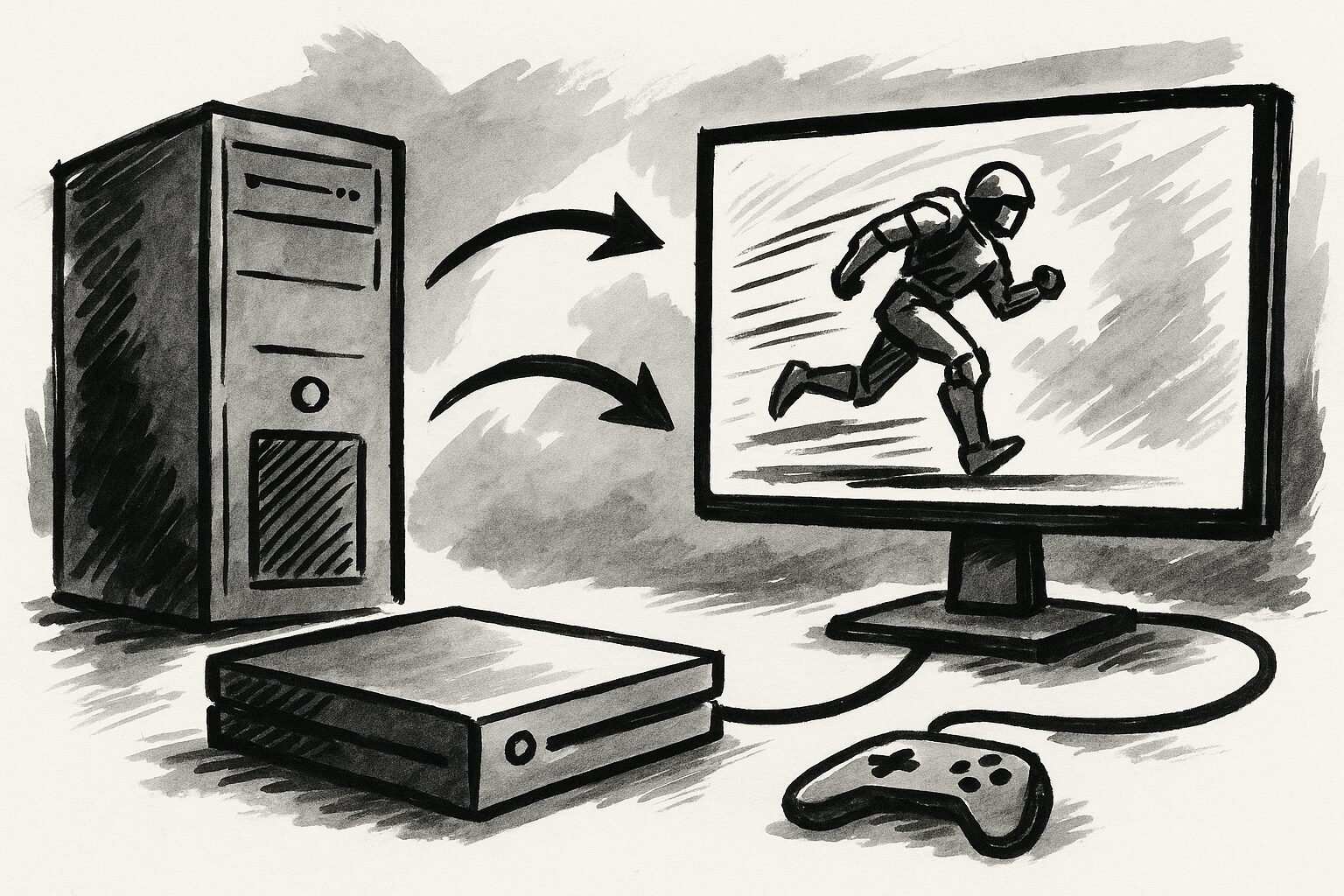
For example, unless you have a PC equipped with a high-performance graphics board, maintaining a high refresh rate at 4K resolution is difficult. While the PlayStation 5 supports up to 4K/120Hz output, not every monitor can bring out that performance.
| Connected Device Example | Main Output Performance Benchmark | Considerations when selecting a monitor |
|---|---|---|
| High-end PC | 4K/144Hz+, WQHD/240Hz+ in view | Specs to maximize GPU performance |
| Mid-range PC | Full HD/144-240Hz, WQHD/120-165Hz range | Balanced specs, consider GPU load |
| PlayStation 5 | Max 4K/120Hz (Requires HDMI 2.1 compatible software/monitor) | HDMI 2.1 support, VRR support |
| Xbox Series X/S | Max 4K/120Hz (Requires HDMI 2.1 compatible software/monitor) | HDMI 2.1 support, FreeSync support |
| Nintendo Switch | Max Full HD/60Hz (TV mode) | Full HD/60Hz or higher is sufficient, consider response time |
Even if the monitor is high-performance, if the performance of the connected device cannot keep up, it will be a waste, so consider the balance.
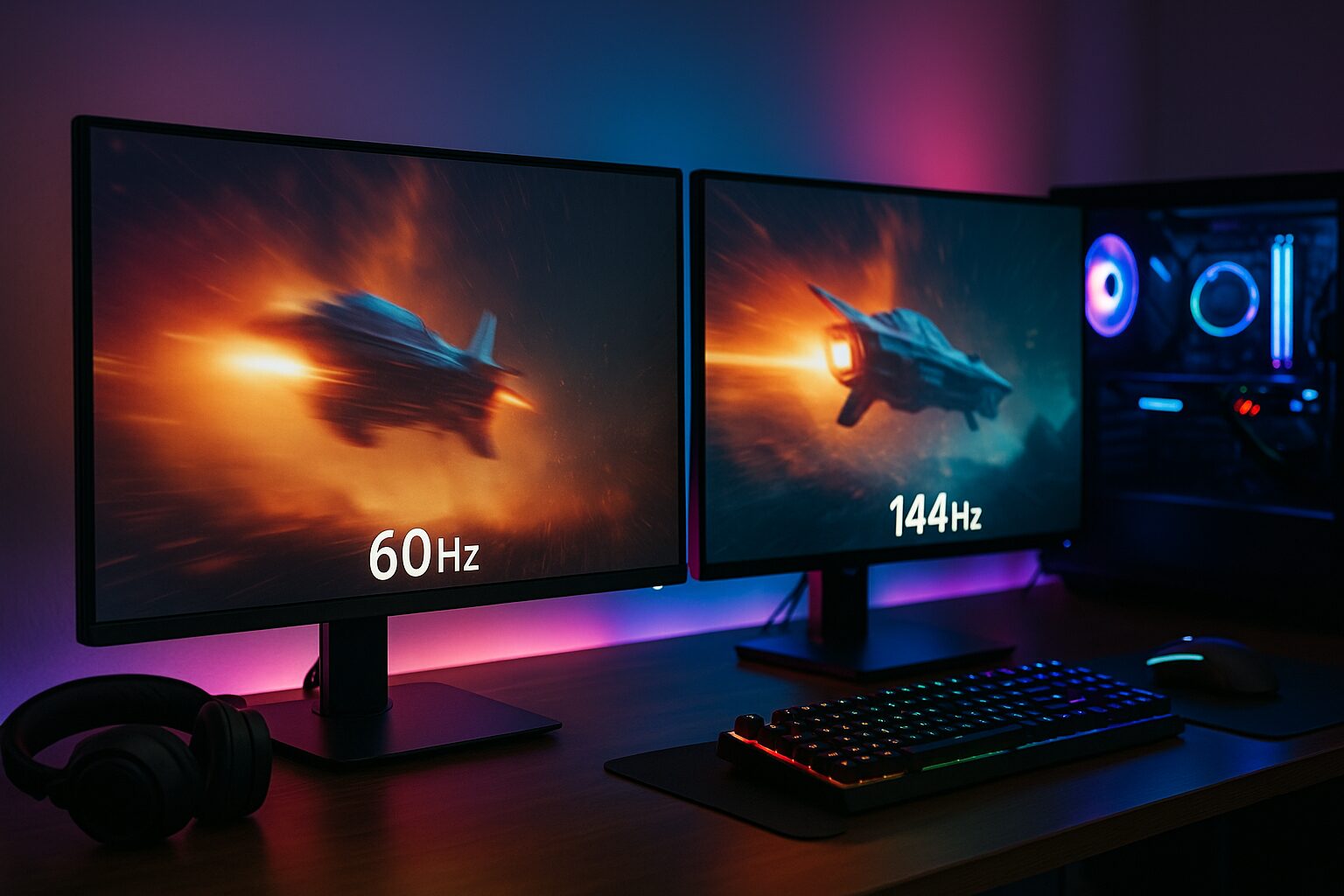
Refresh rate: Selection based on desired visual smoothness and compatible device performance
 Ms.gadget
What are the benefits of a high refresh rate?
MisterGadgetThe video becomes smooth and fluid, making it easier to track enemy movements, which leads to comfort and an advantage in gameplay.
However, since high refresh rates require high PC graphics performance, choose a good one within the range that your environment can stably output.
Response time: Degree of acceptable motion blur and importance in competitive games
Typical gaming monitors advertise specs like 1ms (GTG) or 0.5ms (MPRT), and TN panels and OLED panels tend to have excellent response times.
- Around 1ms to 5ms: Recommended for games requiring severe reactions like FPS or fighting games.
- 5ms or more: Sufficient for games with relatively little motion, like RPGs or simulation games.
Especially if you play competitive games where a split-second decision determines victory or defeat, response time is one point you cannot compromise on.
Resolution: Whether or not you seek high image quality
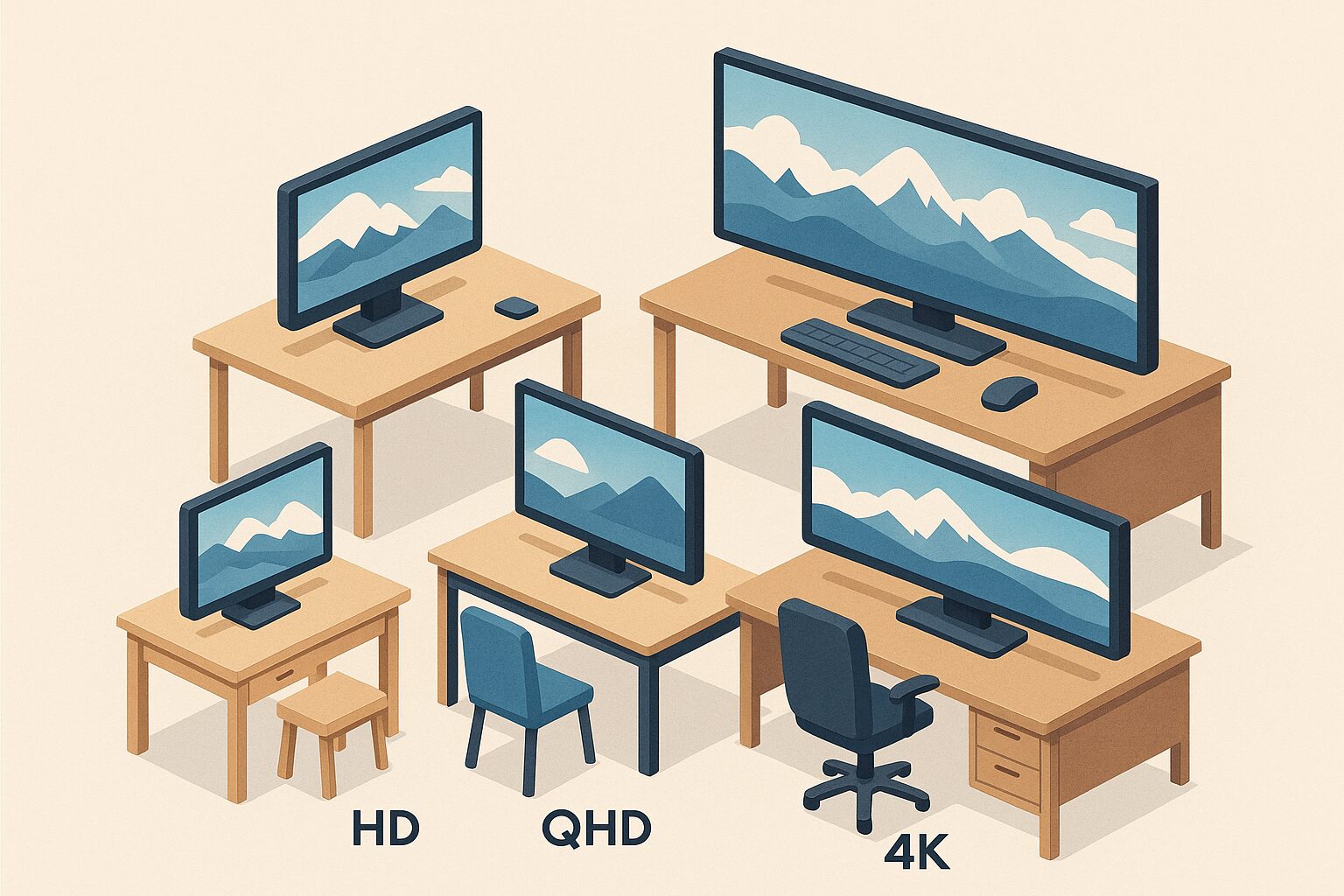
| Resolution | Pros | Cons |
|---|---|---|
| Full HD (1920 x 1080) | ・Standard resolution ・Basically compatible with all games and hardware | ・Pixels are noticeable on large monitors |
| WQHD (2560 x 1440) | ・High image quality between Full HD and 4K | ・Requires some performance from the PC and hardware |
| 4K (3840 x 2160) | ・Ultra-high image quality | ・Requires significant performance from the PC and hardware |
“Screen size” indicates the diagonal length of the monitor screen in inches.
The mainstream is Full HD (1920×1080), and around 24 inches is popular.
The higher-quality WQHD (2560×1440) is for 27 inches, and the even more detailed 4K (3840×2160) shows its true value at 27 inches or larger, but it also increases the load on the PC.
Ms.gadgetHigh resolution on a large screen seems very immersive!
MisterGadgetYes, but the balance with the installation space and PC specs is also important.
Considering the depth of your desk, viewing distance, and PC graphics processing power comprehensively, choose a good combination of resolution and screen size.
Don’t forget to check the supported HDMI version
For example, if you connect a latest game console that supports 120Hz at 4K resolution to an old-standard HDMI cable, the cable performance might be insufficient and it won’t be able to display at 4K/120Hz. To enjoy the HDR (High Dynamic Range) supported by the latest TVs and high-quality 3D sound, choosing a cable that matches the device’s supported features is important.
You can check HDMI versions here
| HDMI Version | FHD | WQHD | 4K | 8K | 10K |
|---|---|---|---|---|---|
| Ultra96 (HDMI 2.2) | |||||
| Ultra High Speed (HDMI 2.1) | |||||
| Premium High Speed (HDMI 2.0) | |||||
| High Speed (HDMI 1.4) | |||||
| High Speed (HDMI 1.3) | |||||
| Standard (HDMI 1.2 or older) |
| HDMI Version | FHD | WQHD | 4K | 8K | 10K |
|---|---|---|---|---|---|
| Ultra96 (HDMI 2.2) | 480Hz | 480Hz | 480Hz | 240Hz | 120Hz |
| Ultra High Speed (HDMI 2.1) | 240Hz | 240Hz | 120Hz | 60Hz (120Hz with DSC compression) | 60Hz (120Hz with DSC compression) |
| Premium High Speed (HDMI 2.0) | 240Hz | 144Hz | 60Hz | ||
| High Speed (HDMI 1.4) | 144Hz | 75Hz | 30Hz | ||
| High Speed (HDMI 1.3) | 144Hz | ||||
| Standard (HDMI 1.2 or older) | 60Hz |
※1 High refresh rates for 8K/10K assume DSC (lossless compression).
※2 1080p240Hz on 2.0 and 1080p144Hz on 1.4/1.3 are possible in terms of bandwidth, but they are not mandatory timings and depend on the device.
※3 Ultra96/HDMI 2.2 (96 Gbps) is a draft standard as of 2025, and specifications may change.
Panel type: Selection based on prioritized characteristics like image quality, response speed, and viewing angle

- IPS panels have a wide viewing angle and excellent color reproduction with good balance, but response speed tends to be inferior to TN.
- VA panels have a high contrast ratio and excel in black expression, but response speed depends on the product.
- TN panels have a very fast response speed and many affordable models, but the viewing angle is narrow and colors tend to shift easily.
- OLED panels have excellent response speed and contrast ratio, but they are expensive and the risk of burn-in needs to be considered.
| Panel | IPS | VA | TN | OLED |
|---|---|---|---|---|
| Response Speed | Standard to Fast | Slightly Slow | Very Fast | Very Fast |
| Color Reproduction / Viewing Angle | Wide angle, vivid | Good | Narrow, color shift | Very Good |
| Contrast Ratio | Sufficiently High | Very High | Slightly Low | Perfect Black |
| Main Features | Balanced / Color Reproduction ◎ | High Contrast / Immersion | Affordable / Response Speed Focused | Top-class Image Quality & Speed |
| Recommended Usage | RPG / Video Editing / General | Movies / Dark environment games | FPS / Competitive games | HDR / High-quality games |
| Price Trend | Moderate | Moderate | Affordable | Expensive |
It is essential to understand the characteristics of each panel and choose according to the points you prioritize most (image quality, response speed, viewing angle, price, etc.).
Budget: Selecting a product in an affordable price range that meets required performance

The price range of gaming monitors is wide; it is not rare for entry-level models to start from the 20,000 yen range, while high-performance high-end models can exceed 100,000 yen.
Ms.gadgetI want a high-performance one, but I’m concerned about the budget…
MisterGadgetFirst, it’s recommended to decide on the specs you can’t compromise on, and then look for a product that fits your budget within those.
Identify the balance between the specs you seek and your budget, and choose a good unit within a reasonable range.
Aiming for sale periods is also one strategy.
Screen: Shape and aspect ratio
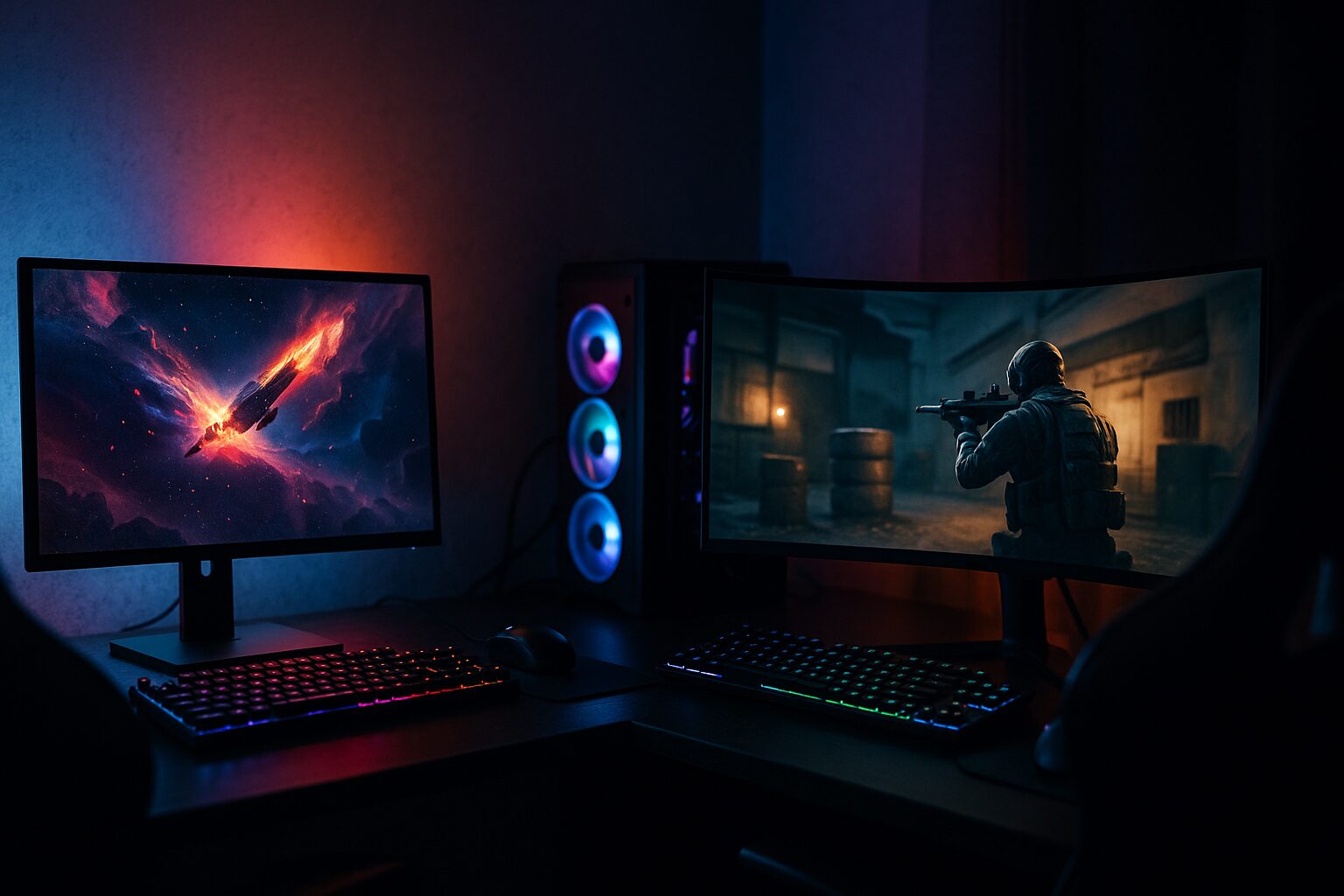
- Screen aspect ratio
- Presence of curvature
When choosing the screen shape of a gaming monitor, please pay particular attention to the aspect ratio and the presence of curvature.
The basic aspect ratio of 16:9 and the ultra-wide 21:9 are common for gaming monitors.
For those who want to enjoy powerful graphics or play racing games that require a wide field of view, I think you should try ultra-wide.
 MisterGadget
I use ultra-wide for multitasking with office work, but whether that works to my advantage when gaming is a different matter.
| Aspect Ratio | Details |
|---|---|
| 16:9 | Same aspect ratio as standard monitors. Basically compatible with all games. |
| 21:9 (Ultra-wide) | You can enjoy powerful video, suitable for RPGs and simulation games. However, some games may not support it. |
Also, flat panels are common and have a wide range of sizes.
On the other hand, curved panels have both edges of the screen curved towards the viewer; they are often used for large screens of 27 inches or more and 21:9 ultra-wide monitors, resulting in less eye movement and an immersive feeling of being wrapped around.
- Pros of flat panels
- Suitable for linear design work
- Harder to be picky about installation location
- Many relatively affordable models
- Pros of curved panels
- High immersion
- Less eye movement even on large screens
- Less change in focal distance for the eyes, said to be less tiring
If you value immersion like in racing games or RPGs, curved; if you also use it for FPS or work, flat—it’s good to consider according to your play style and usage.
 MisterGadget
However, curved monitors are easy to get motion sick with, and the price goes up.
I use a curved monitor, but I got pretty motion sick at first.
You get used to it, though!
Additional features: Game assistance functions like shadow visibility enhancement or crosshair display
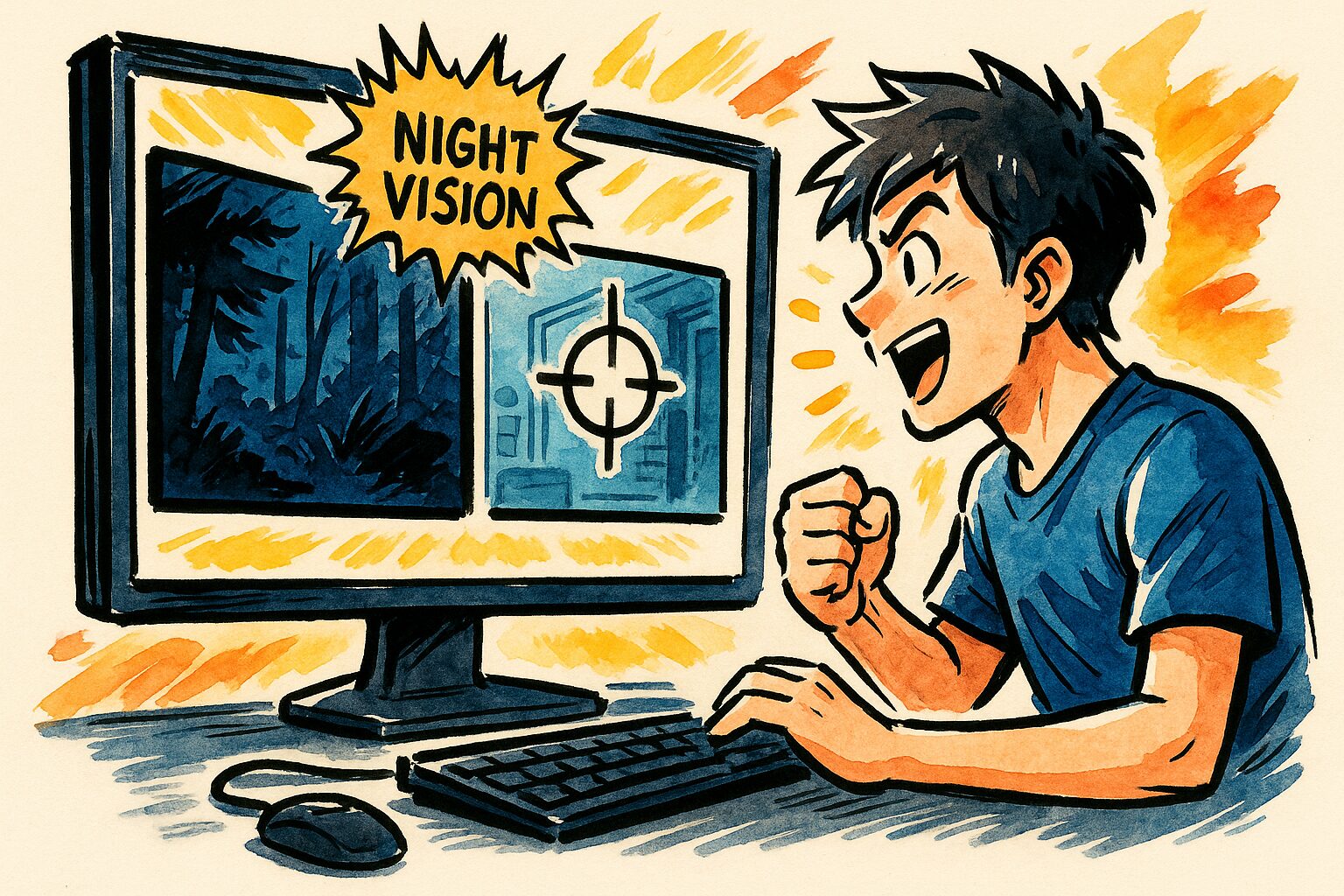
“Additional features” refers to special functions to make game play more comfortable or advantageous, in addition to basic display performance.
Representative ones include “Black Equalizer” (shadow correction) to brighten dark areas in games to make it easier to discover enemies, a function to display a crosshair in the center of the screen, and a function to adjust color vibrancy to increase visibility.
These functions are especially effective for competitive shooting games like FPS/TPS.
They are not essential for all players, but they are attractive options for those who play specific genres often or want to stand at an advantage even a little.
Stand adjustment functions: Confirming height and angle adjustment for a comfortable playing posture
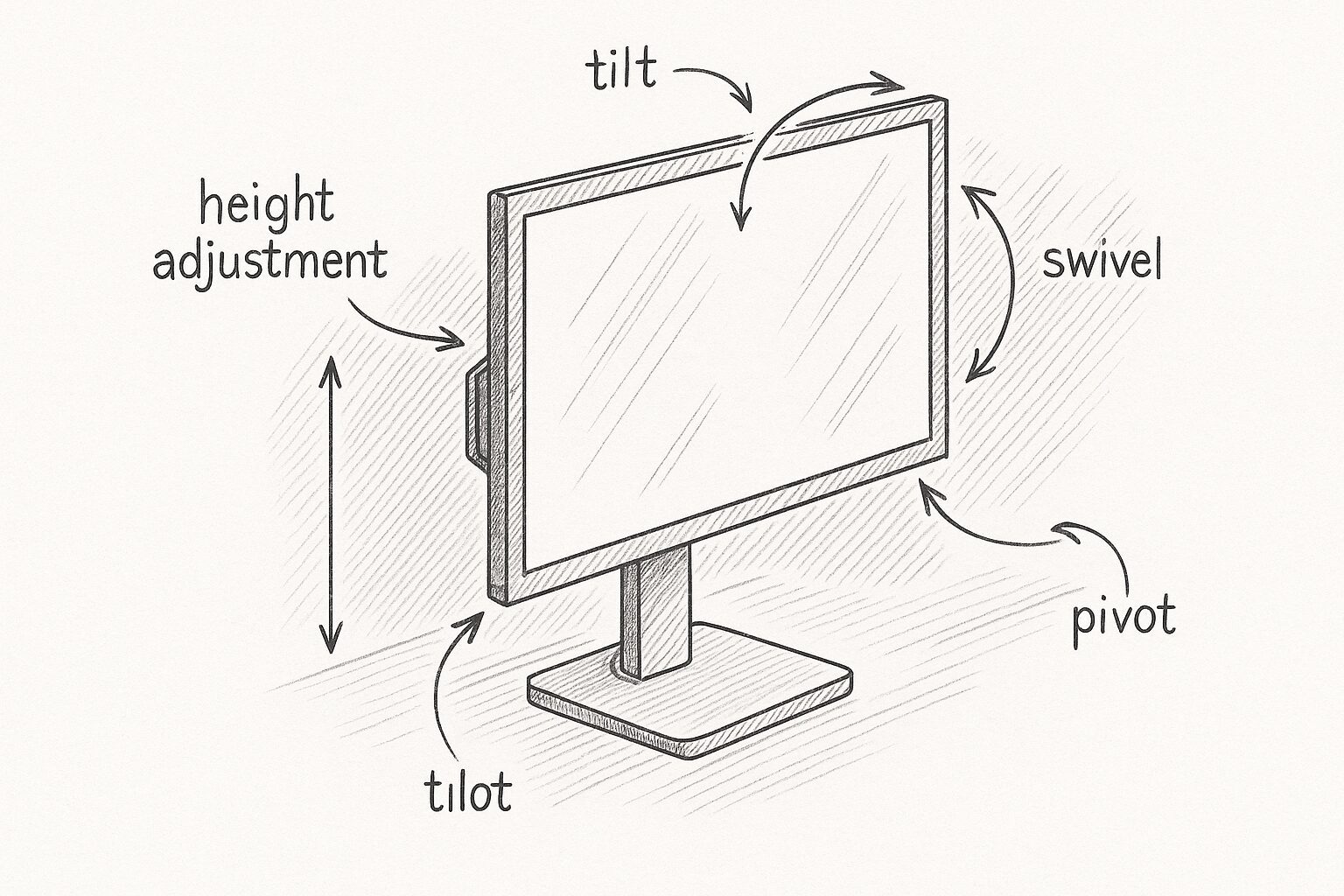
“Stand adjustment functions” refers to adjustment mechanisms held by the stand supporting the monitor, such as screen height, vertical angle (tilt), horizontal rotation (swivel), and vertical rotation (pivot).
For long-time play, the height adjustment (lift) function to match the screen to your eye level, and the tilt function to incline it to an easy-to-see angle are especially important.
This allows you to play in a comfortable posture and reduce the burden on your neck and shoulders.
At the very least, I want to choose a model that allows tilt adjustment, and preferably height adjustment.
MisterGadgetI feel that the level of detail in the stand is clearly divided by the product price.
Terminology and specifications to keep in mind
Points in this section!
To further delve into choosing a gaming monitor, I will explain convenient terminology and specifications that are useful to know.
By understanding the meanings of words like VESA mount, Flicker-Free, and color gamut, it will become easier to find the one that suits you best.
This knowledge is an important point for using a monitor more comfortably and for a long time.
What is a VESA mount?
If it complies with this standard, you can use compatible products together, even if the monitor and mounting tool manufacturers are different.
General standards include 75mm x 75mm and 100mm x 100mm, and the supported standard differs depending on the monitor size and weight.
| VESA Standard | General Screw Interval | Main Supported Monitor Size Benchmark |
|---|---|---|
| VESA MIS-D | 75x75mm, 100x100mm | ~23 inches |
| VESA MIS-E | 200x100mm | 23-30 inches |
| VESA MIS-F | 200x200mm or more | 31 inches or more |
※The above is just a benchmark.
Please check the product specifications for actual support.
Ms.gadgetIf I want to use a monitor arm, which VESA standard should I choose?
MisterGadgetCheck the supported VESA standard in the specification sheet of your current monitor or the monitor you plan to purchase, and choose a monitor arm that matches it.
By using a monitor arm, you can effectively utilize desk space or finely adjust the screen position to build a more comfortable viewing environment.
What is Flicker-Free?
Conventional monitors adjusted backlight brightness by blinking (flickering) at high speed, which could be a cause of eye strain and headaches.
Flicker-Free technology reduces this flickering to a level imperceptible to humans, which is expected to have the effect of reducing eye strain during long gaming sessions or work.
Ms.gadgetDoes having a Flicker-Free function really reduce eye strain?
MisterGadgetYes, by eliminating the invisible flickering of the backlight, it is said that you are less likely to feel eye fatigue even with long-term use.
For gamers who concentrate and keep looking at the screen, Flicker-Free can be said to be one of the important functions for considering eye health.
What is Blue Light Cut?
Blue light has strong energy and is said to have properties that easily reach the retina at the back of the eye, so long-term exposure is said to be related to eye strain and reduced sleep quality.
When this function is enabled, the screen color tends to look yellowish or shift toward warm colors, but it is useful when you want to soften the stimulation to your eyes, such as when using it before going to sleep.
Ms.gadgetDoes the Blue Light Cut function affect image quality?
MisterGadgetYes, depending on the degree of blue light cut, the screen’s color temperature changes, and it tends to look yellowish as the blue is suppressed.
There are cases where it is unsuitable for work requiring color accuracy, but it is a function worth considering if you want to prioritize reducing the burden on your eyes.
Color gamuts like sRGB and DCI-P3
The wider this color gamut, the more colors can be expressed, enabling rich and deep color display.
For example, an sRGB 100% coverage monitor can express all colors defined in sRGB, and a monitor with high DCI-P3 coverage can enjoy vivid video in HDR content.
Ms.gadgetHow important is color gamut for gaming?
MisterGadgetIf you want to fully enjoy games with beautiful graphics, it’s good to consider high sRGB coverage, and if possible, DCI-P3 coverage too.
Especially if you also value games with beautiful graphics or watching video content, the width of the color gamut is an important point in choosing a monitor.
What is contrast ratio?
The higher this number, the more white is expressed as white and black as black, resulting in video with clear contrast.
For example, if the contrast ratio is “1000:1,” it means the brightest white is 1000 times brighter than the darkest black.
VA panels generally tend to have a higher contrast ratio.
Ms.gadgetWhat are the benefits of a high contrast ratio for gaming?
MisterGadgetYou can expect effects such as improved visibility of enemies and objects in dark scenes, or increased depth and three-dimensionality of the video as a whole.
For those who want to enjoy immersive video like a movie, or those who play games with many dark scenes, a high contrast ratio can be said to be an attractive spec.
What is brightness?
The higher this number, the more brightly the monitor screen can be displayed.
For standard monitors for office work, 250cd/m² to 300cd/m² is standard, but when used in a bright room during the day or to display HDR (High Dynamic Range) content clearly, higher brightness (e.g., 400cd/m² or more) may be required.
Ms.gadgetHow much brightness is needed when gaming in a bright room?
MisterGadgetIt depends on the installation environment, but in a bright room, having a brightness of 300cd/m² or more will make the screen easier to see.
It is important to choose a monitor with appropriate brightness by considering the brightness of the room where it will be used and whether you want to enjoy HDR content.
What is input lag?
If this lag is large, the screen’s reaction to operations feels sluggish, and especially in severe games where a split-second decision determines victory or defeat, it can become a disadvantage.
Many gaming monitors are designed to minimize this input lag.
Ms.gadgetHow is input lag different from response time?
MisterGadgetResponse time is the speed at which the LCD panel itself switches colors, while input lag is the comprehensive delay time from operation to display, including video signal processing.
For users who play competitive games or rhythm games where timing is important, low input lag is a very important selection criterion.
What is HDMI VRR?
When you connect a game console that supports this function (e.g., PlayStation 5 or Xbox Series X, etc.) to a monitor, the monitor’s refresh rate (number of screen updates per second) can be synchronized in real-time with the fluctuations in the game’s frame rate (number of frames drawn per second).
This suppresses screen flickering (tearing) and stuttering, achieving smoother and more comfortable video display.
Ms.gadgetWhat is needed to use HDMI VRR?
MisterGadgetYou need a game console or graphics card that supports HDMI VRR, an HDMI VRR-compatible monitor, and an HDMI 2.1-compatible cable.
If you want to unleash the best rendering performance with the latest console game machines, HDMI VRR support is a feature to keep an eye on.
What is ALLM (Auto Low Latency Mode)?
Usually, high-image-quality processing, etc., can cause delay in video display, but if it supports ALLM, it automatically transitions to the optimal low-latency state for game play without the trouble of the user manually changing settings.
This function is also specified in HDMI 2.1.
Ms.gadgetWhat are the benefits of supporting ALLM?
MisterGadgetSince the monitor automatically enters low-latency settings when you start a game, you save the trouble of cumbersome setting changes and can start playing in a comfortable environment immediately.
For users who want to enjoy games in the optimal environment easily, ALLM can be said to be a very convenient function.
What is GTG (Grey to Grey)?
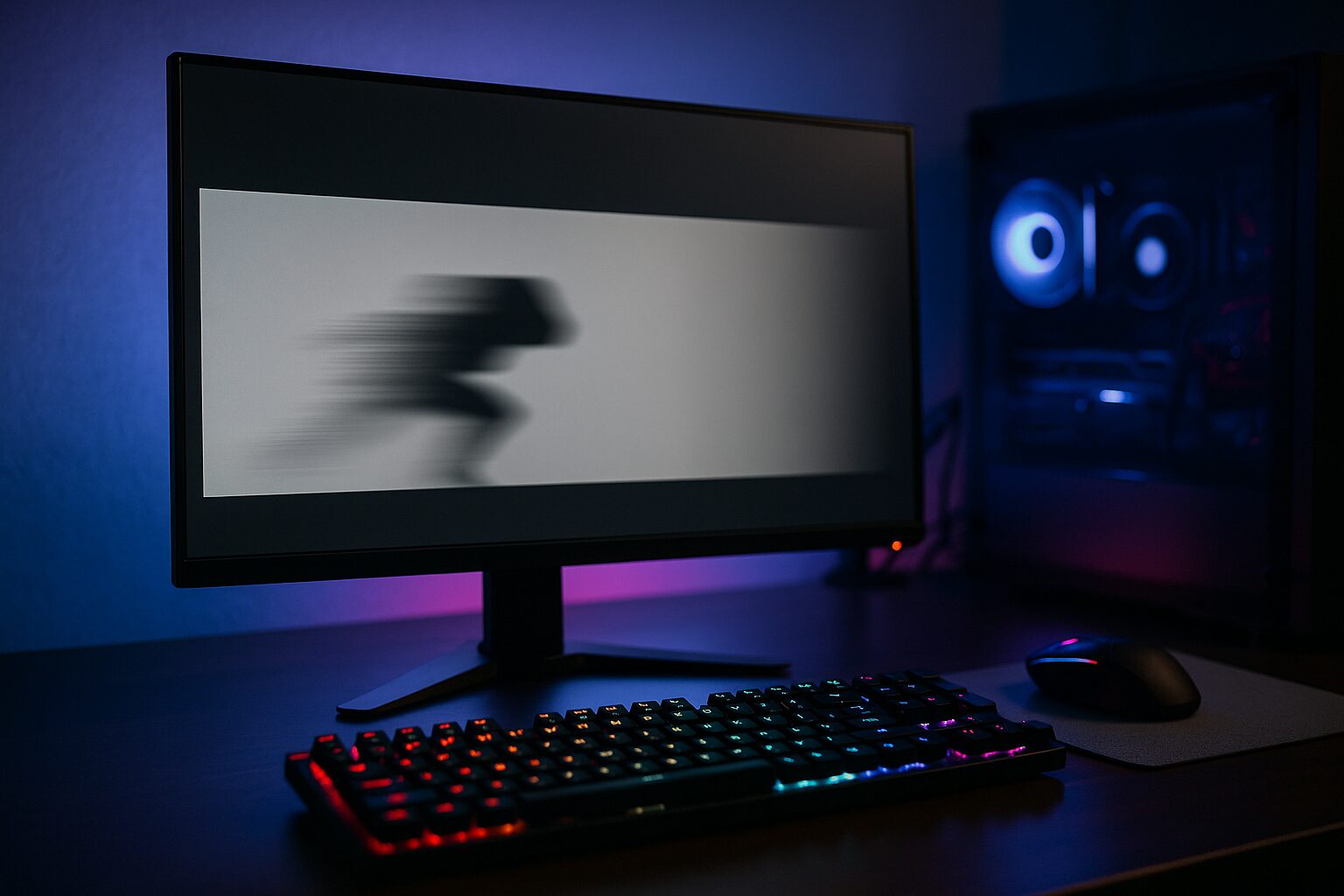
Many monitor manufacturers adopt this GTG value as the response speed spec, and it is indicated as response speed 1ms (GTG).
GTG is considered one of the measurement methods that easily produce numerical values close to the motion blur actually experienced by users, but the measurement standards may differ depending on the manufacturer.
When comparing products, it is good to focus on the response speed numerical value indicated by this GTG.
What is MPRT (Moving Picture Response Time)?
MPRT is a numerical value of visual motion blur when combined with black frame insertion technology (a technology that reduces motion blur by sandwiching a black frame between frames of the screen).
Summary
In this article, I explained in detail the knowledge to find the perfect unit for you to avoid regrets when choosing a gaming monitor.
The following 3 points are especially important when choosing a gaming monitor.
- Understand the meaning of basic specs like refresh rate and response speed well.
- Identify what specs are needed according to the types of games you mainly play and the performance of your PC/game console.
- Choose the most balanced unit within your set budget.
Based on the points explained in this article, please find the optimal gaming monitor for you and get the best game experience.
Thank you for reading until the end!
- Product prices, information, etc., are information as of the time the article was written.
- Please note that this site cannot be held responsible even if this information is incorrect.
- Product/service names mentioned on this site are trademarks of their respective companies.
This article was originally written in Japanese and has been translated.
Comments