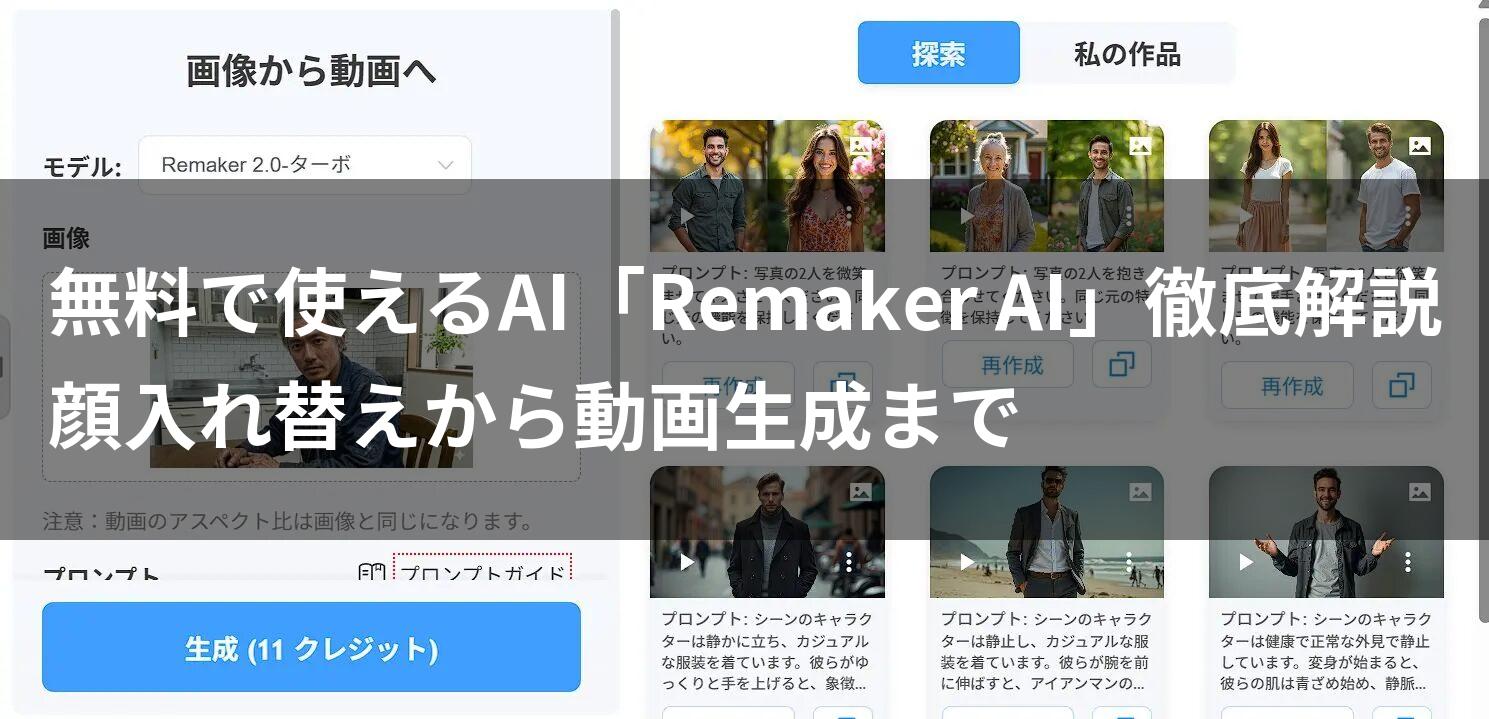
What you will learn in this article!
- How much can you do for free? Details on all Remaker AI features and credit consumption
- Mistake-free “Face Swap”: Specific steps for batch processing and video face swapping
- Professional-grade Video Generation: Prompt engineering techniques to create the visuals you want
- Background Removal, Upscaling, and Editing: A deep dive into useful, practical features
 Ms.gadget
How do people make those “photos with someone else’s face” or “videos where still images move” that are trending on social media? Do I need expensive software…?
 Mr.gadget
Actually, you can make them surprisingly easily using “Remaker AI,” which runs entirely in your browser. Plus, many features can be tried for free. In this article, I’ll thoroughly explain the full scope of this amazing tool in a way that’s easy for beginners to understand.
Many creators and general users want to perform advanced image editing and video production, but professional software is difficult to operate and time-consuming to learn.
AI image and video editing tools are now spreading explosively among those with such concerns.
Among them, “Remaker AI” has established a unique position due to its ease of use—running entirely in the browser—and its high precision in specialized functions like “face swapping” and “video generation.”
In this article, we will thoroughly explain how to use Remaker AI, from detailed setting methods for each function to tips for achieving high-quality results while saving credits, and even how to utilize “AI image editing.”

What is Remaker AI? A Multi-functional Creative Tool Accessible Just by Registering an Account
Remaker AI is a cloud-based AI platform that can be used simply by accessing it from a browser like Google Chrome or Safari, without needing to install special software or own a high-spec gaming PC (with a GPU).
The biggest feature is that “multiple powerful AI tools are aggregated on a single site.”
Usually, you would need to use this app for face swapping and that site for video generation, but with Remaker AI, everything is completed in one stop.
List of Major Features Included
- Face Swap
A function that naturally replaces the face of a person in a photo or video with another specified face. It supports not only still images but also videos. - Image to Video
A function where the AI predicts movement and changes based on a single still image to generate a short movie. “Live Portrait” etc. are also included here. - AI Image Upscaler
A function that enhances the quality and enlarges low-resolution images or out-of-focus photos while restoring details. - Background Remover
A function that instantly recognizes subjects such as people, products, and animals, and makes the background transparent in an instant. - AI Photo Editor
A comprehensive editing function for deleting unnecessary items in an image (Eraser) or drawing in missing parts (Outpainting).
Credits and Pricing Structure

To use Remaker AI, you need “credits.”
Upon account registration (you can log in with a Google account, etc.), 30 credits (free portion) are granted. With just this free portion, you can try face swapping several to a dozen times.
Credit Consumption for Each Function
The amount of credits consumed varies depending on the function and settings (high-quality mode, video length, etc.).
Since the “number of credits consumed” is displayed near the execution button each time, be sure to check before generating.
Paid Plans are Primarily “Pay-as-you-go”
While many AI services adopt a monthly subscription model costing several thousand yen, a major advantage of Remaker AI is that you can choose a prepaid method to “buy only what you need when you need it.”
- $2.99 (approx. 450 yen) for 150 credits
- $19.99 (approx. 3,000 yen) for 1,100 credits
Because you can pay in small amounts like this, it’s ideal for spot usage, such as “wanting to create a large number of images just this weekend.” Of course, there are also monthly VIP plans for frequent users.
1. Face Swap Thorough Explanation: From Still Images to Video
Remaker AI’s flagship feature, “Face Swap.”
Beyond simply pasting a face, the AI performs advanced calculations for lighting, skin tone, face orientation, etc., to synthesize them surprisingly naturally.
[Basic] Swap Face (Single Face Exchange)
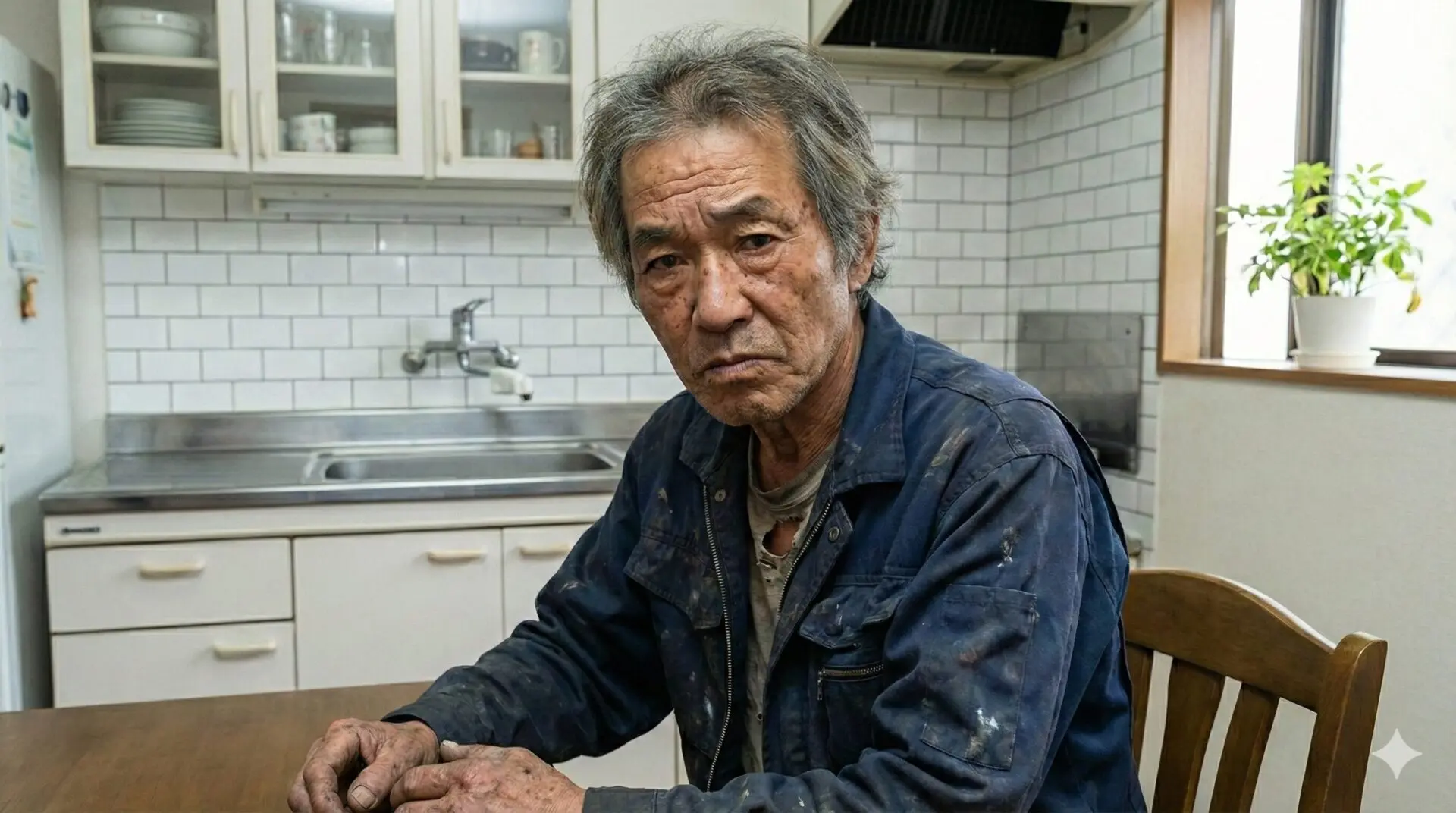
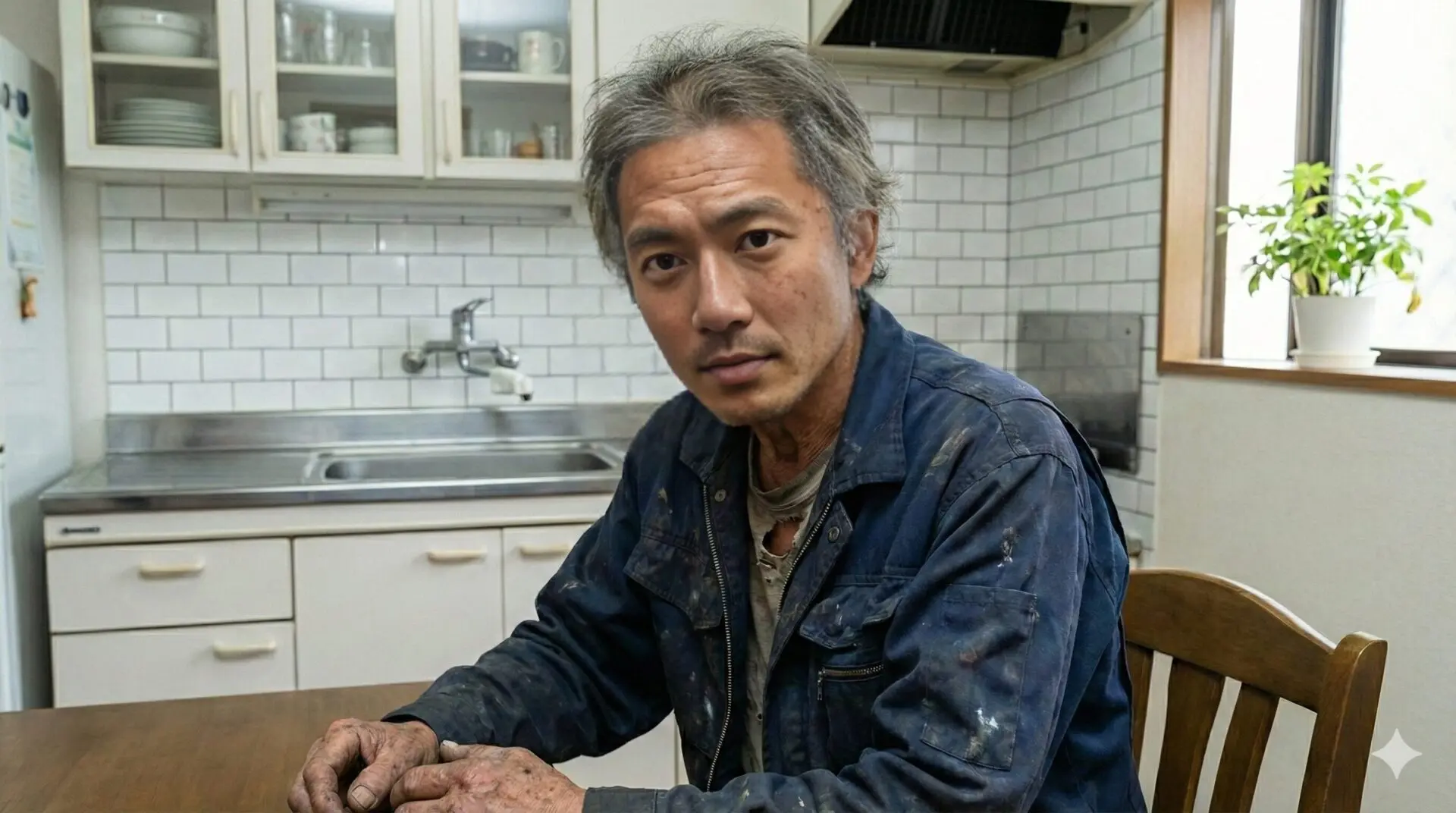

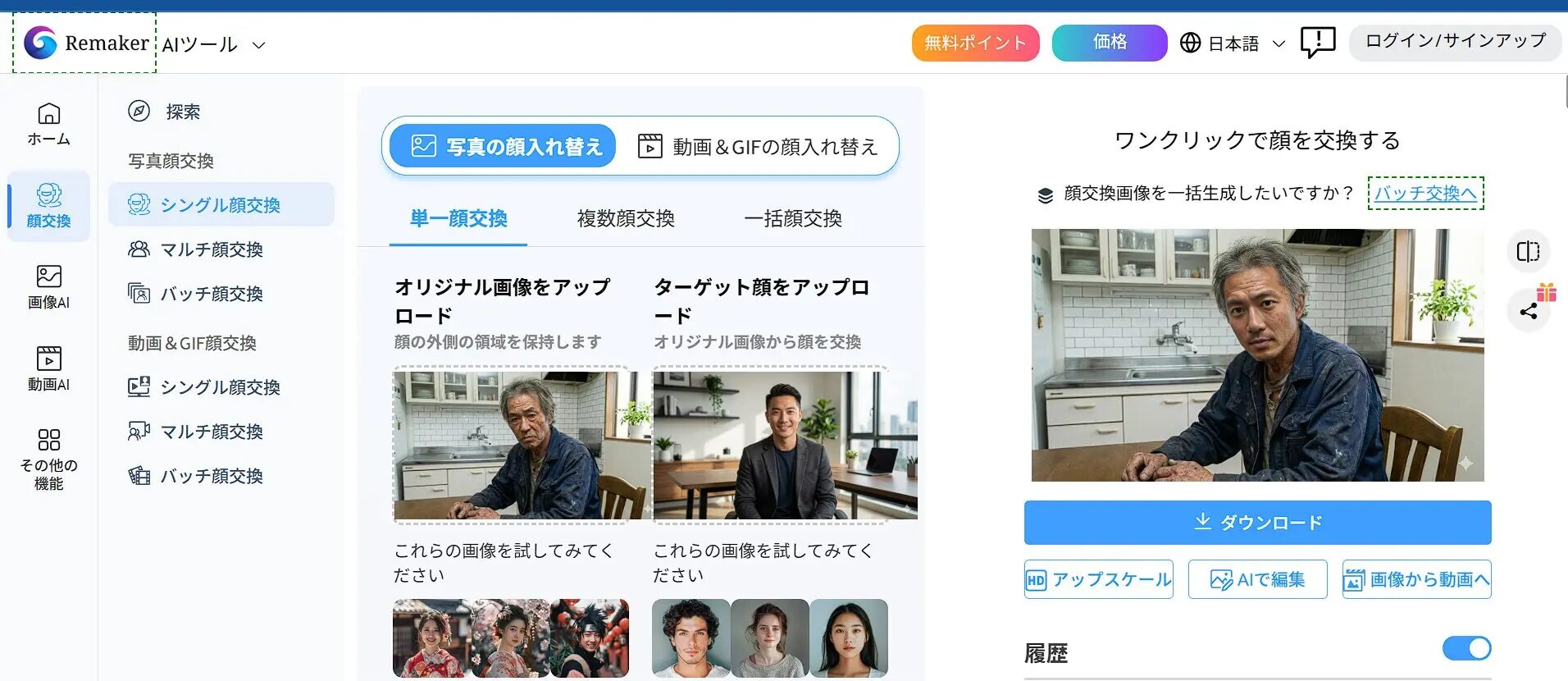
This is the most basic one-to-one face swap. You can put your own face on a model’s photo or make historical figures look modern.
Drag and drop the base image into “Original Image” on the left and the photo of the face you want to insert into “Target Face” on the right.
※Previously used images can be selected from history.
Click the “Swap” button at the bottom center. Wait a moment for the process to complete.
[Applied] Multiple Face Swap
Used when multiple people are in the image, such as group photos or couple photos.
- When you upload an image, the AI automatically recognizes all faces in the image and lists them.
- A plus button to select the “Target Face” appears under each recognized face.
- Specify the target image only for the faces you want to change. Faces not specified will remain as they are.
This allows for advanced editing, such as “changing only the faces of the bride and groom to yourselves in a wedding group photo.”
[Advanced] Video Face Swap
A function to replace the faces of people in a video rather than a still image. It’s a very powerful feature for YouTubers and TikTokers, but there are points to note.
- Processing Time: Since it processes each frame of the video one by one, it takes longer to generate than a still image.
2. Image to Video Thorough Explanation: Prompts are the Key
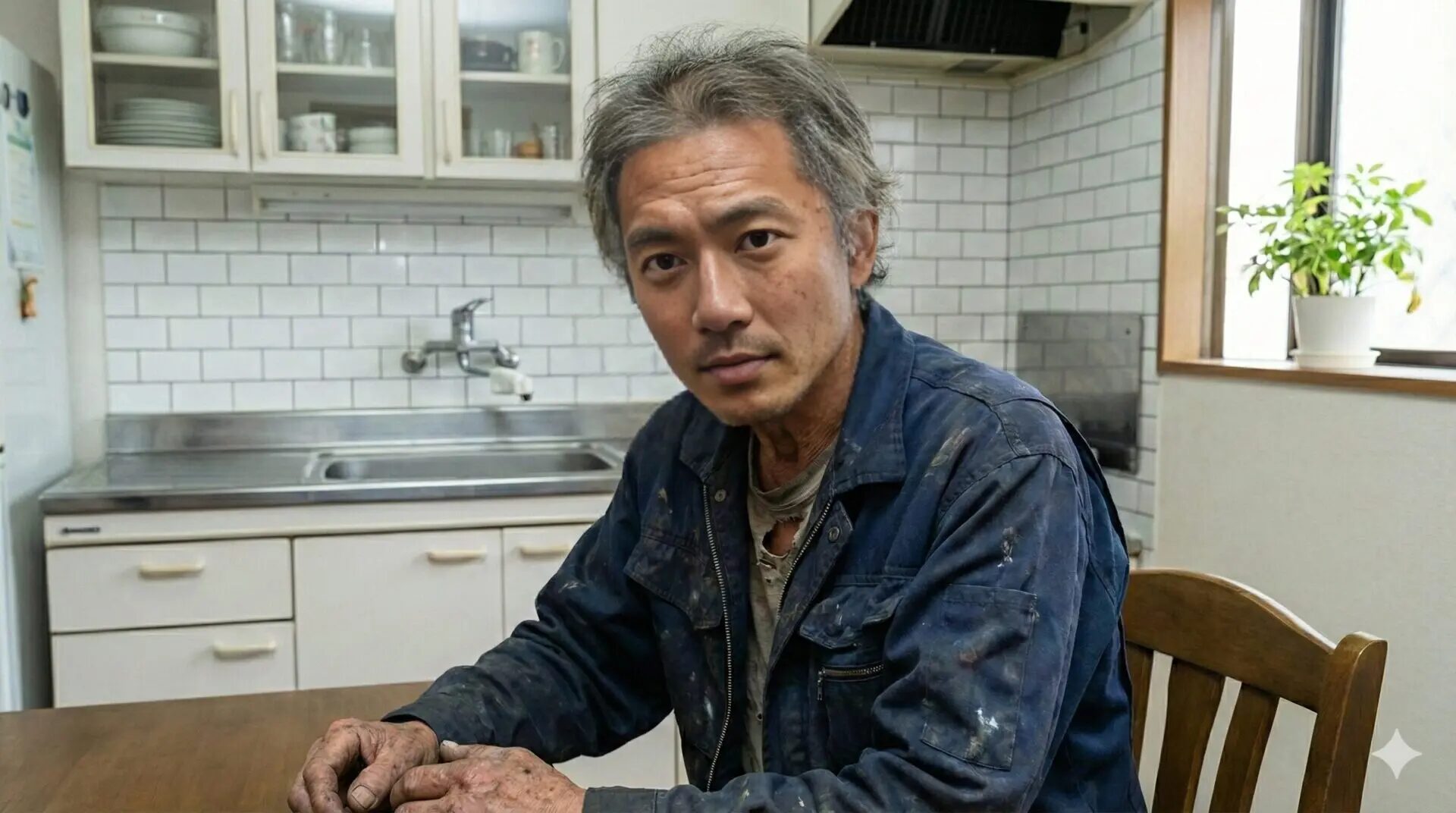
A function that creates movements such as hair fluttering in the wind, flowing clouds, and blinking from a single still image. It is very useful as material for commercial production and short social media videos.
Operation Interface and Settings
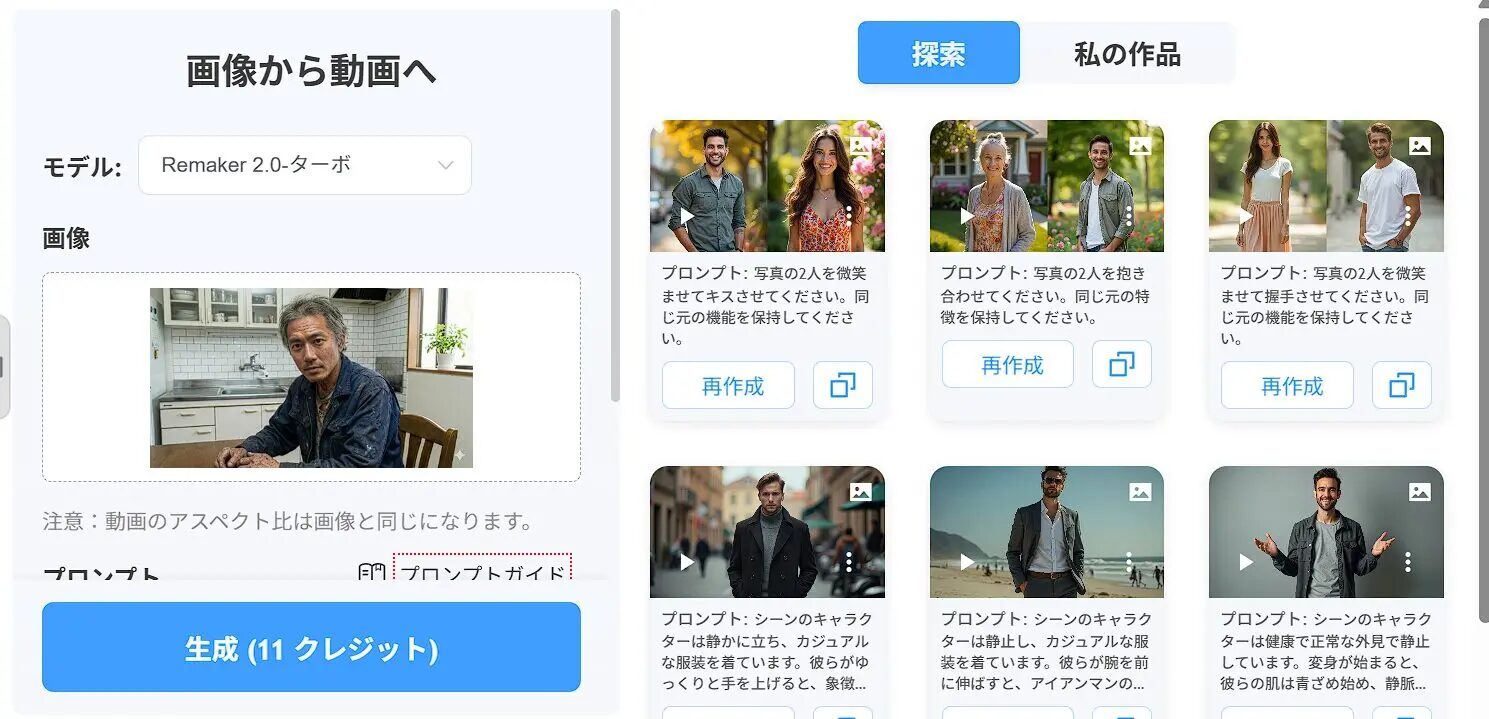
Prompt Strategy: Syntax for Creating Videos Exactly as You Want
Here are tips for prompts to give accurate instructions to the AI. Try entering them in English by combining the following elements.
[Subject] + [Action] + [Environment/Background] + [Camera Work]
Example: A beautiful woman, [smiling and blinking], [wind blowing her hair], [cherry blossoms falling in background], [slow zoom in camera]
- Subject: A cat, A car, A cyberpunk city, etc.
- Action: walking, running, crying, laughing, etc.
- Environment: rain, snow, sunny, neon lights, etc.
- Camera: zoom in, pan right, static shot, etc.
3. Other Useful Tools: Background Removal, Upscaling, AI Editing
These tools may not be flashy, but they dramatically improve daily work efficiency.
Background Remover
Ideal for creating product images for e-commerce sites or cutting out people for YouTube thumbnails. Just “Upload” and wait a few seconds to download a transparent PNG image.
Comments