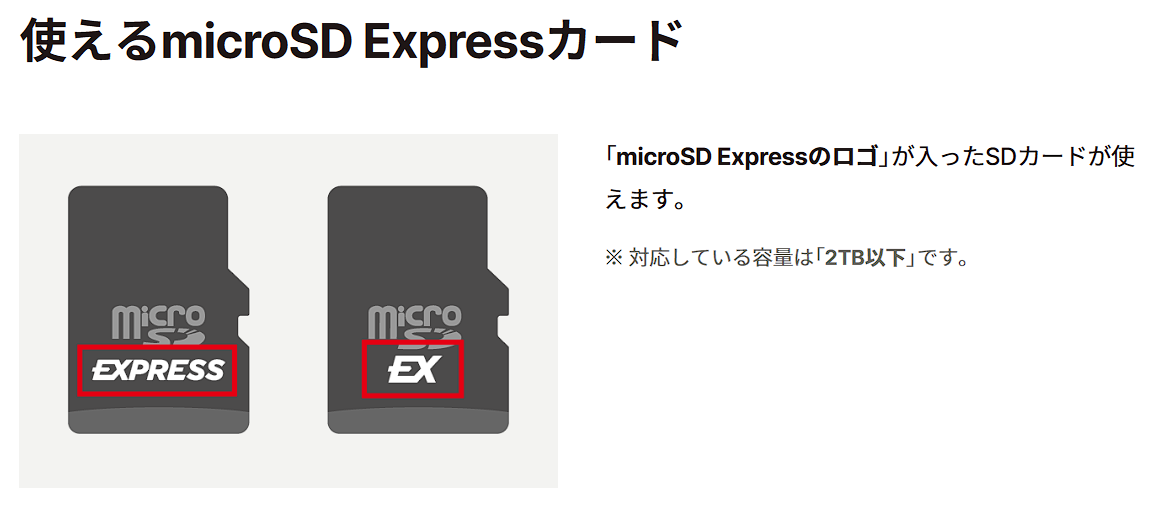
When choosing an SD card for the Nintendo Switch 2, the quickest path is to first determine the “supported standard (whether it can be inserted and used).” Nintendo’s official guidance clearly states that the only SD cards usable with the Switch 2 are microSD Express cards, and conditions such as a supported capacity of “up to 2TB” are also specified.
On the other hand, SD card labeling often mixes “maximum speed (peak)” and “minimum guarantee (class).” This article aims to help you make your own informed choice by outlining the hierarchy of standards (size -> capacity class -> bus -> speed class) and branching them according to your use case.
What you will learn in this article!
What is an SD card?
An SD card is a removable memory card inserted into compatible devices to save and read data. Even if they look similar, if the size or standard does not match, issues like “it won’t insert / it isn’t recognized / it doesn’t deliver performance” will occur.
 Ms. Gadget
Is it bad to just look at the capacity when buying?
 Mr. Gadget
It cannot be used if the size or standard doesn’t match
Essential knowledge for choosing an SD card
Key points of this section!
- What is a form factor: (SD / miniSD / microSD)
- What is capacity classification: (SDSC / SDHC / SDXC / SDUC)
- What is a bus standard: Theoretical limits and backward compatibility range
- What is a speed class: How to read minimum guaranteed (sequential write) speeds
- What is application performance class: Random performance guidelines (A1 / A2)
- What is the overview of standards and classes: Comprehensive table for decoding logos
Here, we will quickly cover the “essential terminology needed to narrow down your choices.” SD cards have a hierarchical standard structure, where capacity classifications, bus standards, and speed classes exist independently. Because labels mix “maximum values” and “minimum guarantees,” organizing what each number means will stabilize your decision-making.
What is a form factor: (SD / miniSD / microSD)
Something easily overlooked is “physical size,” which determines whether a card can be physically inserted regardless of its performance. Even with the same capacity classification or speed class, different sizes are treated as entirely different categories. It is worth confirming the slot shape (SD type vs. microSD type) first.
| Type | External Dimensions (Approx.) | Remarks |
|---|---|---|
| SD | 32 × 24 × 2.1 mm | Standard “full-size” |
| miniSD | 21.5 × 20 × 1.4 mm | Rarely seen in current applications |
| microSD | 15 × 11 × 1.0 mm | Mainstream in compact devices |
Mr. GadgetCompact gaming consoles like the Switch and smartphones basically use microSD cards!
What is capacity classification: (SDSC / SDHC / SDXC / SDUC)
It’s easy to think “larger capacity is safer,” but compatibility and standard file systems vary depending on the classification. Older devices and certain hardware, in particular, will not recognize cards if the classification doesn’t match.
Before choosing based solely on the capacity number, it is safer to check the classification (SDSC / SDHC / SDXC / SDUC).
Mr. GadgetThis is a particularly common mistake, so please pay close attention!
| Classification (Logo) | Capacity Range (Standard Guide) | Standard File System | Compatibility Key Points |
|---|---|---|---|
| SDSC (SD) | Up to 2GB | FAT12/16 | Easy to use even with older devices, but small capacity |
| SDHC | Over 2GB to 32GB | FAT32 | SD-compatible devices are not necessarily SDHC-compatible, so verification is required |
| SDXC | Over 32GB to 2TB | exFAT | Must verify if the device is built for SDXC/exFAT |
| SDUC | Over 2TB to 128TB | exFAT | Compatible devices are limited, so checking the specification sheet is a prerequisite |
What is a bus standard: Theoretical limits and backward compatibility range
The “maximum transfer speed” is determined not by the card alone, but by the combination of “card + device (host) + reader.” The bus standard is the primary factor that changes the speed limit even for the same card when inserted into different hardware. Understanding this helps reduce both over-specifying and under-specifying.
- Check this
- Notation: Support for UHS-I/II/III, SD Express, etc.
- Unit: MB/s (Maximum bus value; actual measurements vary depending on conditions)
- Condition: Whether the host side supports the relevant bus (speed won’t increase with the card alone)
 Mr. Gadget
Please note that the Switch 2 requires Express!
| Bus Standard | Standard Maximum Transfer (Approx. Bus Bandwidth Limit) | Positioning |
|---|---|---|
| Default Speed | 12.5 MB/s | Basic bus |
| High Speed | 25 MB/s | Legacy high-speed |
| UHS-I | 50 MB/s (SDR50/DDR50), 104 MB/s (SDR104) | Currently the most widely compatible high-speed system |
| UHS-II | 156 MB/s (Full Duplex), 312 MB/s (Half Duplex) | Generation with added terminals (second row) |
| UHS-III | 312 MB/s (Full Duplex), 624 MB/s (Full Duplex) | Top tier of the UHS family |
| SD Express (PCIe Gen3×1) | 985 MB/s | PCIe/NVMe generation (Phase 1) |
| SD Express (PCIe Gen4×1 or Gen3×2) | 1970 MB/s | PCIe/NVMe generation (Expanded) |
| SD Express (PCIe Gen4×2) | 3940 MB/s | Maximum bandwidth in full size |
What is a speed class: How to read minimum guaranteed (sequential write) speeds
A speed class is a “guaranteed value” ensuring that a minimum level of sequential writing is met. Peak speeds and random performance are governed by separate standards.
On the other hand, the same number can have different conditions across different standards (Speed Class / UHS Speed Class / Video Speed Class / SD Express Speed Class). It is important not to confuse them just by looking at the numbers.
Mr. GadgetThis is a critically important standard, especially for video shooting and continuous recording.
| Classification | Notation Examples | Minimum Sequential Write (Standard) |
|---|---|---|
| Speed Class | C2 / C4 / C6 / C10 | 2 / 4 / 6 / 10 MB/s |
| UHS Speed Class | U1 / U3 | 10 / 30 MB/s |
| Video Speed Class | V6 / V10 / V30 / V60 / V90 | 6 / 10 / 30 / 60 / 90 MB/s |
| SD Express Speed Class | E150 / E300 / E450 / E600 | 150 / 300 / 450 / 600 MB/s |
What is application performance class: Random performance guidelines (A1 / A2)
For running applications and handling small files, random access is more important than sequential speed. A1 and A2 are classes that combine random performance (IOPS) with a minimum sequential write speed.
| Class | Minimum Random Read | Minimum Random Write | Minimum Sequential |
|---|---|---|---|
| A1 | 1500 IOPS | 500 IOPS | 10 MB/s |
| A2 | 4000 IOPS | 2000 IOPS | 10 MB/s |
How to choose an SD card
Key points of this section!
- Physical size
- Standard compatibility: Narrow down capacity classifications and bus standards starting from the “device side”
- Capacity: Back-calculate game size + update allowance from your “usage style”
- Minimum guarantee: Determine the necessary class based on the “need for sequential writing”
- Common pitfalls: Standard mismatches, class confusion, initialization procedures
Ms. GadgetUltimately, what aspects of the device should I check?
Mr. GadgetPlease check the instruction manual or product specifications for “supported card types, maximum capacity, and supported buses/classes.”
The order is “size -> classification -> bus -> class”
Physical size
The most common mistake when choosing an SD card is getting distracted by high specs and buying a card that “cannot be used in the first place.” Narrow down your options in the following order.
- Card Type (Top Priority): For the Nintendo Switch 2, compatibility with the high-speed “microSD Express” standard, in addition to the microSD size, is the key. If you want to comfortably store and play games, give top priority to cards bearing this label.
- Physical Size: While a “microSD” size card can be converted to a full SD card size using an adapter, there is nothing you can do if you mistakenly buy a full-size SD card when you need a microSD.
 Ms. Gadget
“microSD” and “microSD Express” have similar names, but they are entirely different things. Be sure to check the logo on the package before purchasing.
Standard compatibility: Narrow down capacity classifications and bus standards starting from the “device side”
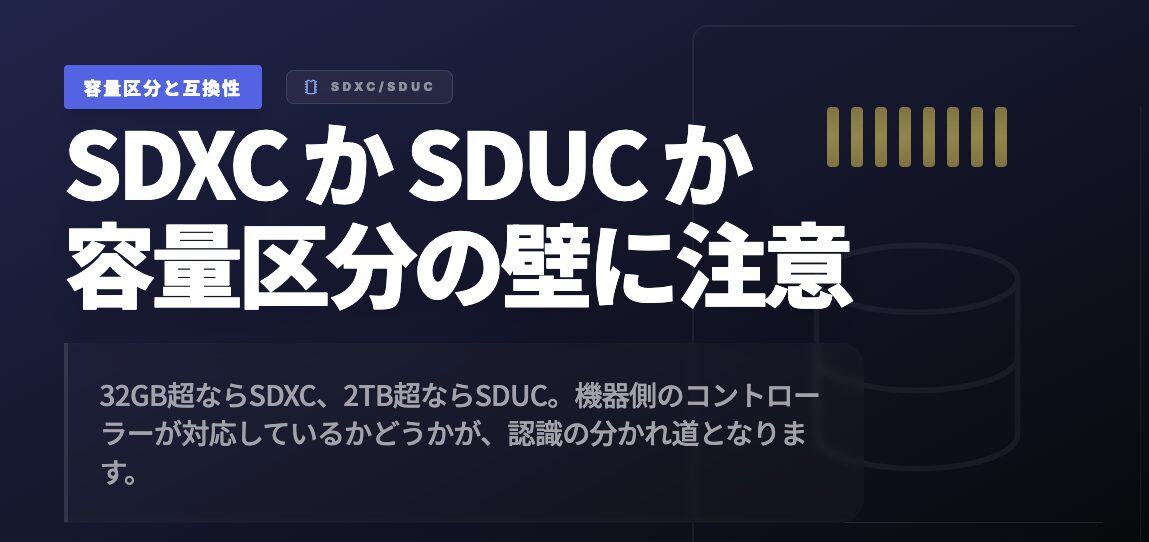
It is not a matter of “any large capacity will do.” What matters is how far your device (host) supports it.
- Capacity Classification (SDHC / SDXC / SDUC): SDXC (up to 2TB) is currently mainstream, but ultra-high-capacity standards like SDUC (up to 128TB) will emerge in the future. Classifications not supported by your device will not even be recognized, so be sure to check the “maximum supported capacity” in the specification table.
Mr. GadgetThe Switch 2 only supports up to SDXC!
- Bus Standard Limits: Even if a card boasts “Read 1000 MB/s,” if the console itself only supports up to UHS-I (max 104 MB/s), the speed will be capped at 104 MB/s. Keep in mind that “overspecified components go to waste.”
Capacity: Back-calculate game size + update allowance from your “usage style”
While “bigger is better” applies to capacity selection, balancing it against cost is a common dilemma.
- Calculation Tips: A single recent major title consumes dozens of gigabytes. Furthermore, post-launch updates (update data) and downloadable content (DLC) swell the required space. Make “total size of games you want to install right now + about 20% breathing room” your absolute minimum line.
- Choosing by Usage Style:
- Those who frequently buy digital versions: Choose a large capacity of 512GB or more to reduce the hassle of moving data.
- Those who play a carefully selected few titles: Keep it around 256GB and offload data you no longer play to a PC or the cloud.
 Mr. Gadget
In recent years, even a single game has grown massive in file size, so it’s a good idea to build in a generous buffer…
Though, of course, that makes it more expensive…
Minimum guarantee: Determine the necessary class based on the “need for sequential writing”
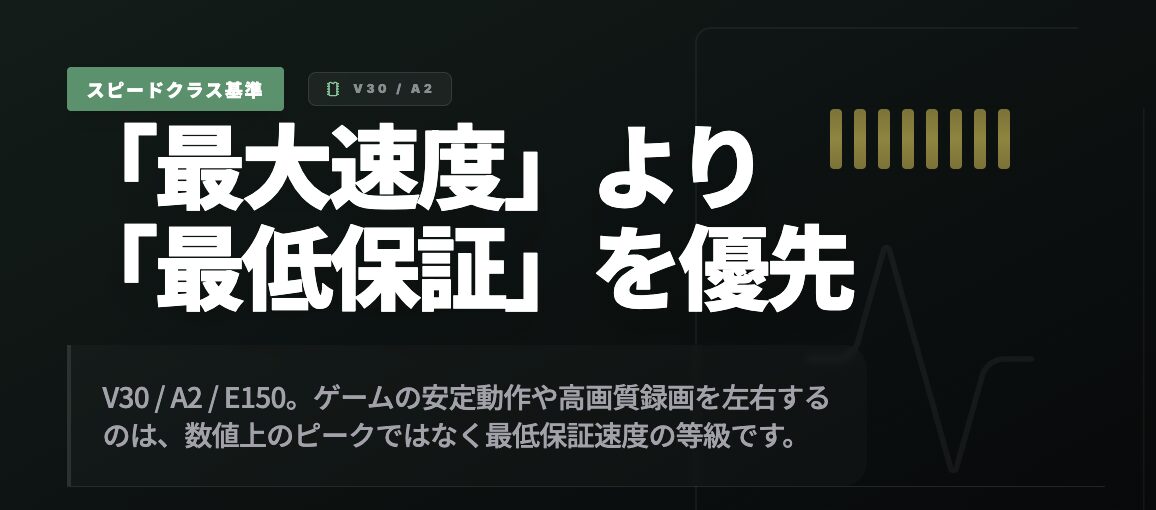
The prominent figure like “Max XX MB/s” written on the package is merely an instantaneous peak value. What relates to game stability is the speed class, which represents the minimum guaranteed speed.
- Symbols to Look For: Symbols like V30 (Video Speed Class) and U3 (UHS Speed Class) mean “guaranteeing a minimum write speed of 30 MB/s.”
- Caution Regarding Class Confusion: Both “V30” and “U3” guarantee 30 MB/s, but their standard definitions differ. Basically, choose a card printed with the symbol specified by your device (e.g., V30 if V30 is recommended).
Common pitfalls: Standard mismatches, class confusion, initialization procedures
In conclusion, many failures stem from “misreading labels” and “inadequate initialization or migration procedures.”
- Reasons
- There are closely named standards, such as confusing microSD with microSD Express
- There are cases where direct comparison between classes, like V30 and U3, does not apply
- Check Points
- Specification table: Official notation of supported standards (on both card and device sides)
- Measurement conditions & actual results: Recognition reports, first-time use requirements (such as necessary updates)
- Operation: Formatting procedures, insertion/removal, data migration (verifying consistency before and after copying)
- Precautions
- If any doubts remain, it is safer to return to “confirming the presence of supported standards/classes in the specification table” rather than purchasing based on guesswork.
Terms and specifications to note
What is SD Express: How PCIe/NVMe speeds things up
SD Express is designed to allow access via PCIe/NVMe in addition to the traditional SD interface. Behavior varies depending on implementation, such as hosts initializing via the SD side before switching to PCIe.
- In a nutshell: A method allowing access via PCIe/NVMe alongside the SD interface.
- What it affects
- Whether high-speed modes can be utilized (whether the host supports PCIe/NVMe)
- Backward compatibility in SD mode (when running even on SD-only hosts)
- Interpretation of speed classes (E series) (assuming PCIe/NVMe access)
- Check this
- Notation: SD Express / microSD Express, E150 to E600 classes
- Condition: Whether the host assumes initialization methods such as SD First
- Operation: Heat and power management under heavy loads (can affect sustained performance)
What is LVS: 1.8V low signaling voltage and backward compatibility cautions
LVS is used to identify whether host devices are designed to use low signaling voltages. While cards remain backward compatible and can still be used in legacy hosts, if a host is designed exclusively for LVS, your card options may narrow. This is a topic that frequently comes up in mobile systems.
- In a nutshell: An identification element indicating support for low signaling voltage (1.8V).
- What it affects
- Operational feasibility in certain hosts (hosts potentially requiring LVS cards only)
- Compatibility with power-saving designs
- Check this
- Notation: Presence of LV symbol on host side, compatibility notation on card side
- Condition: Warnings that LVS hosts may reject “non-LVS cards”
- Operation: Troubleshooting steps if issues occur with a combination (verify reproduction with another card)
Final pre-purchase check (optional)
- For Nintendo Switch 2 use, double-check through specification tables and labels that the compatible card is microSD Express
- Card size (SD/microSD) and device slot shape match
- Capacity classification (SDHC/SDXC/SDUC, etc.) matches the device’s supported range
- Bus standards (UHS/SD Express, etc.) assume “support by both card and host”
- Speed class represents the “minimum guarantee,” so do not confuse it with peak numbers
- V/U/C/E standards can have different conditions even with the same number, so do not compare them directly across types
- For actual measurement comparisons, prioritize tests with matching host/reader/test conditions
- Check if procedures such as system updates are required for first-time use
- Determine removal and backup procedures (for recovery in case of corruption) in advance
Thank you for reading until the end!
- The evaluation in this article is unique to this site.
- Unless otherwise specified, product prices and information are current as of the time of writing.
- Please note that this site cannot be held responsible for any inaccuracies in this information.
- Product and service names mentioned on this site are trademarks of their respective companies.
This article was originally written in Japanese and has been translated.
Comments