
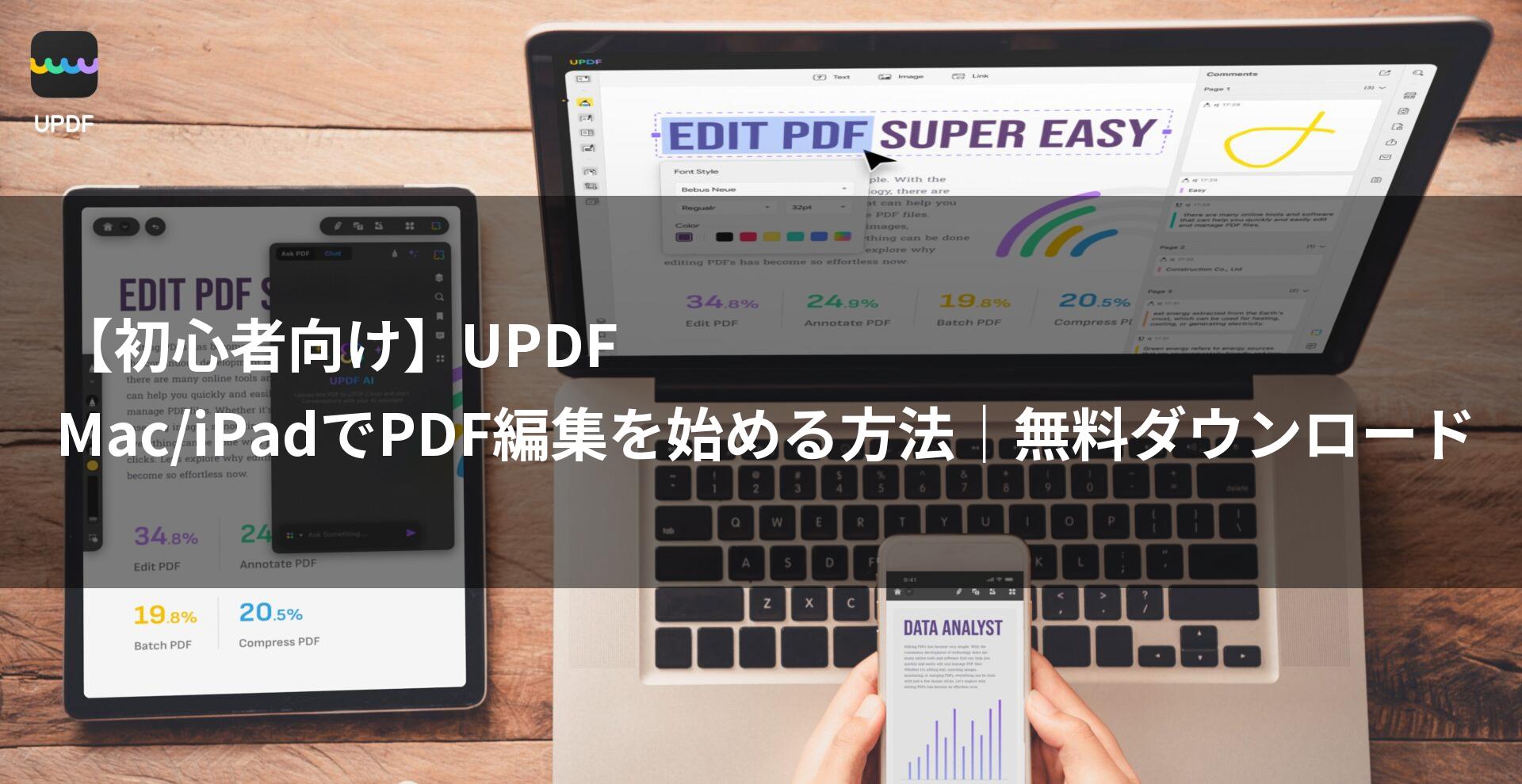
UPDF is the best PDF editing software for Mac/iPad users.
It has high affinity with Apple products and provides a smarter PDF editing experience with its rich features and intuitive operation.
By reading this article, you will understand the appeal of UPDF, its basic usage, and the differences between the free and paid versions, allowing you to build the optimal PDF editing environment for you.
 Ms.Gadgets
There are so many PDF editing software options, it’s hard to know which one to choose…
 Mr.Gadgets
With UPDF, you can seamlessly connect with Mac and iPad, and it’s incredibly easy to use! Try the free version first!
- This article is created based on information provided by the manufacturer.
Please note that this site is not responsible for any inaccuracies in the information.
What you will learn in this article!
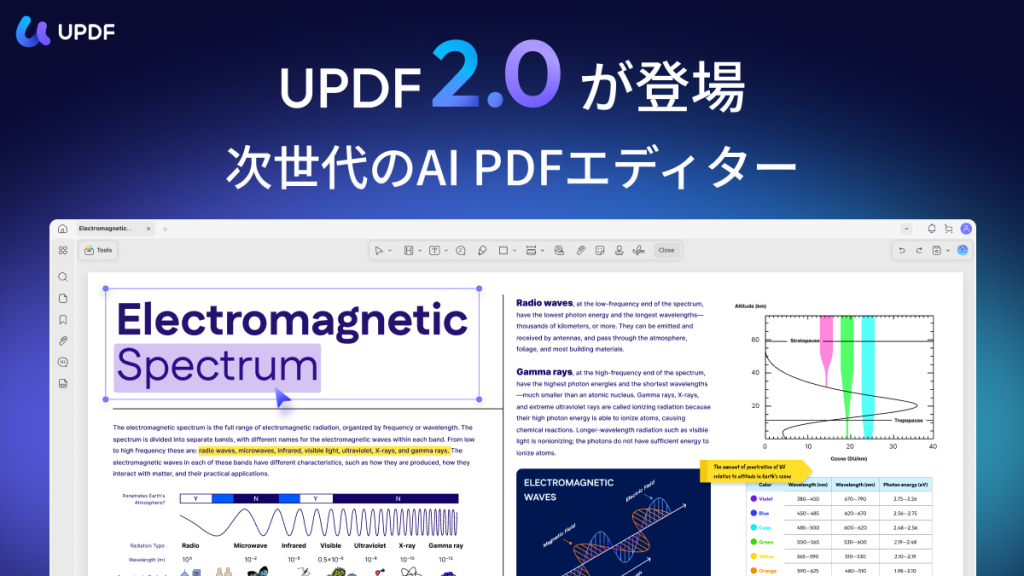
Good news for Mac/iPad users | Easily edit PDFs with UPDF
Key points of this heading!
UPDF is a PDF editing software that is more accessible and easier to use for Mac/iPad users.
Not only does it have high affinity with Apple products, but it also has rich features and intuitive operation, making your PDF editing work smarter.
For those who want a comfortable PDF editing environment
 Ms.Gadgets
PDF editing software all seems the same, and I don’t know which one to choose…
Mr.GadgetsWith UPDF, it is designed with the comfort that Mac and iPad users seek, so you will surely be satisfied!
When choosing PDF editing software, the speed of operation and the design of the interface are important points.
UPDF is optimized to maximize the performance of Apple products and provides a comfortable editing experience with a clean and intuitive UI.
Try it easily with a free download
 Ms.Gadgets
I’m a little hesitant to buy the paid version right away…
Mr.GadgetsFirst, try the free version and experience the ease of use of UPDF!
UPDF is attractive because you can try many features with a free download.
You can actually check the feel of the operation on your Mac/iPad and carefully decide if it suits you.
First, download UPDF and experience the world of PDF editing.
- UPDF for Mac: https://updf.com/jp/updf-for-mac/?utm_source=media-mister-gadget-2503-taylor&utm_medium=mister-gadget&utm_campaign=taylor202503
- UPDF for iPad: https://updf.com/jp/updf-for-ios/?utm_source=media-mister-gadget-2503-taylor&utm_medium=mister-gadget&utm_campaign=taylor202503
- iPad App Store link: https://apps.apple.com/app/apple-store/id1595826623?pt=123650302&ct=media-mister-gadget-2503-taylor&mt=8
First, start with the free version and experience the potential of UPDF to change your PDF editing work.
UPDF | Reasons why Mac/iPad users choose it
Key points of this heading!
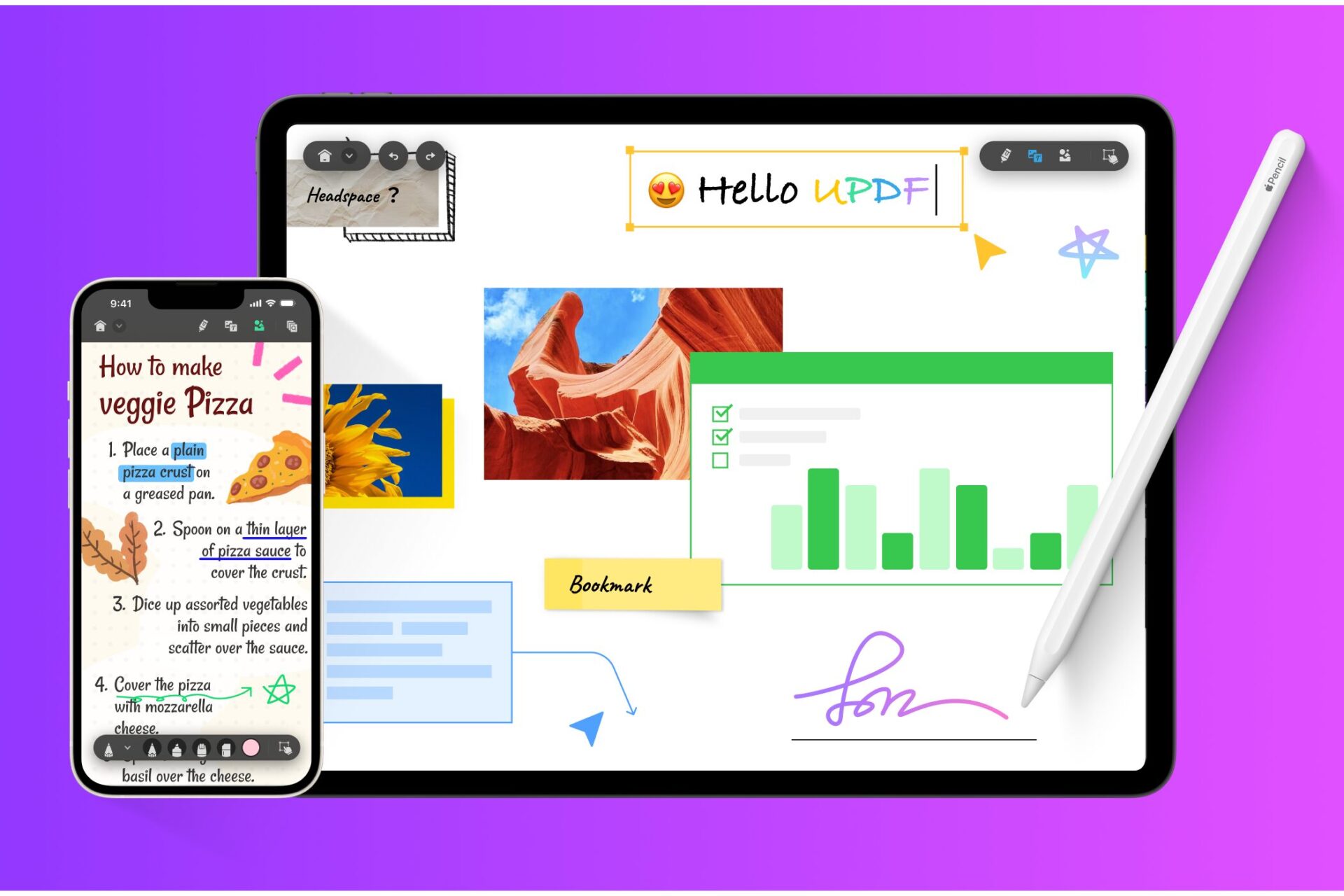
If you are editing PDFs on Mac or iPad, UPDF is recommended! Many users choose it because of its excellent compatibility with Apple products, intuitive operation, and efficiency with AI functions.
Ms.GadgetsUPDF is smooth to connect with Mac and iPad, and it’s incredibly easy to use!
Affinity with Apple products
UPDF is optimized for macOS and iPadOS.
With a sophisticated interface that harmonizes with Apple’s design philosophy, and support for Retina displays, it provides high-definition display.
The high affinity with Apple’s ecosystem is as follows:
| Item | Content |
|---|---|
| Interface | A clean and intuitive interface that harmonizes with the design of macOS and iPadOS |
| Stability | Optimized for Apple’s hardware and software, achieving high stability |
| iCloud Drive compatibility | Seamless file sharing between Mac, iPad, and iPhone with iCloud Drive compatibility |
| Apple Pencil support | Provides a natural and smooth writing experience when using Apple Pencil on iPad |
| Handoff support | Allows you to resume work from where you left off between Mac and iPad with Handoff |
Mr.GadgetsIt’s convenient to be able to use it the same way on Mac and iPad
Intuitive operation
UPDF pursues intuitive operation.
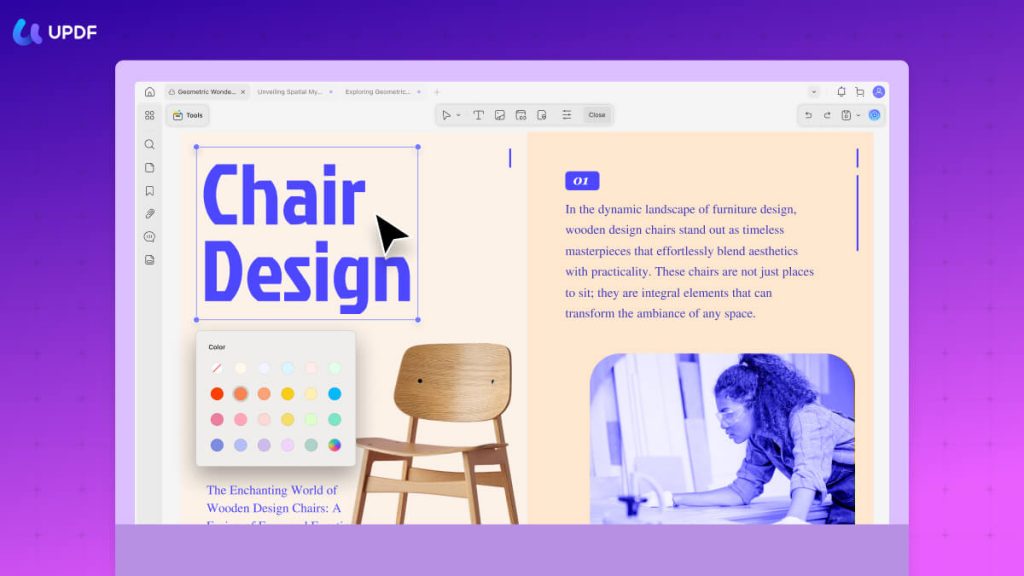
The arrangement of the toolbar and the design of the icons are carefully considered in every detail to ensure ease of use.
Even first-time users will be able to master it quickly.
The operational characteristics are as follows:
| Item | Content |
|---|---|
| Simple interface | Organized toolbar and menu structure for quick access to necessary functions |
| Drag & drop operation | Intuitive operation such as adding files and rearranging pages |
| Customizable toolbar | Improve work efficiency by registering frequently used functions on the toolbar |
| Rich shortcut keys | Efficient work without mouse operation by memorizing keyboard shortcuts |
Efficiency with AI functions
UPDF is equipped with AI functions.
For example, you can summarize, translate, and answer questions about PDFs.
By utilizing these AI functions, you can significantly reduce the time it takes to analyze and collect information from PDFs.
It’s appealing to be able to streamline daily work with AI.
| Item | Content |
|---|---|
| PDF summary | Grasp the content of a long PDF document in a few minutes |
| PDF translation | Translate foreign language PDF documents and understand the content |
| Question answering | AI answers questions about the content of the PDF |
| Chat with AI assistant | Discuss the content of the PDF with AI in a chat format and deepen your understanding |
The evolution of AI is remarkable, so let’s streamline PDF editing with UPDF.
Easy to use | UPDF basic operations for beginners
 Ms.Gadgets
I want to start editing PDFs, but it seems difficult to operate…
Mr.GadgetsDon’t worry, UPDF is a PDF editor that is intuitive to operate even for beginners!
Here, we will explain the basic operations of UPDF.
How to open a PDF file
There are three ways to open a PDF file in UPDF:
- Launch UPDF and click the “Open File” button
- Drag and drop the PDF file onto the UPDF window
- Right-click the PDF file and select “Open with” > “UPDF”
Mr.GadgetsIf you can’t open the file, make sure UPDF is up to date
Also, check if the PDF file is corrupted or password-protected.
Basic text editing
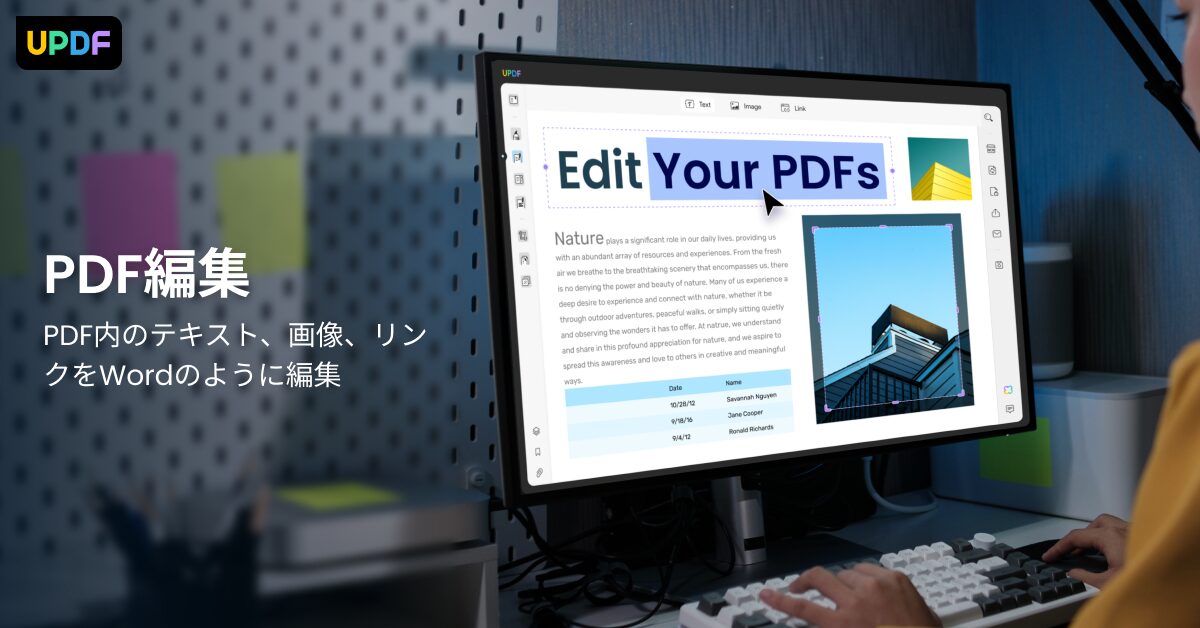
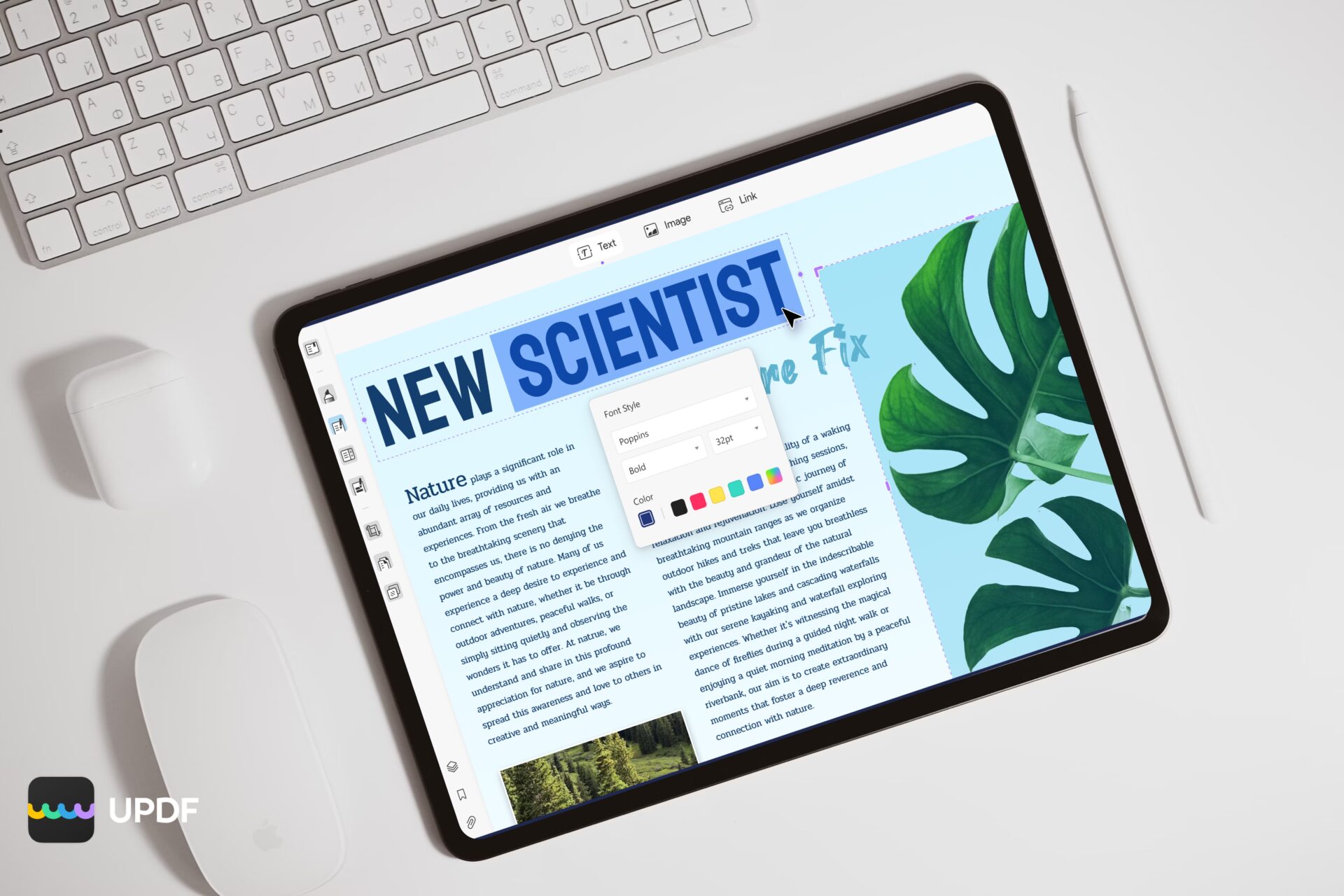
With UPDF, you can easily edit the text within a PDF.
- Select “Edit Text” from the toolbar
- Click on the text you want to edit
- A text box will appear, so freely enter or modify the text
Ms.GadgetsCan I also change the font and color of the text?
Mr.GadgetsOf course, you can freely change the font, size, color, and alignment of the text!
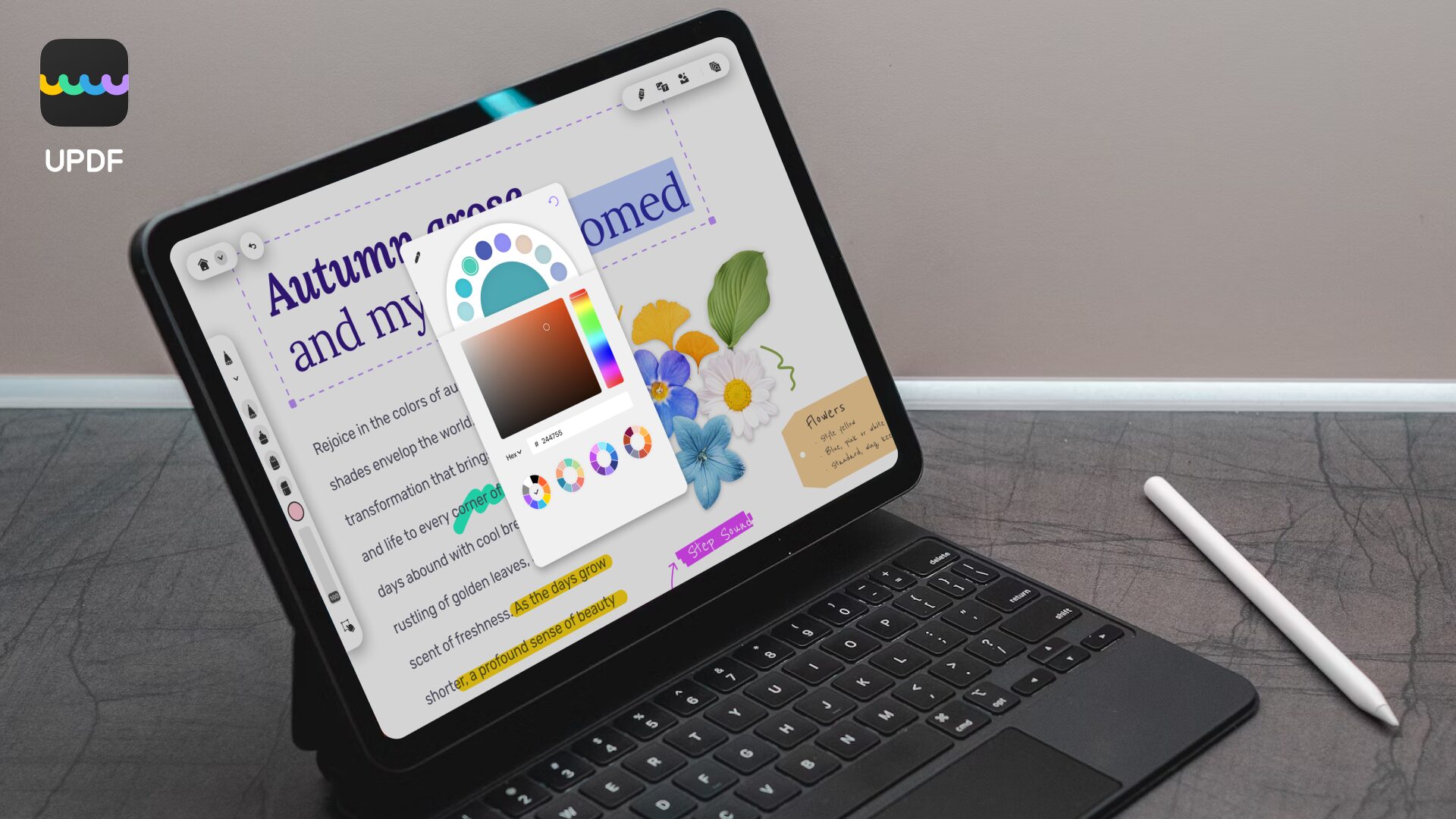
To change it, select the text and choose the desired style from the toolbar that appears.
Image insertion and editing
It’s also easy to insert images into PDFs.
- Select “Edit Images” from the toolbar
- Click the “Add Image” button and select the image you want to insert
- Place the image where you want it in the PDF and adjust its size and angle
Mr.GadgetsYou can also change the resolution of the image to optimize the file size
UPDF allows you to freely crop and rotate the inserted images.
Utilizing annotation functions
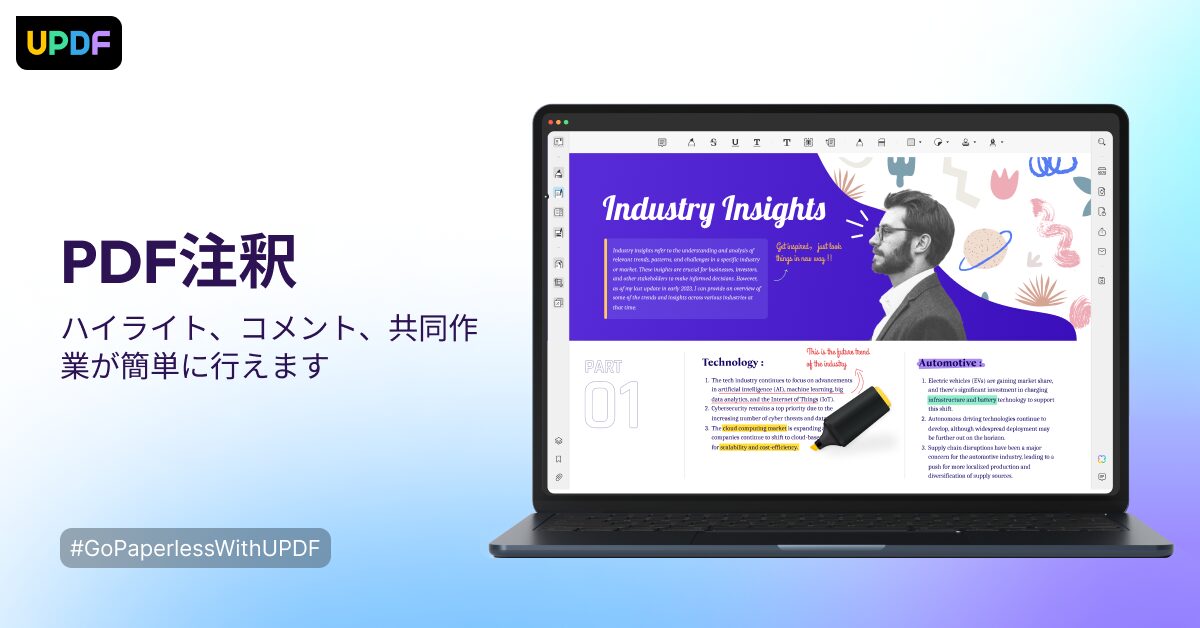
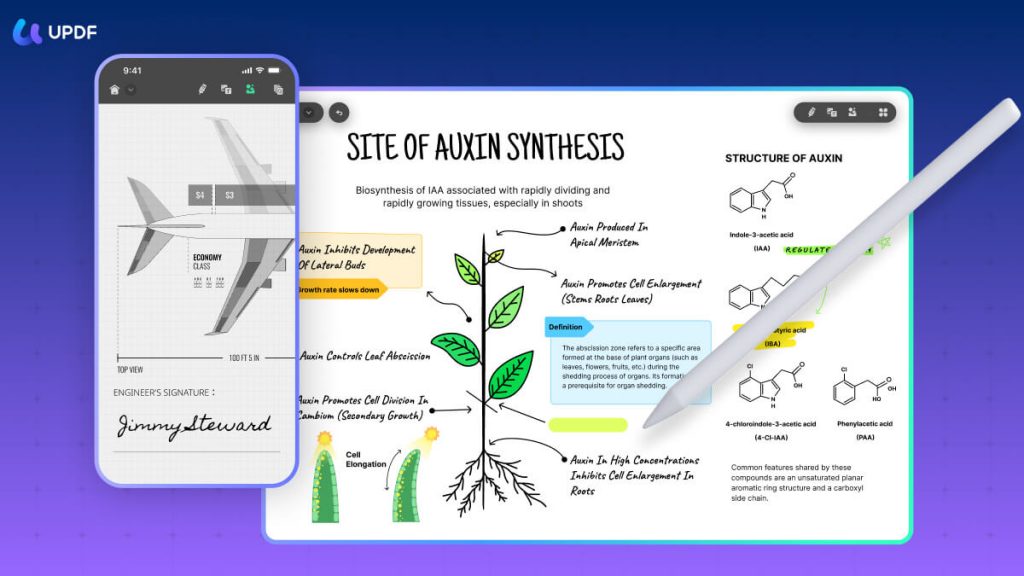
UPDF’s annotation function is perfect for collaborative PDF review.
- Select “Annotation” from the toolbar
- Use various tools such as highlights, underlines, text boxes, and sticky notes to add annotations to the PDF
- You can also freely customize the color and style of the annotations
 Ms.Gadgets
You can also share annotations with others!
 Mr.Gadgets
If you share annotations, teamwork will proceed smoothly
You can easily share PDFs with annotations via email or cloud storage.
Tips for page management
With UPDF, you can efficiently manage PDF pages.
- Click the “Pages” icon in the left sidebar
- Perform operations such as rearranging, deleting, inserting, and rotating pages
- You can also combine multiple PDF files or split a PDF file into multiple pages
Mr.GadgetsWith UPDF, you can intuitively operate pages with drag & drop
You can optimize the PDF by deleting unnecessary pages or moving important pages to the beginning.
Edit scanned data with OCR
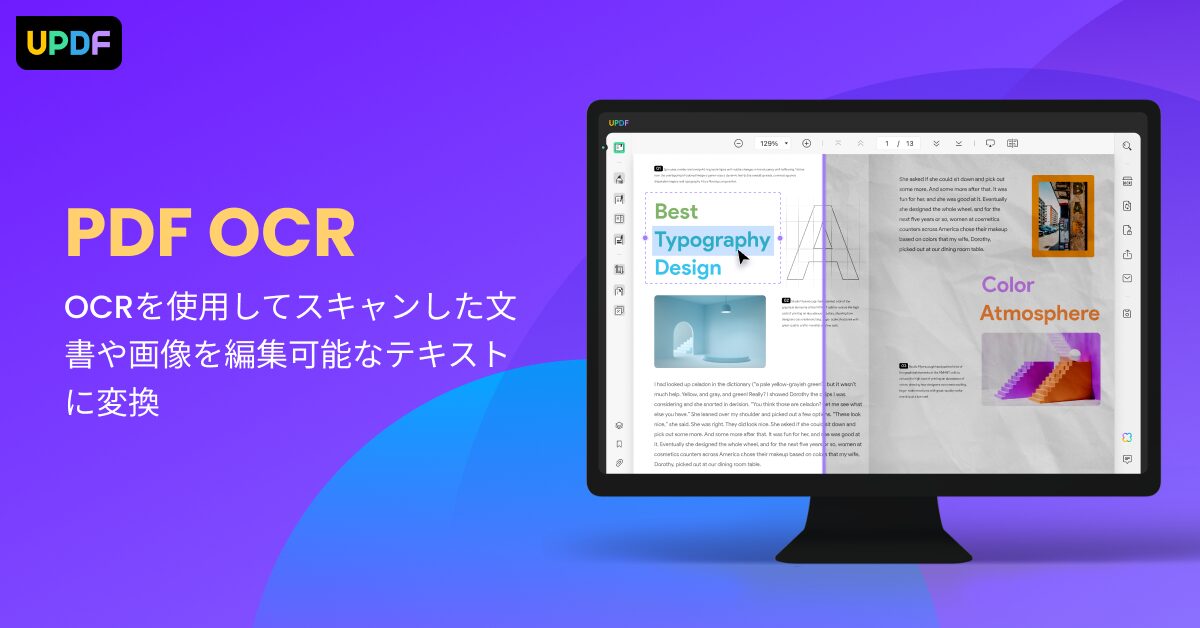
With UPDF’s OCR (Optical Character Recognition) function, you can extract text from scanned PDFs and images and edit it.
- Open the scanned PDF file in UPDF
- Click the “OCR” button
- Select the language you want to extract and click the “Run OCR” button
Ms.GadgetsOCR functions have a reputation for low accuracy…
Mr.GadgetsUPDF’s OCR function boasts very high accuracy!
It supports 38 languages and can accurately extract text even from documents with complex fonts and layouts.
UPDF | Convenient functions other than editing
UPDF has various functions to improve work efficiency in addition to PDF editing functions.
We will introduce functions other than editing that make PDF more convenient to use.
PDF conversion | To Word/Excel/Image
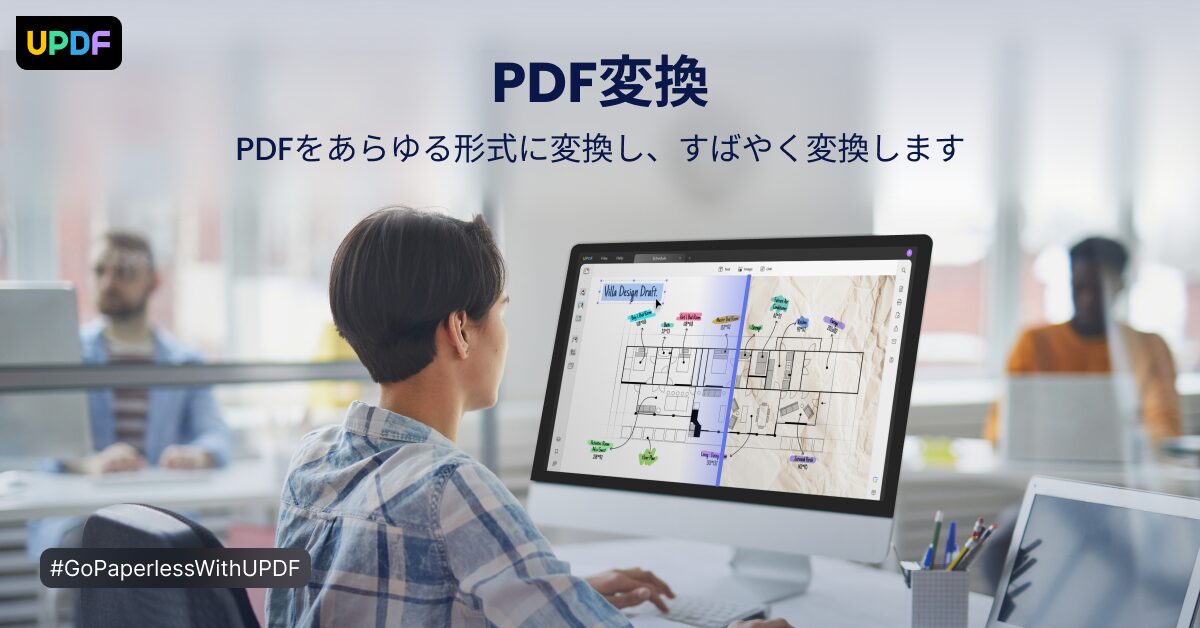
Did you know that you can convert PDFs to Word, Excel, images, and other formats with UPDF?
With UPDF, you can convert PDFs to various formats with just a few clicks.
| Conversion format | Description |
|---|---|
| Word | Convert to editable Word format such as reports and meeting minutes, and freely modify the content |
| Excel | Convert to Excel format that can be used with spreadsheet software, and utilize it for data analysis |
| Image | Convert PDF to image formats such as JPEG and PNG, and publish it on SNS or blogs as a material |
| Other | You can convert to various formats such as PowerPoint, text, and HTML |
PDF merge | Combine multiple files into one
Do you ever want to combine multiple PDFs into one?
With UPDF, you can easily combine multiple PDF files with simple drag & drop operation.
| Item | Description |
|---|---|
| Operation | Simply drag & drop multiple PDF files onto UPDF |
| Order | You can freely rearrange the order of the files to be combined |
| Use case | Convenient when you want to manage multiple materials together, such as proposals and reports |
| Example | Convert presentation materials to PDF, combine multiple PDFs into one, and present with iPad |
PDF split | Separate by page
Haven’t you experienced wanting only the first page of a document?
With UPDF’s split function, you can split a PDF file into pages you specify.
| Item | Description |
|---|---|
| Split method | Flexible split methods such as page range specification, number of pages specification, and bookmark specification |
| Use case | Convenient when you want to extract only the necessary pages from a large amount of material |
| Specific example | Convert a contract to PDF, split only the necessary pages, and send to the other party by email |
Form input | Filling out documents
You can directly enter characters into PDF forms with UPDF.
| Item | Description |
|---|---|
| Input | Supports various form formats such as text boxes and check boxes |
| Signature | Easy to add handwritten signatures and digital signatures |
| Save | Entered content can be saved for reuse |
| Other functions | You can easily enter photos, dates, and times |
Ms.GadgetsI want to handwrite a signature on a PDF, but I’m not good at it…
Mr.GadgetsUPDF makes it easy to add handwritten signatures!
You can easily add a handwritten signature to a PDF.
Digital signature | Security is also ensured
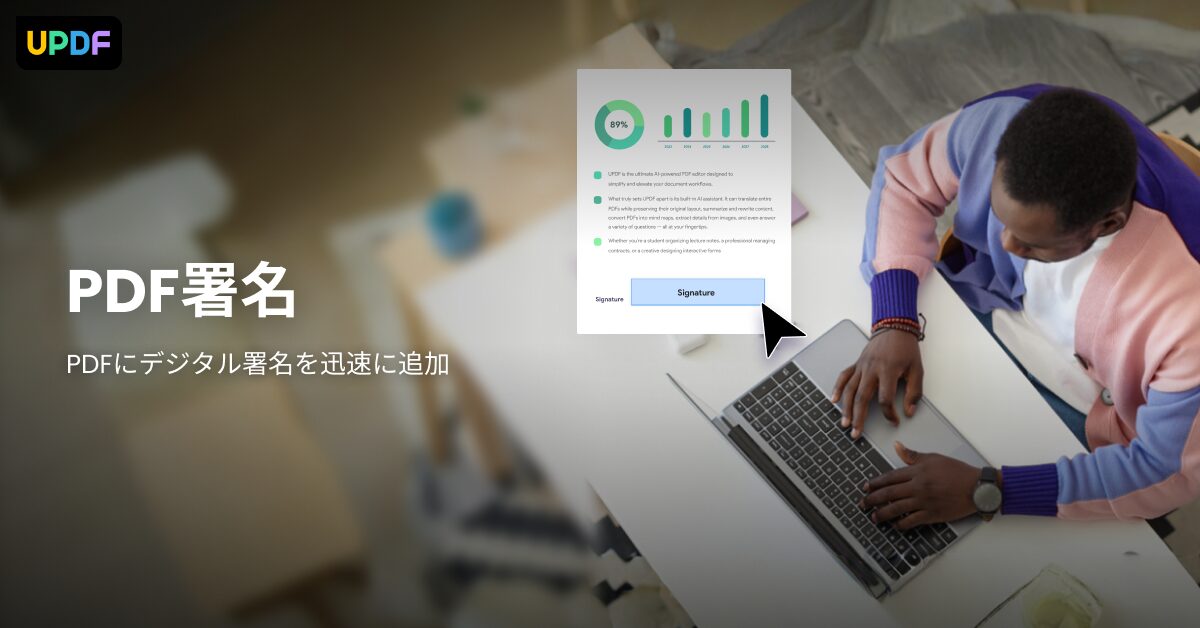
By adding a digital signature to a PDF with UPDF, you can enhance the reliability and security of the document.
| Item | Description |
|---|---|
| Digital signature | Adding an electronic signature to a PDF to prevent tampering and prove the author |
| Timestamp | Proving when the signature was made by adding a timestamp |
| Security | Restricting access to PDF files by setting passwords |
| Caution | The legal validity of digital signatures should be confirmed by a specialist. UPDF Sign is required for digital signatures. |
Security features are also abundant, so you can handle PDFs with confidence.
UPDF | Differences between free and paid versions
Key points of this heading!
UPDF, the PDF editing software, has a free version and a paid version (Pro version).
Understanding the differences between the two is important when considering use.
What you can do with the free version
The following functions are available with the free version of UPDF:
| Function | Content |
|---|---|
| PDF display | Open and browse PDF files |
| PDF annotation | Basic annotation functions such as highlights, underlines, text boxes, and drawing shapes |
| Page organization | Rearranging, deleting, and extracting pages |
| PDF conversion | Conversion from PDF to Word, Excel, PowerPoint, and images (with usage limits) |
| Cloud storage | 1GB of cloud storage |
The free version allows you to perform basic PDF editing tasks, so it is recommended for those who want to try UPDF first.
Mr.GadgetsIt’s nice to be able to try it out with the free version!

Functions unlocked with the paid version
With the paid version (Pro version) of UPDF, in addition to the functions of the free version, the following functions are unlocked:
| Function | Content |
|---|---|
| PDF editing | Editing text, images, and links, adding watermarks, and adding headers/footers |
| OCR function | Convert scanned PDFs to editable text |
| AI function | PDF summarization, translation, and text correction |
| PDF conversion | Removal of conversion limits in the free version and batch conversion |
| Form creation and input | Create, input, and sign PDF forms |
| File size compression | Reduce the size of PDF files |
| Batch processing | Perform batch processing on multiple PDF files |
| Cloud storage | 10GB of cloud storage |
| Ad removal | Remove ads displayed during UPDF use |
With the paid version, you can use advanced PDF editing functions and AI functions, allowing you to work more efficiently.
Recommended | First try the free trial
Since UPDF has a free trial, we recommend that you first download the free version and experience the ease of use of UPDF.
After experiencing the free trial, consider upgrading to the paid version if you find the functions you need.
UPDF is available on various devices such as Mac, iPad, Windows, and Android.
Mr.GadgetsWhy don’t you try downloading UPDF for free and experiencing PDF editing?
Start a smart PDF editing life with UPDF
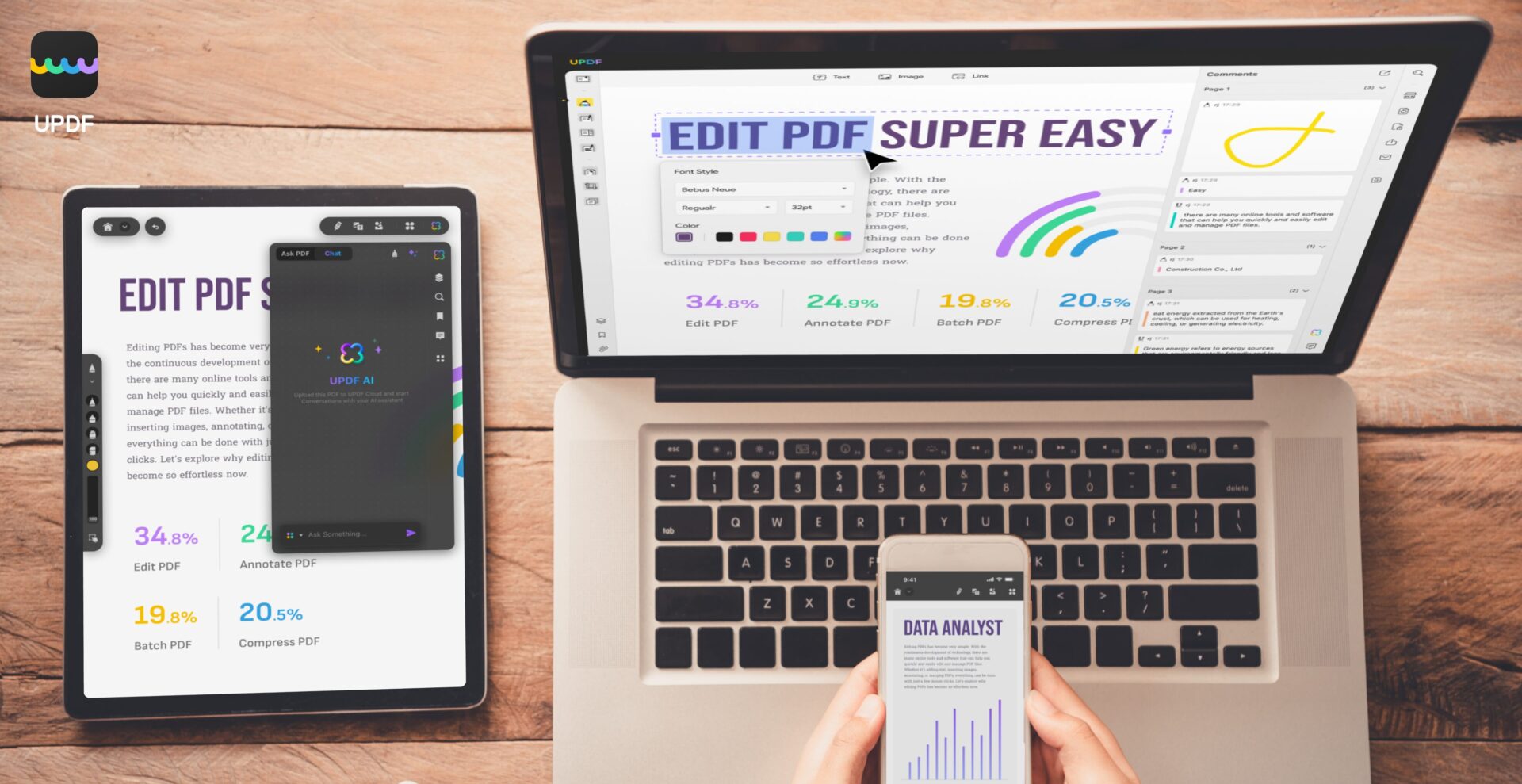
Key points of this heading!
If you introduce the PDF editing software “UPDF”, you may be able to free yourself from the time and effort required for PDF editing work and have a smarter work experience.
First download UPDF for free
To experience the functions of UPDF, first download it for free.
Ms.GadgetsI don’t know which PDF editing software to choose because there are so many…
Mr.GadgetsUPDF has a free version, so we recommend you try it first!
You can use many functions for free, and it is available on various devices such as Mac, iPad, Windows, and Android.
| Item | Description |
|---|---|
| Download | Available for free download from the official website (https://updf.com/jp/?utm_source=media-mister-gadget-2503-taylor&utm_medium=mister-gadget&utm_campaign=taylor202503) |
| Supported OS | macOS 10.14.6 or later, iOS 14.0 or later, Windows, Android |
| Free version functions | You can use basic PDF editing functions such as viewing, annotating, text editing, and image insertion |
| Transition to paid version | If you want to use more advanced functions (OCR, PDF conversion, AI functions, etc.), consider upgrading to the paid version |
| Caution | Some functions are limited in the free version (e.g., OCR conversion page limits, watermark insertion, etc.). However, the free version is sufficient for basic PDF editing tasks. |
| Other | The iPad version can be downloaded from the App Store (https://apps.apple.com/app/apple-store/id1595826623?pt=123650302&ct=media-mister-gadget-2503-taylor&mt=8) |
First, download UPDF for free and experience PDF editing.
Frequently Asked Questions (FAQ)
- Can I use UPDF on both Mac and iPad?
-
Yes, UPDF supports Windows, Mac, iOS, and Android, and you can use it on all platforms with a single license.
- What can I do with the free version of UPDF?
-
The free version allows you to view, annotate, organize pages, convert (with usage limits), and use 1GB of cloud storage. It is sufficient for trying basic PDF editing tasks.
- What are the benefits of upgrading to the paid version of UPDF?
-
The paid version unlocks advanced editing functions, OCR functions, AI functions, conversion limits, form creation and input, file compression, and more, allowing you to perform more advanced editing tasks.
- Does UPDF’s OCR function support Japanese?
-
Yes, UPDF’s OCR function supports 38 languages, including Japanese. You can extract text from scanned PDFs and edit it.
- Can I add a digital signature to a PDF with UPDF?
-
Yes, you can add a digital signature to a PDF with UPDF. This enhances the reliability and security of the document. However, UPDF Sign is required for digital signatures.
- What can I do with UPDF’s AI functions?
-
UPDF’s AI functions allow you to summarize PDFs, translate them, and correct text. This can significantly reduce the time it takes to analyze and collect information from PDFs.
Summary
UPDF is the best PDF editing software for Mac/iPad users, with its high compatibility with Apple products and rich features.
A free version is also available, allowing you to easily try PDF editing.
Key points of this article!
- Comfortable editing environment optimized for Mac/iPad
- Rich editing functions and convenient AI functions
- Free version and paid version options
Let’s start a smart PDF editing life with UPDF by downloading it for free.
Thank you for reading this article to the end!
- This article is created based on information provided by the manufacturer.
This site is not responsible for any inaccuracies in the information. - Product prices and information are current as of the date of writing.
- Product and service names mentioned in this site are trademarks of their respective companies.
This article was originally written in Japanese and has been translated.
Comments