

“4DDiG Partition Manager” is a tool that simplifies disk management on Windows PCs, and is especially recommended for those considering how to make use of an older PC.
Equipped with features such as partition operations, OS migration, and disk cloning, it assists in improving PC performance and data management.
By reading this article, you will be able to smoothly perform tasks such as upgrading to Windows 11 or migrating your OS to an SSD using 4DDiG Partition Manager.
- This article is created based entirely on information provided by the manufacturer.
Please note that our site cannot be held responsible for any errors in this information.

Making effective use of old PCs: What is 4DDiG Partition Manager?
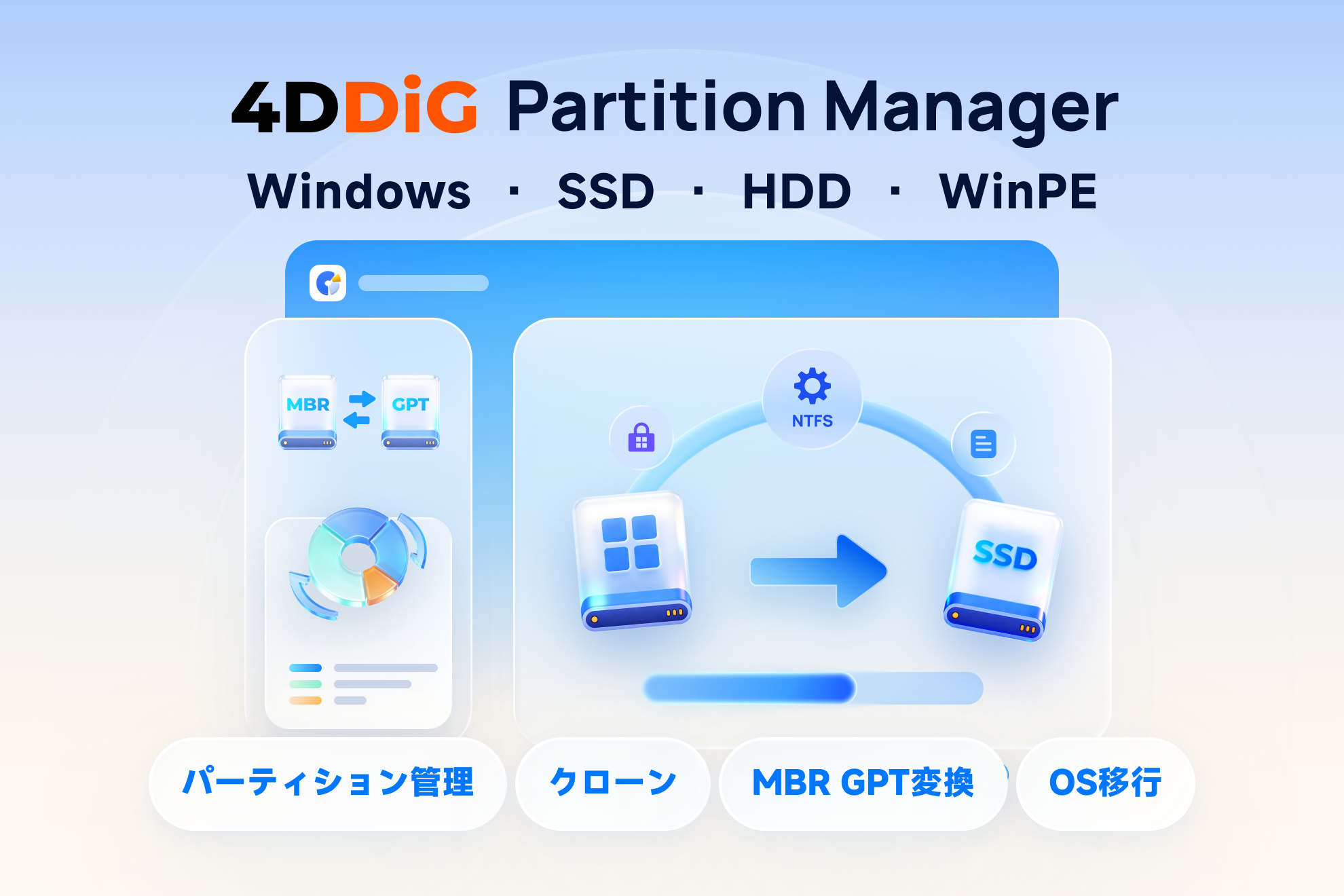
4DDiG Partition Manager is a tool for Windows that makes disk and partition management easy.
It is equipped with features such as OS migration and cloning, helping you to make use of your old PC.
 Ms.Gadgets
Is my PC reaching its limit?
 Mr.Gadgets
It might still have some life left in it!
Features and functions of 4DDiG Partition Manager
Key points of this section!
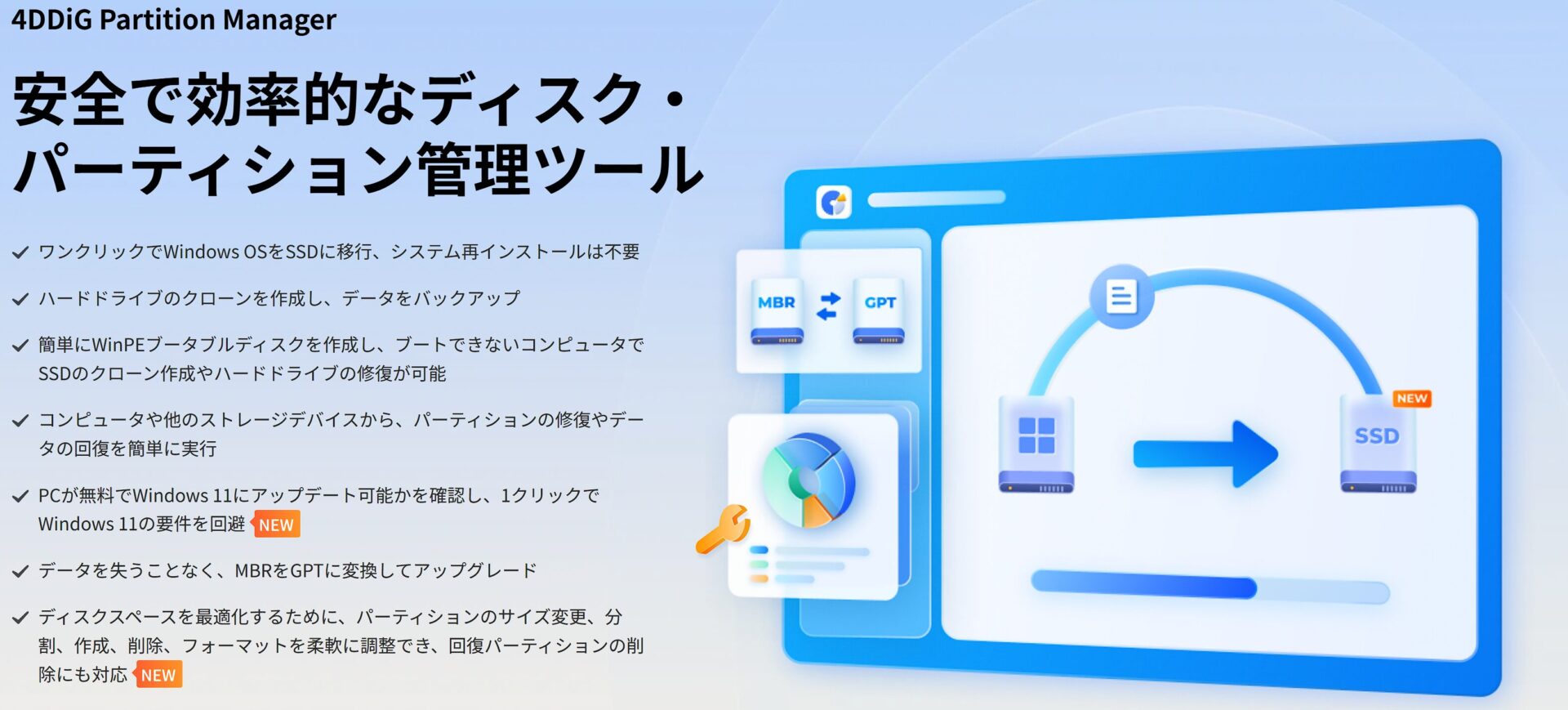
“4DDiG Partition Manager” is a tool for Windows PCs that makes disk and partition management simple.
Specifically, it is equipped with features such as partition operations, OS migration, and disk cloning, assisting in improving PC performance and data management.
Easy partition operations
A partition is a unit for managing subdivided storage areas on hard disks, SSDs, and other storage media.
By manipulating partitions, you can organize disks and secure areas for OS installation.
Mr.GadgetsWith 4DDiG Partition Manager, even beginners can operate it easily!
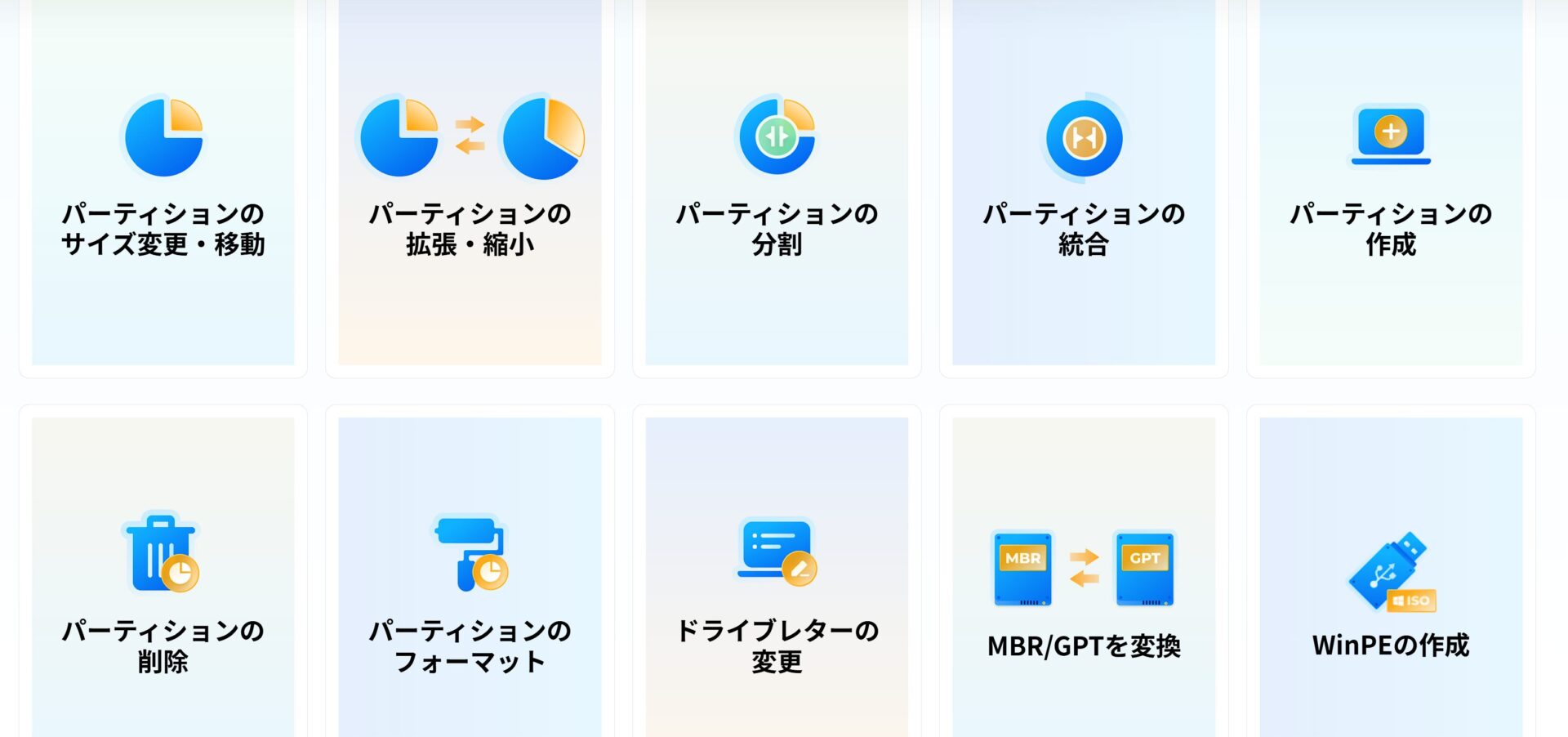
With “4DDiG Partition Manager,” you can perform operations such as resizing, splitting, merging, creating, deleting, and formatting partitions through an intuitive interface.
For example, the following operations are possible.
| Operation | Description |
|---|---|
| Resize | Increase or decrease the capacity of a partition |
| Split | Divide one partition into two or more |
| Merge | Combine multiple partitions into one |
| Create | Create a new partition |
| Delete | Delete unnecessary partitions |
| Format | Initialize a partition and build a file system |
Through these operations, you can make effective use of disk space and optimize your PC’s performance.
Comfortable environment through OS migration
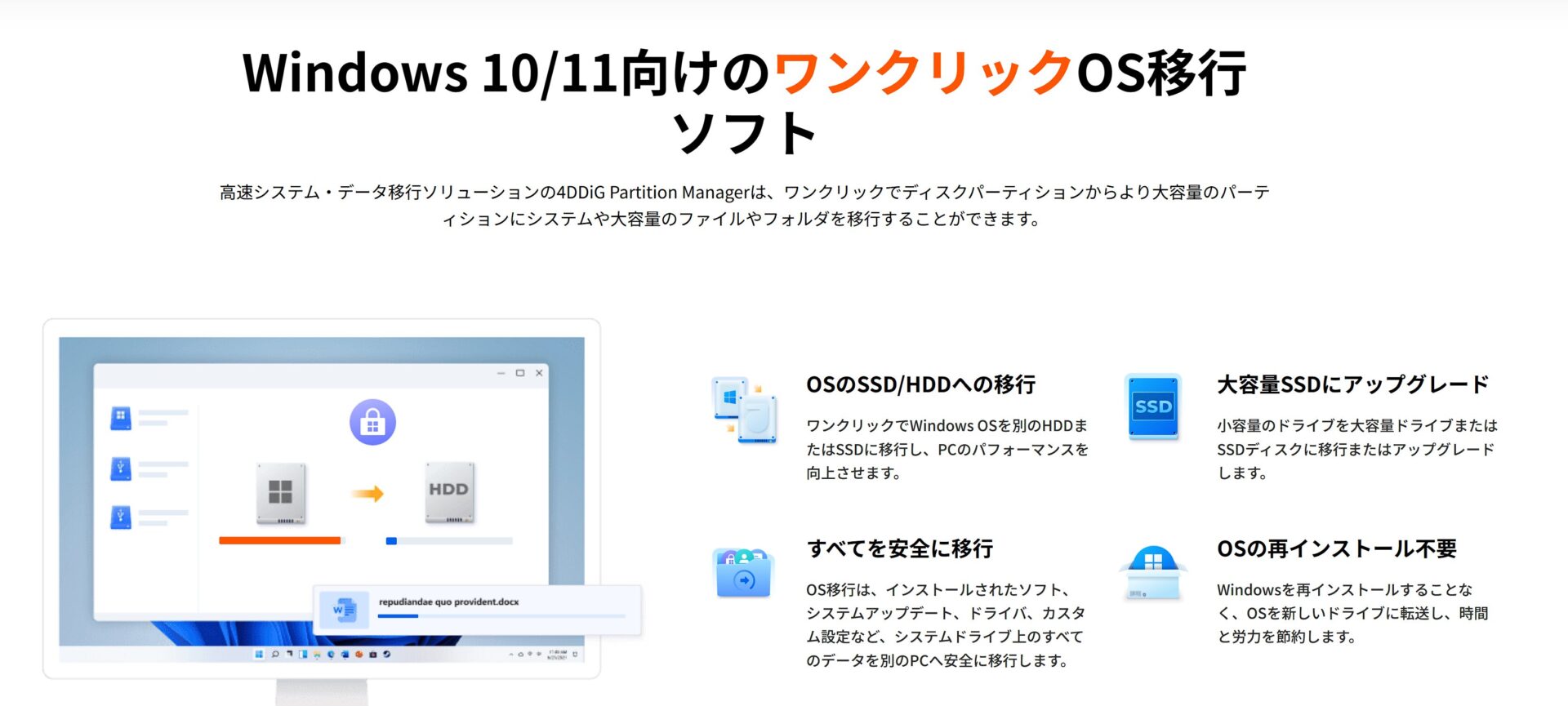
OS migration is the process of moving the currently used OS (such as Windows) to another storage device (e.g., from an HDD to an SSD).
This can improve your PC’s boot time and the speed at which applications run.
Ms.GadgetsMigrating an OS sounds a bit difficult…
Mr.GadgetsWith 4DDiG Partition Manager, you can migrate your OS in simple steps!
Using “4DDiG Partition Manager,” you can migrate your current environment to a different SSD or HDD as-is, without needing to reinstall the OS.
This provides the following benefits:
- Speed increase: Migrating from an HDD to an SSD significantly improves PC boot times and application responsiveness
- Easy operation: OS migration is completed in a few clicks without complex procedures
- Data protection: Since the data at the source is kept as-is, there is less worry about data loss
In particular, by migrating the OS to an SSD, the perceived speed of the PC is greatly improved, allowing for a more comfortable computing environment.
- This article is created based entirely on information provided by the manufacturer.
Please note that our site cannot be held responsible for any errors in this information.
Smooth data migration with disk cloning
Disk cloning refers to copying the entire contents of a storage device, such as a hard disk or SSD, to another storage device.
Ms.GadgetsWhen would you use disk cloning?
Mr.GadgetsThe disk cloning feature of 4DDiG Partition Manager is extremely useful for data migration and backups!
By using the disk cloning feature of “4DDiG Partition Manager,” you can do the following:
- Data migration: You can migrate your OS, applications, and data all at once from an old HDD to a new SSD.
- Backup: You can back up the entire disk in preparation for unexpected failures.
- Upgrade: You can easily upgrade from a low-capacity disk to a large-capacity disk.
It is a very convenient feature, especially when upgrading or replacing a PC, as it allows for easy data migration.
Also, by utilizing it as a backup, you can reduce the risk of data loss.
Creating a clone “occasionally” provides peace of mind.
Steps from installation to Windows 11 upgrade
Key points of this section!
We will explain how to upgrade an old PC to Windows 11 using “4DDiG Partition Manager.”
“I guess I’ll have to give up because I don’t meet the system requirements…”
Ms.GadgetsThat is not the case!
Mr.GadgetsIf you have “4DDiG Partition Manager,” a path might open up for you!
Installation method
Installation of “4DDiG Partition Manager” is completed simply by downloading the installer from the official website and running it.
Once you start the installer, simply follow the on-screen instructions to complete the installation; no difficult operations are required at all.
The installation procedure is as follows:
| Item | Details |
|---|---|
| Procedure | Download the installer from the official website and run it |
| Caution | Confirm that the installer you download is compatible with your Windows OS |
| Supplementary Info | Administrator privileges may be required during installation |
Details on Windows 11 upgrade steps
Upgrading to Windows 11 is possible with simple operations in “4DDiG Partition Manager.”
The specific steps are as follows:
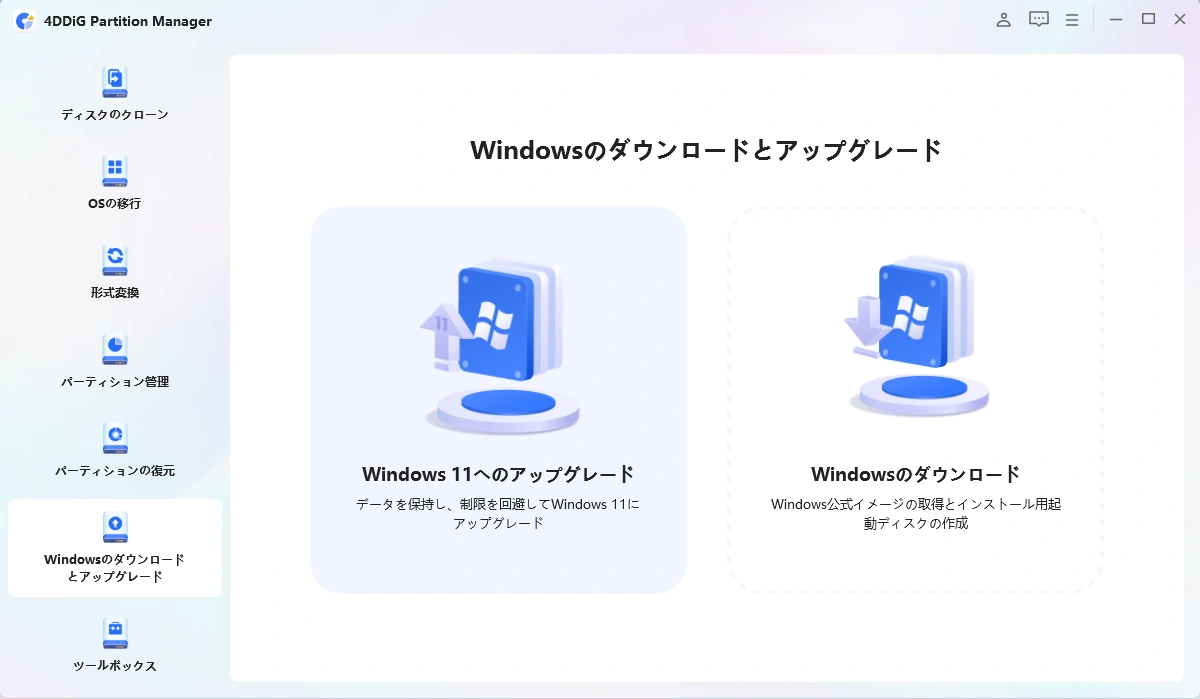
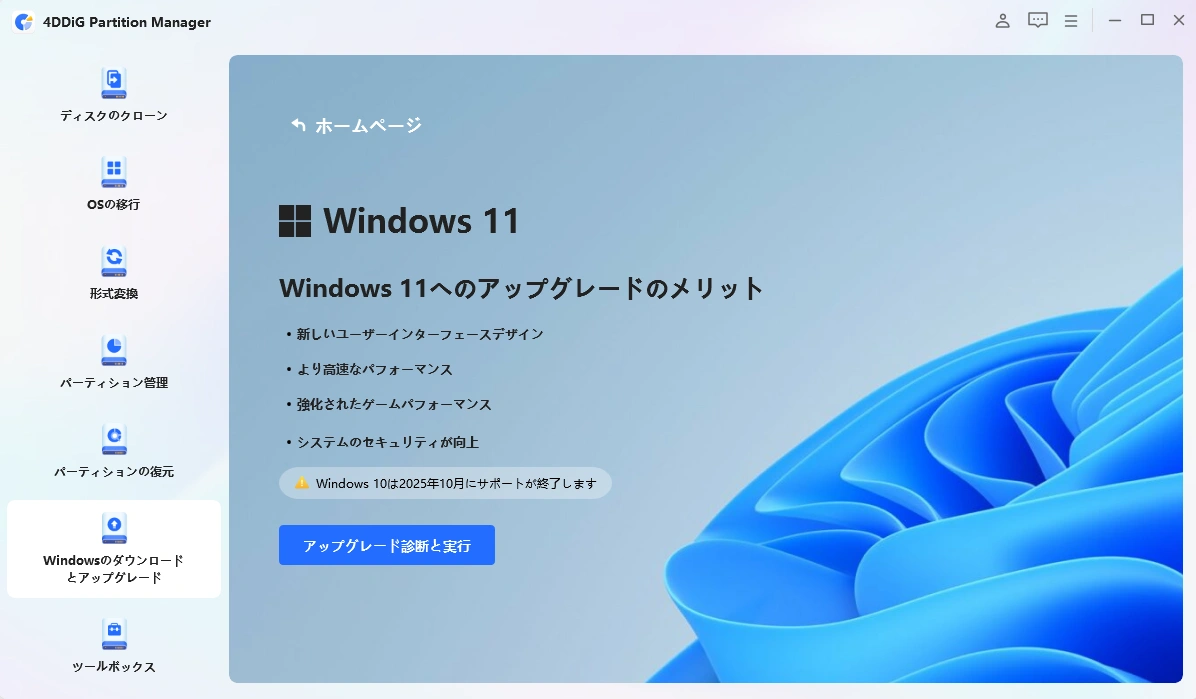
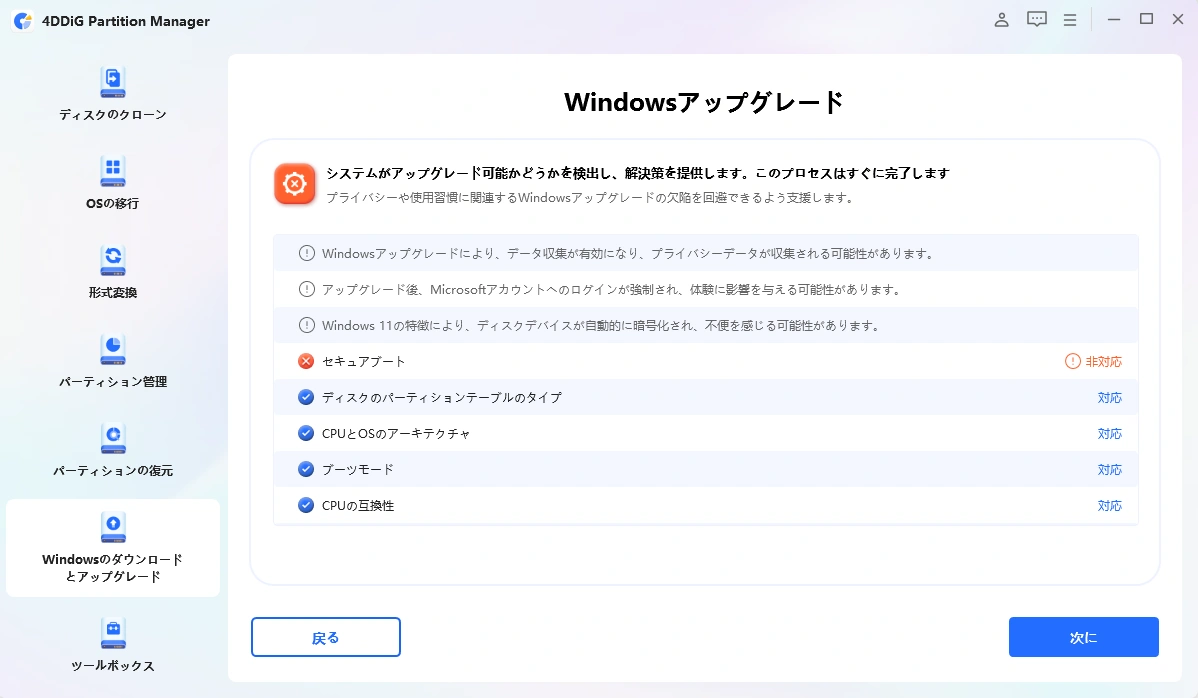
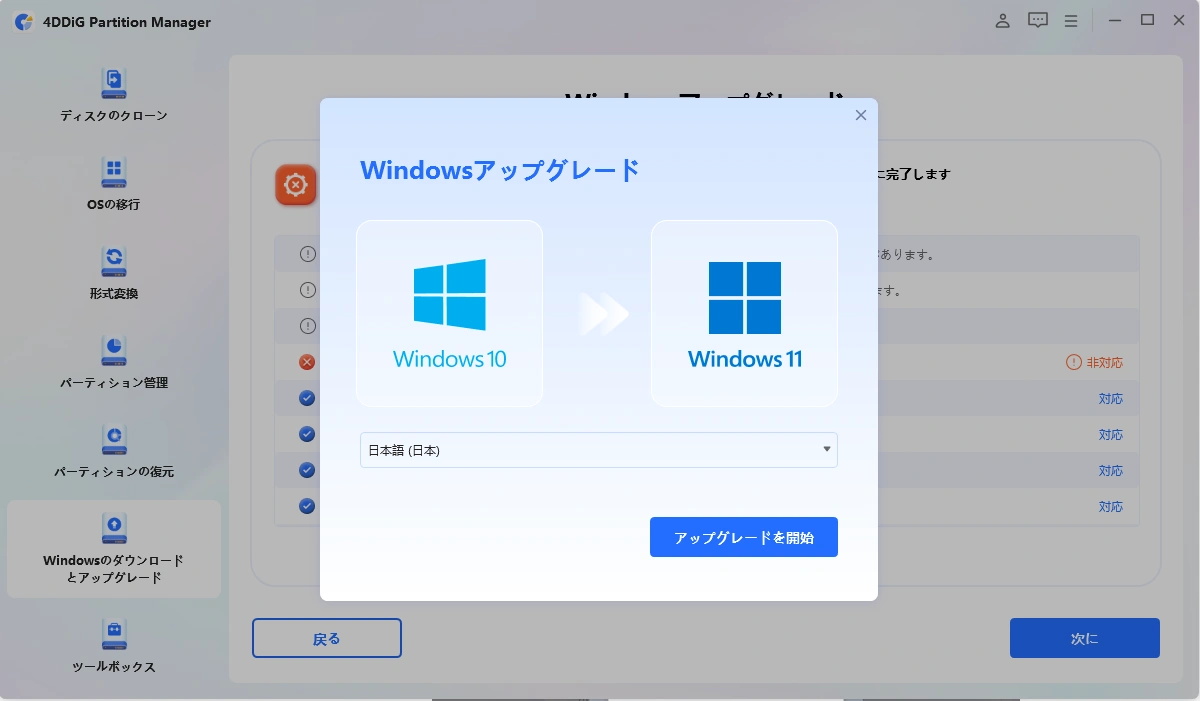
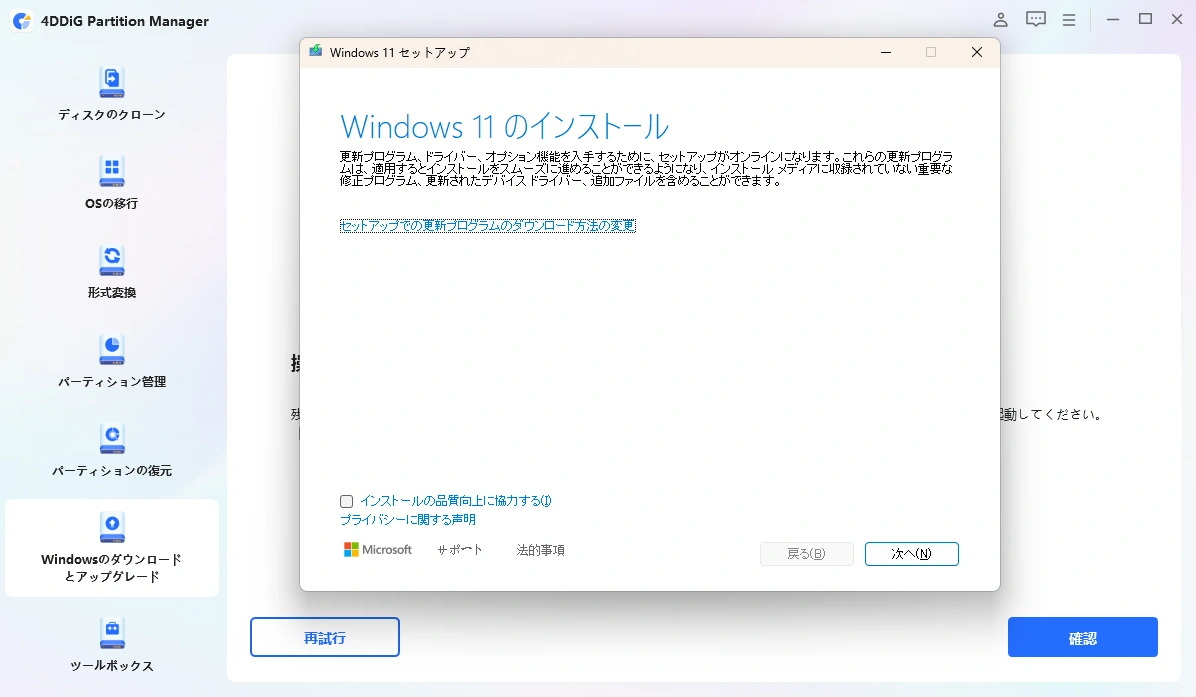
- This article is created based entirely on information provided by the manufacturer.
Please note that our site cannot be held responsible for any errors in this information.
Ms.GadgetsUpgrading seems difficult…
Mr.GadgetsWith “4DDiG Partition Manager,” it’s easy if you just follow the steps!
| Item | Details |
|---|---|
| Caution | Always back up your data before performing an upgrade |
| Supplementary Info | “4DDiG Partition Manager” includes a feature to support Windows 11 upgrades even on PCs that do not meet system requirements. However, it must be used at your own risk. |
Before upgrading, check the detailed steps on the official website.
The strengths of 4DDiG Partition Manager
Key points of this section!
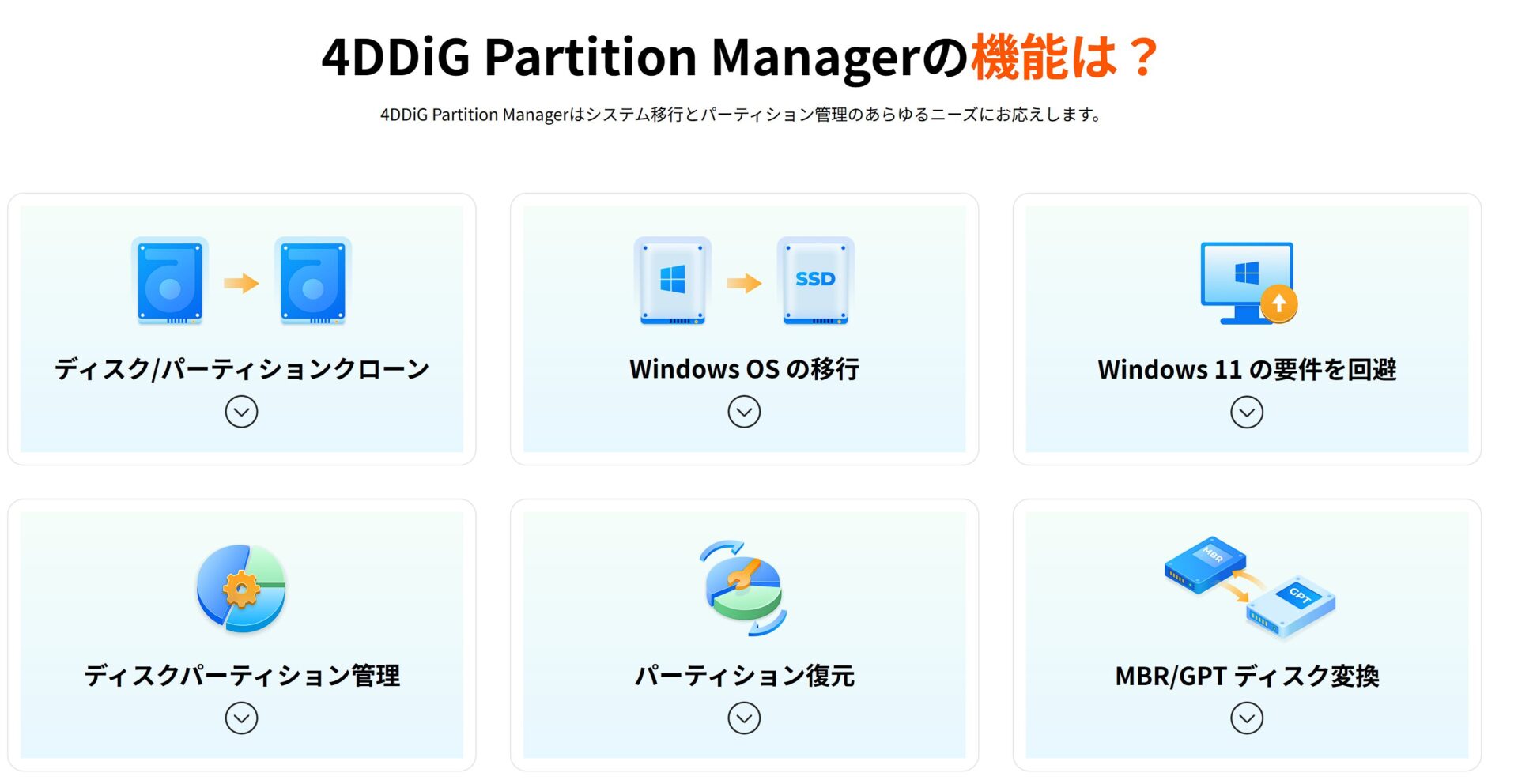
“4DDiG Partition Manager” is a tool for Windows equipped with a wealth of features including disk management, OS migration, cloning, and data recovery.
You can migrate your OS to an SSD without reinstalling it, and resize or extend partitions.
Who is it recommended for?
 Ms.Gadgets
I want to upgrade my old PC to Windows 11, but I’m anxious about whether I can do it successfully…
Mr.GadgetsWith “4DDiG Partition Manager,” you can rest easy!
“4DDiG Partition Manager” is recommended for the following types of people:
| Recommended User | Description |
|---|---|
| PC Beginners | Because it can be operated easily with an easy-to-understand interface even for those new to partition operations |
| Those who prioritize data protection | Because important data can be safely backed up during disk cloning or OS migration |
| Those who want to improve PC performance | Because PC boot and operation speed can be increased by migrating the OS to an SSD |
“4DDiG Partition Manager” is a partition management tool that is easy to use even for those with little PC knowledge.
If you are interested, why not try the free version first?
Thank you for reading until the end!
- This article is created based entirely on information provided by the manufacturer/brand.
Please note that our site cannot be held responsible for any errors in this information. - Product prices and information are current as of the time of writing.
- Product and service names mentioned on this site are trademarks of their respective companies.
This article was originally written in Japanese and has been translated.
Comments