

What is a NAS?
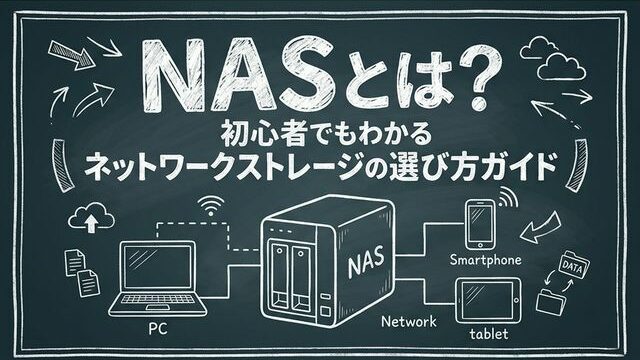
NAS stands for “Network Attached Storage.” It is a storage device used by connecting it to your home or office network (LAN). It is commonly pronounced “nass.”
 Ms.ガジェット
I hear the term “NAS” a lot lately, but how is it different from an external HDD?
 Mr.ガジェット
The biggest difference is that while an external HDD connects via USB to only one PC, a NAS can be accessed simultaneously by multiple devices over a network.
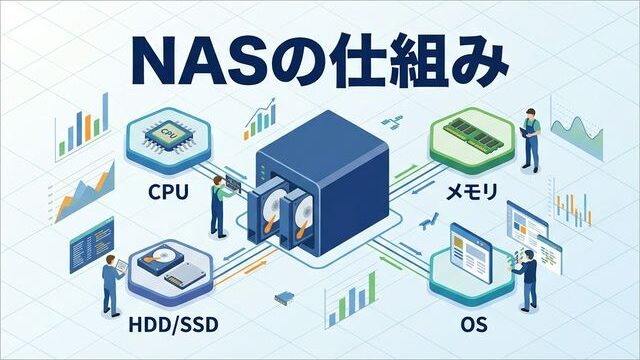
In addition to storage media like HDDs or SSDs, a NAS is configured like a “small server” equipped with a CPU, memory, and a dedicated OS. Its greatest feature is that by simply connecting it to a router via a LAN cable (or Wi-Fi), multiple devices on the same network—such as PCs, smartphones, and tablets—can access, save, and share data at the same time.
Differences from External HDDs and Cloud Storage
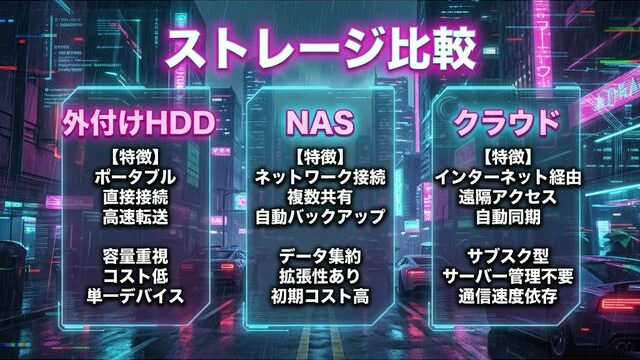
To better understand the position of a NAS, let’s compare it with external HDDs and cloud storage.
Ms.ガジェットCloud storage feels more convenient, so is there a reason to choose a NAS?
Mr.ガジェットCloud storage is convenient, but the monthly costs add up as your capacity increases. A NAS only requires an initial investment, and its strength lies in having full control over your data management.
| Comparison Item | External HDD | NAS | Cloud Storage |
|---|---|---|---|
| Connection Method | USB (1-to-1 with PC) | LAN (via network) | Internet |
| Simultaneous Access | No (Only 1 PC) | Yes (Multiple devices) | Yes |
| Remote Access | No | Yes (Requires setup) | Yes |
| Monthly Cost | None | None (Electricity only) | Yes (Based on capacity) |
| Initial Cost | Low | Medium to High | None to Low |
| Capacity Flexibility | Fixed at purchase | Expandable by swapping HDDs | Expandable via plan change |
| Data Ownership | User | User | Service Provider |
An external HDD is simple, but it can only be accessed from the one PC connected via USB. On the other hand, cloud storage can be accessed from anywhere via the internet, but monthly costs increase as you need more capacity.
A NAS is a well-balanced option: “It requires an initial investment but has no monthly fees, it can be accessed from multiple devices, and you have complete control over your data.” For those who want to store large volumes of data like photos and videos long-term, the cost benefit is significant compared to monthly cloud storage fees.
Benefits of Introducing a NAS
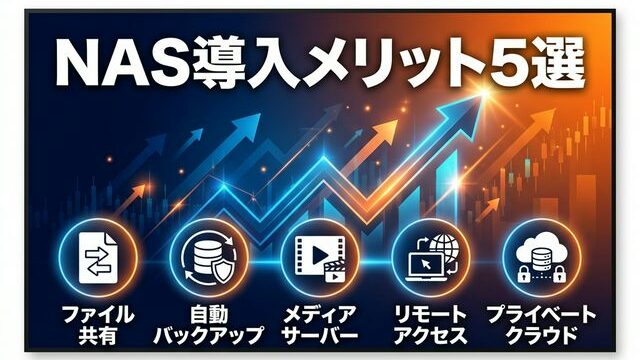
Introducing a NAS enables the following primary use cases:
Ms.ガジェットIn what specific situations is it useful?
Mr.ガジェットThe applications are quite broad, from making family photos accessible from everyone’s smartphones to accessing home files while you are on the go.
- File sharing from multiple devices: Everyone in the family can access photos and videos from their smartphones or PCs. Consolidating home data in one place makes management easier.
- Automatic backup: You can build a system that automatically backs up data from PCs and smartphones periodically, protecting you against hardware failure or loss.
- Media server: You can stream saved videos and music to TVs or game consoles, utilizing it as a home “entertainment hub.”
- Remote access: You can access your home NAS via the internet while away to retrieve files, making necessary data available during business trips or vacations.
- Private cloud: You can build your own cloud environment without relying on cloud services, giving you complete control over data privacy.
Essential Knowledge for Choosing a NAS
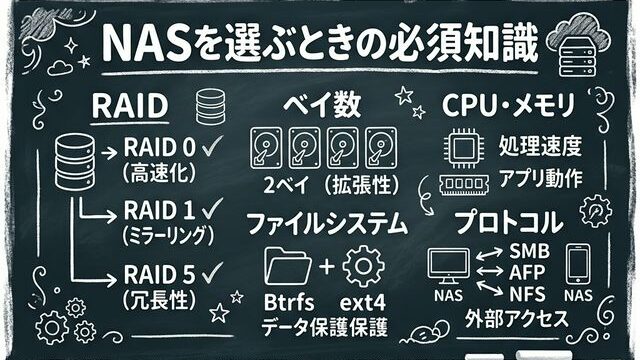
I will explain the technical terms you should know when choosing a NAS. Having this knowledge will make it easier to judge what is important when looking at a spec sheet.
Ms.ガジェットWhen I look at NAS specs, I’m confused by terms like “RAID” and “number of bays.”
Mr.ガジェットWe will look at the meaning of each term and how it relates to your selection. Knowing these will help you avoid making a mistake.
Number of Bays (Drive Slots)
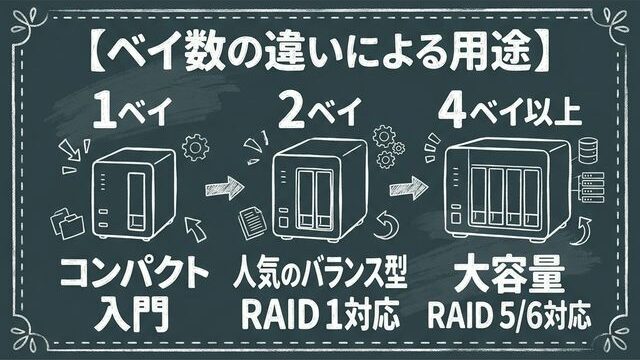
The number of bays refers to the number of HDDs (or SSDs) that can be installed in the NAS unit. The number of bays significantly changes the NAS’s maximum capacity, RAID configuration options, and physical size.
Ms.ガジェットBetween 1-bay, 2-bay, and 4-bay, which should a beginner choose?
Mr.ガジェットFor data protection, a 2-bay is recommended. You can set up RAID 1, so your data remains safe even if one HDD fails.
| Number of Bays | Features | Supported RAID | Recommended Use |
|---|---|---|---|
| 1-bay | Compact, low cost | None | NAS entry, light personal backup |
| 2-bay | Most popular, balanced | RAID 0 / 1 | Personal/Home, photo & video protection |
| 4-bay or more | Large capacity, high redundancy | RAID 0 / 1 / 5 / 6 / 10 | Mass data management, media server |
A 1-bay model is suitable for entry-level users prioritizing cost, but since it cannot be configured for RAID, there is a risk of losing data if the HDD fails. If you value data protection, I recommend choosing a model with at least 2 bays.
With 4 or more bays, advanced redundant configurations like RAID 5 or RAID 6 become possible, allowing you to achieve both large capacity and high security. However, since the unit price and the number of required HDDs increase, the initial cost will be higher. If you expect your data volume to increase significantly in the future, choosing a 4-bay model from the start will lead to fewer regrets.
RAID
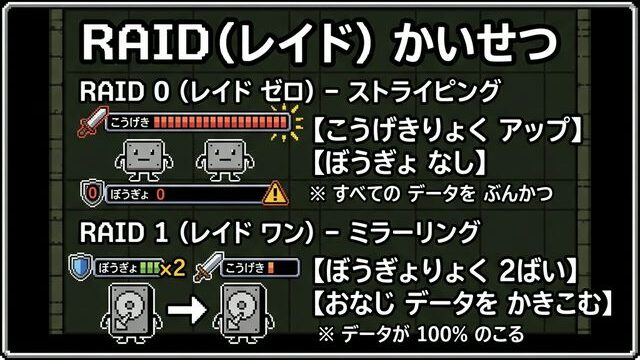
RAID (Redundant Array of Independent Disks) is a technology that combines multiple HDDs to operate as one virtual drive. The objectives are broadly divided into two: “ensuring data redundancy (safety)” and “improving read/write speeds.”
Ms.ガジェットRAID has many types and it’s confusing. Which one is the right choice for personal use?
Mr.ガジェットFor a 2-bay NAS, RAID 1 is the only choice. Your capacity will be halved, but your data is protected even if one HDD fails. For a 4-bay, RAID 5 offers excellent balance.
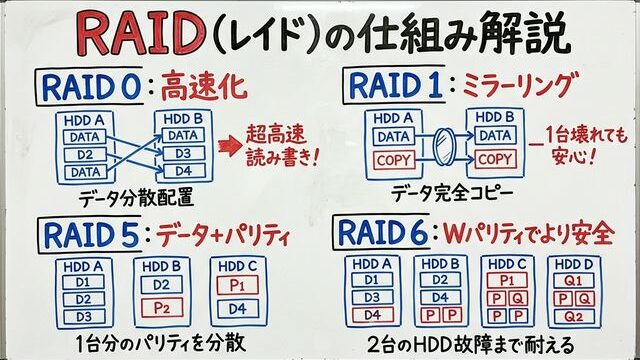
| RAID Level | Mechanism | Required Drives | Capacity Efficiency | Fault Tolerance |
|---|---|---|---|---|
| RAID 0 | Striping (Distributes data) | 2+ | 100% | None (Total loss if 1 drive fails) |
| RAID 1 | Mirroring (Duplicates data) | 2+ | 50% | Yes (Up to 1 failure) |
| RAID 5 | Striping + Distributed Parity | 3+ | (n-1)/n | Yes (Up to 1 failure) |
| RAID 6 | Striping + Double Parity | 4+ | (n-2)/n | Yes (Up to 2 failures) |
For individual users, setting up RAID 1 (Mirroring) on a 2-bay NAS is the simplest and most recommended approach. You can only use the capacity of one drive, but since the data remains on the other drive if one HDD fails, you can protect your precious data.
Note that RAID is a defense against “physical failure” of HDDs and is not a mechanism to protect data from accidental deletion or ransomware. It is recommended to practice the “3-2-1 rule” for backups (3 copies of data, 2 different media, 1 off-site storage). Following this rule increases the likelihood of recovering data even if the NAS unit itself suffers from failure, theft, or disaster.
CPU and Memory
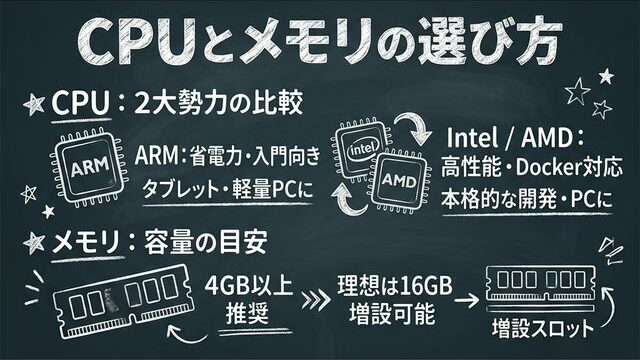
Like PCs, NAS devices are equipped with a CPU and memory, which dictate their processing performance.
Ms.ガジェットNAS devices have CPUs and memory? Is there a performance difference like in PCs?
Mr.ガジェットYes, there is. Low specs are sufficient for simple file sharing, but if you are considering Docker or 4K video playback, an Intel-based CPU and at least 4GB of memory are recommended.
There are two main types of CPU architectures:
- ARM-based: Excellent for power efficiency and quiet operation, with enough performance for basic file sharing and backup. Commonly used in entry-level models. Low power consumption makes them suitable for those wanting to keep electricity bills down.
- Intel / AMD (x86-based): Higher processing performance, capable of handling high-load tasks such as Docker (container virtualization) and 4K video transcoding. Commonly used in mid-to-high-end models. Suitable for those who want to expand their NAS usage in the future.
Memory (RAM) is an important spec that is directly linked to the NAS’s operating speed.
- At least 4GB is recommended. Models with fixed (non-expandable) 2GB memory tend to run low on system cache, which may result in slow performance.
- Ideally, choosing a model that allows expansion up to 16GB provides headroom for when you add apps or services later.
- Higher memory is advantageous for high-load usage such as SSD caching, virtualization, and running multiple apps simultaneously.
As of 2026, NAS devices with built-in NPUs (Neural Processing Units) have also emerged, making it possible to choose models that offload tasks like AI photo recognition and smart album processing from the main CPU for more efficient operation.
File System
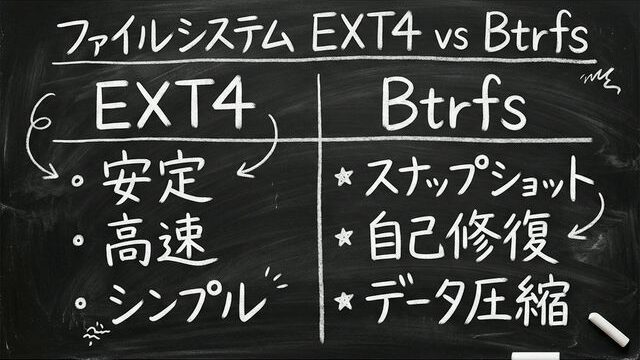
A file system is the mechanism that determines how data on an HDD/SSD is organized and managed. The following two file systems are primarily used in NAS devices:
Ms.ガジェットDo I need to choose a file system when buying a NAS?
Mr.ガジェットYou select it during initial setup. If you’re unsure, Btrfs is a safe bet as it offers protection features like snapshots and self-healing.
| Item | EXT4 | Btrfs |
|---|---|---|
| Stability | Very high (Proven track record) | High (Newer than EXT4) |
| Snapshots | Not supported | Supported (Save/restore state at specific times) |
| Self-healing | Not supported | Supported (Detect/repair corruption via checksum) |
| Data Compression | Not supported | Supported (Saves disk space) |
| Memory Usage | Low | Slightly high (8GB+ recommended) |
| Recommended Use | Simple operation, entry models | Operation prioritizing data protection |
EXT4 is a standard Linux file system, offering a simple option with excellent stability and speed. Btrfs, on the other hand, features snapshot capabilities via “Copy-on-Write” technology and automatic detection/repair of data corruption via checksums, making it suitable if you prioritize data integrity.
Many NAS manufacturers, including Synology, recommend using Btrfs. However, because Btrfs consumes slightly more memory compared to EXT4, entry-level models with only 2GB of memory may perform more comfortably with EXT4.
Supported Protocols
The communication protocols supported by a NAS (the rules for exchanging data) vary in importance depending on the OS and usage environment.
Ms.ガジェットThere seem to be multiple protocols; do I need to memorize all of them?
Mr.ガジェットFor home use, you only need to know SMB. You can access it via SMB on both Windows and Mac.
| Protocol | Overview | Main Environment |
|---|---|---|
| SMB | Standard for Windows file sharing. Also usable on macOS | Windows PC, macOS |
| NFS | File sharing standard for Linux/UNIX. Used in virtualization | Linux, Virtualization |
| AFP | File sharing for macOS. Migrating to SMB now | Legacy macOS |
| iSCSI | Mounts storage at block level. Fast but complex setup | Servers, Virtualization |
| WebDAV | HTTP-based file access. Accessible via browser | Remote access |
For general home use, you will be fine if it supports SMB. You can access the NAS via SMB on both Windows and macOS.
NFS is necessary if you are using a Linux environment or want to use the NAS as shared storage for a virtualization platform. iSCSI is an advanced feature for treating a NAS like a local disk, which you rarely need to worry about for personal use.
OS and App Ecosystem
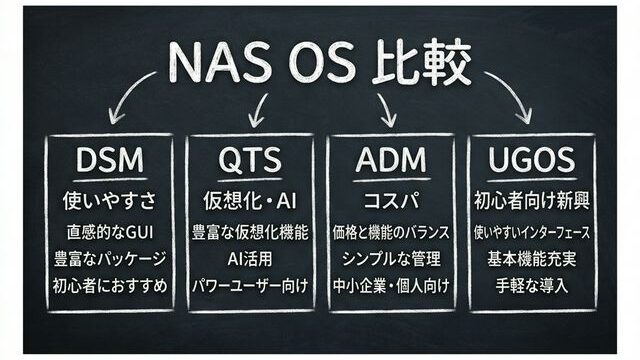
NAS units are equipped with a dedicated OS, and it is standard to manage them via a Web browser. The OS differs by manufacturer, resulting in differences in usability and extensibility.
Ms.ガジェットDoes the NAS OS vary significantly by manufacturer?
Mr.ガジェットYes, significantly. The range of apps, ease of UI, and security measures reflect the manufacturer’s capability. For beginners, Synology’s DSM is reassuring due to the abundance of information available.
| Manufacturer | OS Name | Features |
|---|---|---|
| Synology | DSM | Refined and easy-to-use UI. Rich app ecosystem and high stability. Lots of online troubleshooting info |
| QNAP | QTS / QuTS hero | Rich virtualization and AI features utilizing hardware performance. QuTS hero specializes in data protection via ZFS. Many PCIe expansion models |
| ASUSTOR | ADM | Features cost-effective hardware. ADM 5.0 supports SMB Multichannel. Models tailored for gamers |
| UGREEN | UGOS Pro | Emerging OS based on Debian 12. Simple UI for beginners. Supports Docker. High hardware cost-performance, e.g., Intel N100 models |
The quality of the OS significantly impacts the NAS experience. For many people, Synology’s DSM is a safe choice because of its extensive app variety and abundant troubleshooting information. However, if you prioritize hardware cost-performance, QNAP, ASUSTOR, and UGREEN are also strong candidates.
In 2025, it was notable that Synology relaxed restrictions on third-party HDDs/SATA SSDs for some models with the DSM 7.3 update (restrictions on M.2 NVMe drives remain). When choosing a manufacturer, it is wise to check not only the OS features but also their HDD compatibility policy.
How to Choose a NAS
Based on the knowledge covered so far, I will explain specific criteria for choosing a NAS that fits your purpose.
Ms.ガジェットI generally understand the terms. But what criteria should I use when actually buying one?
Mr.ガジェットIt is easiest to narrow it down by considering “purpose” first, followed by “budget” and “installation environment.”
Choosing by Purpose
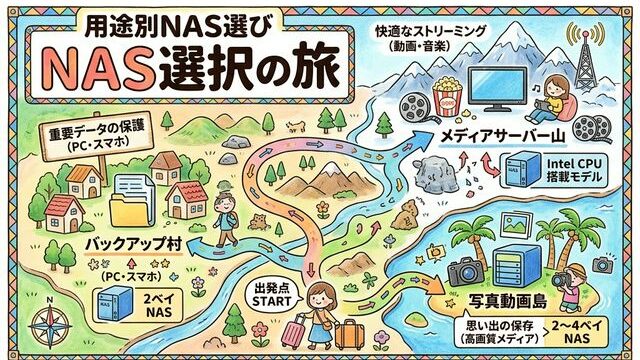
NAS requirements vary by purpose. First, it is important to clarify “what you will use it for.”
Ms.ガジェットI want to do backups and photo management. What kind of specs do I need?
Mr.ガジェットFor that purpose, a 2-bay + RAID 1 is sufficient. Use double your current data volume as a guide for capacity.
| Purpose | Recommended Bays | Recommended RAID | Key Point |
|---|---|---|---|
| PC/Smartphone Backup | 2-bay | RAID 1 | Data protection is priority. Aim for 2x current data size |
| Photo/Video Management | 2–4 bay | RAID 1 / 5 | Capacity grows quickly, so plan with headroom |
| Media Server (Plex, etc.) | 2–4 bay | RAID 5 | Use Intel CPU models for 4K transcoding |
| Small Office Share | 4+ bays | RAID 5 / 6 | High simultaneous access requires good CPU/RAM |
The key is to select a configuration with headroom, anticipating not just “current data volume” but how much it might grow in 3 to 5 years. Smartphone photos, in particular, increase in file size every year, so designing for capacity is important.
Choosing by Introduction Cost
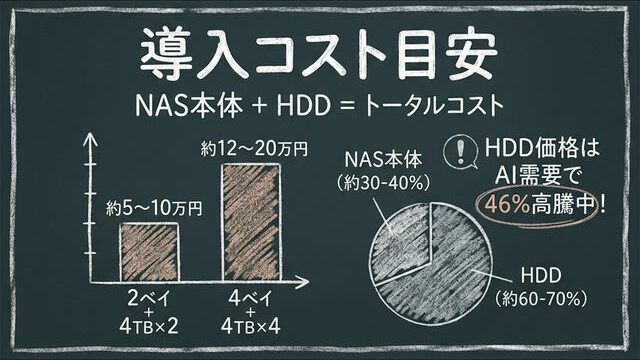
The cost of introducing a NAS must be considered as the total of “NAS unit” + “HDD (or SSD).”
Ms.ガジェットNAS units have an image of being expensive; how much is it really?
Mr.ガジェットA 2-bay NAS kit + 2 HDDs is roughly 50,000 to 100,000 yen. However, as of 2026, HDD prices are soaring due to AI demand, so timing is important.
NAS Unit Price Range (As of 2026)
| Type | Price Range | Features |
|---|---|---|
| HDD-Included (Ready-to-use) | Approx. 20k–50k yen | Convenient, ready to use. Hard to change capacity |
| NAS Kit (HDD sold separately) | Approx. 20k–100k yen | Freedom to choose HDDs. Highly extensible |
HDD Price Situation (2026)
As of 2026, HDD prices are on an upward trend due to a surge in AI demand. An average price increase of about 46% compared to September 2025 has been reported. This trend is expected to continue throughout 2026.
While HDDs remain more cost-efficient than SSDs in the 4TB+ capacity range, the price gap is narrowing in the 1–2TB class. Since most NAS use cases involve 4TB or more, HDDs remain the practical choice for now.
Estimated Total Cost (NAS + HDD)
| Configuration | Estimated Amount |
|---|---|
| 2-bay kit + 4TB HDD x 2 (RAID 1) | Approx. 50k–100k yen |
| 4-bay kit + 4TB HDD x 4 (RAID 5) | Approx. 120k–200k yen |
| HDD-Included NAS (4TB) | Approx. 30k–50k yen |
Do not judge by the catalog price of the NAS unit alone; it is important to compare the “total cost,” including the number of HDDs × unit price. Don’t forget to consider electricity costs during operation (a few hundred yen per month for 24/7 operation).
Choosing by Noise Level and Power Consumption
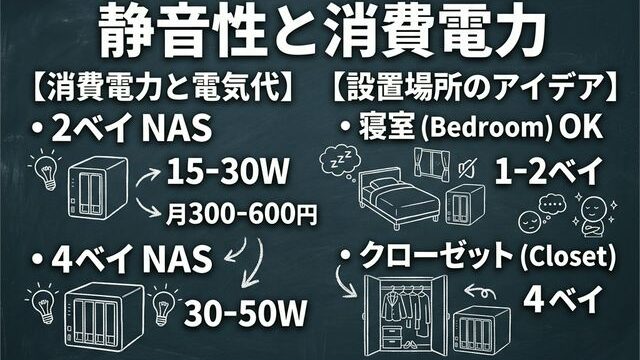
A NAS is essentially a device that runs 24/7/365. Therefore, noise and power consumption directly affect long-term satisfaction.
Ms.ガジェットThe NAS is on 24/7, right? Isn’t it noisy?
Mr.ガジェットSmall 2-bay models are quiet enough that you won’t mind them even in a bedroom. For 4+ bays, it is more practical to place them in a closet or a separate room.
Key Points for Noise
- HDD rotation sound and fan wind noise are the main sources of NAS noise.
- Small 1–2 bay models are relatively quiet and easy to place in bedrooms or living rooms.
- 4+ bay models tend to be noisier due to the increased number of HDDs.
- If it supports HDD spin-down, you can suppress noise when not in use.
- Configuring with SSDs only makes rotation noise completely zero, but costs increase significantly.
Estimated Power Consumption
- 2-bay NAS (normal operation): Approx. 15–30W
- 4-bay NAS (normal operation): Approx. 30–50W
- Power drops further during HDD sleep mode.
Converted to monthly electricity, this is roughly 300–700 yen for a 2-bay NAS. Use this as a reference when comparing against cloud storage monthly fees.
Supplementary Terms and Specifications
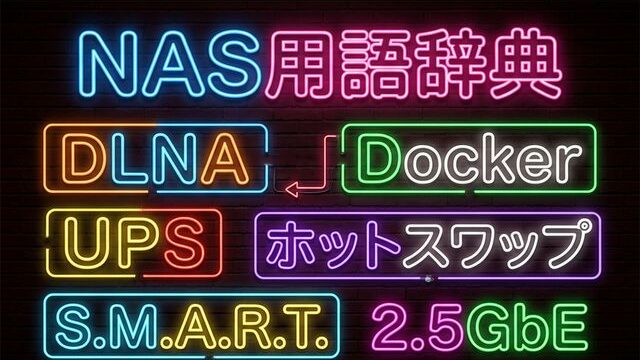
I have summarized useful terms to know when using a NAS that did not appear in the previous explanations.
Ms.ガジェットAre there any other terms I should know?
Mr.ガジェットYes, a few. These are terms that come up once you start operating a NAS, so please take a look.
DLNA (Digital Living Network Alliance)
A standard that allows you to stream videos, music, and photos saved on a NAS to DLNA-compatible TVs, game consoles, and smartphones over a network. You can use it simply by enabling the DLNA server (media server) function on the NAS side. If you have a DLNA-compatible TV at home, you can easily enjoy NAS videos on the big screen.
Docker
A virtualization technology that runs applications in independent environments called “containers.” If a NAS supports Docker, you can run various apps on the NAS to extend its functionality, such as media servers (Plex, Jellyfin), password management tools, or ad blockers. Docker runs on ARM-based NAS devices, but there are significantly more compatible apps for Intel/AMD (x86) CPUs, so if you prioritize Docker usage, I recommend choosing a model equipped with an x86 CPU.
UPS (Uninterruptible Power Supply)
A battery device that temporarily supplies power to the NAS during a power outage to shut it down safely. Sudden power outages can cause physical damage to HDDs and data corruption, so using a UPS is recommended if you handle important data. Many NAS devices have integration functions with UPS, allowing settings to shut down automatically upon detecting a power outage. You can get one starting from 7,000 to 10,000 yen.
Hot Swap
A feature that allows you to replace an HDD while the NAS is running, without turning it off. This is particularly useful in RAID environments, as you can replace a failed HDD and start RAID rebuilding without stopping the NAS. It is mainly found in 2+ bay NAS kits. This is an important feature for business use as it enables handling failures with zero downtime.
S.M.A.R.T. (Self-Monitoring, Analysis and Reporting Technology)
A self-diagnostic function for HDDs/SSDs. It constantly monitors drive temperature, usage hours, number of bad sectors, etc., and you can check this data from the NAS management screen. By checking S.M.A.R.T. information periodically, you can detect abnormalities before an HDD fails completely, allowing for preemptive replacement or backup. You can also set up the NAS OS to send email notifications when an abnormality is detected.
2.5GbE / 10GbE
Standards for network communication speed. The transfer speed of traditional Gigabit Ethernet (1GbE) is approximately 125MB/s, whereas 2.5GbE supports up to about 312MB/s, and 10GbE supports up to about 1,250MB/s.
As of 2026, the NAS standard is in a transition period from 1GbE to 2.5GbE. Please note that if you prioritize transfer speeds for large files, not only the NAS unit but also your router and LAN cable (Cat5e or higher) must support 2.5GbE or higher. With the spread of Wi-Fi 7 routers, we have entered an era where 2.5GbE or higher is also required on the wired LAN side.
Thank you for reading until the end!
- The evaluation in this article is unique to this site.
- Unless otherwise specified, product prices and information are current as of the time of writing.
- Please note that this site cannot be held responsible for any inaccuracies in this information.
- Product and service names mentioned on this site are trademarks of their respective companies.
コメント